Show the Word ruler before inspecting paragraph indents
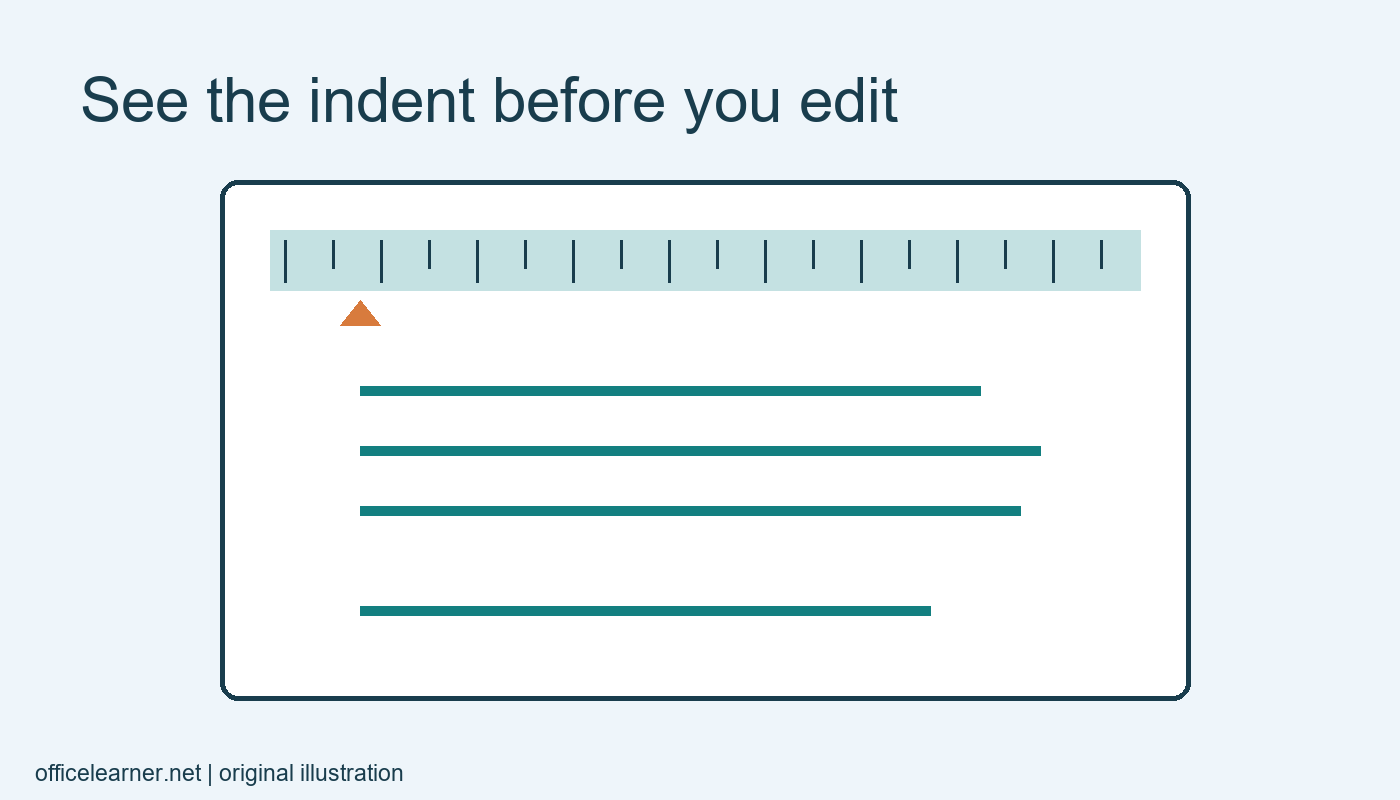
In desktop Word, select View and turn on Ruler to make paragraph indent positions visible while you edit. Use it to inspect where a paragraph starts and where its first line sits before changing anything. Showing the ruler is a display choice; it does not itself change paragraph formatting. That distinction helps when a handout looks uneven and you want to diagnose it without accidentally redesigning the page.
Prepare an easy comparison
Open a copy of a short document containing three ordinary paragraphs. Give them temporary labels such as Introduction, Materials, and Closing so you can return to each one. Use Print Layout on Windows for this exercise. Select View and choose Ruler. A horizontal measuring strip should appear above the document. Click inside the first paragraph without selecting several paragraphs at once, then look at the markers on that strip.
Repeat the observation in the second and third paragraphs. Write down whether their starting positions look alike. Do not drag a marker yet. A frequent source of confusion is that the displayed markers follow the paragraph containing the cursor. Clicking elsewhere can therefore change what the ruler shows even when you have not edited anything. That is useful evidence about the document rather than an indication that the ruler is unstable.
Distinguish display from formatting
Turn Ruler off and on once. The text should keep its position while the measuring strip disappears and returns. This quick comparison establishes what the control actually does. If the paragraph moves, check whether you dragged a marker or applied a formatting command instead of merely toggling the display. Undo the unintended edit before continuing. Keep the practice document short enough that a changed line break is easy to notice.
For an original example, imagine a materials paragraph beginning farther right than the introduction. Showing the ruler allows you to compare their indent markers, but it does not tell you whether the difference was intentional. A quotation, list, or explanatory note may reasonably use a different indent. Ask what role the paragraph serves before making all starts identical. A visually uniform document can still be structurally wrong if meaningful distinctions have been removed.
Inspect the first line separately
Place the cursor inside a paragraph whose first line starts differently from its remaining lines. Observe the first-line and remaining-line indent markers without moving them. In a practice copy, use the Paragraph dialog to read the corresponding settings if you need numeric confirmation. The ruler gives a spatial overview; the dialog is useful when you need to record exact values for another editor or compare two paragraphs precisely.
Avoid using repeated spaces to imitate an indent while inspecting the document. Spaces are characters, while paragraph indents are formatting. If the ruler markers match but the visible starts differ, hidden spaces or tabs may be involved. Turn on formatting marks to investigate those characters. Remove only confirmed accidental characters in the copy, and check the sentence afterward. Do not delete meaningful tabs from a table-like list simply because they are visible.
Find the vertical ruler on Windows
The vertical ruler is a separate display consideration. Microsoft directs Windows users to File, Options, Advanced, then the Display setting named Show vertical ruler in Print Layout view. Enable that setting when you need the vertical reference and remain in Print Layout. If the horizontal ruler is present but the vertical one is absent, check this option before assuming the document is damaged or changing page margins.
Word for Mac also offers View and Ruler, but its vertical-ruler preference is under Word's preferences and View options. Microsoft lists Word for the web in the ruler guidance too, with View and Ruler for its horizontal display. Do not assume that browser Word exposes every desktop layout preference. Follow the section of Microsoft's help matching your platform, and identify the platform when giving another person instructions.
Check awkward document views
If the ruler seems unavailable, first identify the app and current document view. A narrow browser window, a collapsed ribbon, reading mode, or a protected document can make editing controls appear different. Return to an editable practice copy and a normal editing layout. The goal is to see formatting references, so changing zoom may help you inspect them, but zoom does not change the stored paragraph indent values.
If measurements look unfamiliar, record the displayed units rather than mentally treating every mark as an inch. A colleague using centimetres can inspect the same document with different ruler labels. Compare actual positions or use the Paragraph dialog's values with units attached. Keep screenshots, if you make your own, tightly cropped around the relevant paragraph and ruler, and avoid including private document text in a shared troubleshooting image.
Practice a diagnosis before editing
Choose two paragraphs with different visible starts. State whether the ruler markers differ, whether there are leading tabs or spaces, and whether their document roles justify the difference. Then decide what single adjustment would be appropriate, if any. This exercise separates observation from correction. Can you explain why turning the ruler on helps you investigate a layout problem while leaving the text and its formatting unchanged?