Give one PowerPoint discussion slide a solid background
To give one PowerPoint slide a solid background, select that slide, open its background formatting controls, and choose Solid fill and a color. Leave Apply to All unused when only the current slide should change. A restrained background can distinguish a discussion pause from the surrounding explanation slides, provided the text remains easy to read and the change has a clear purpose.
Define the slide that needs emphasis
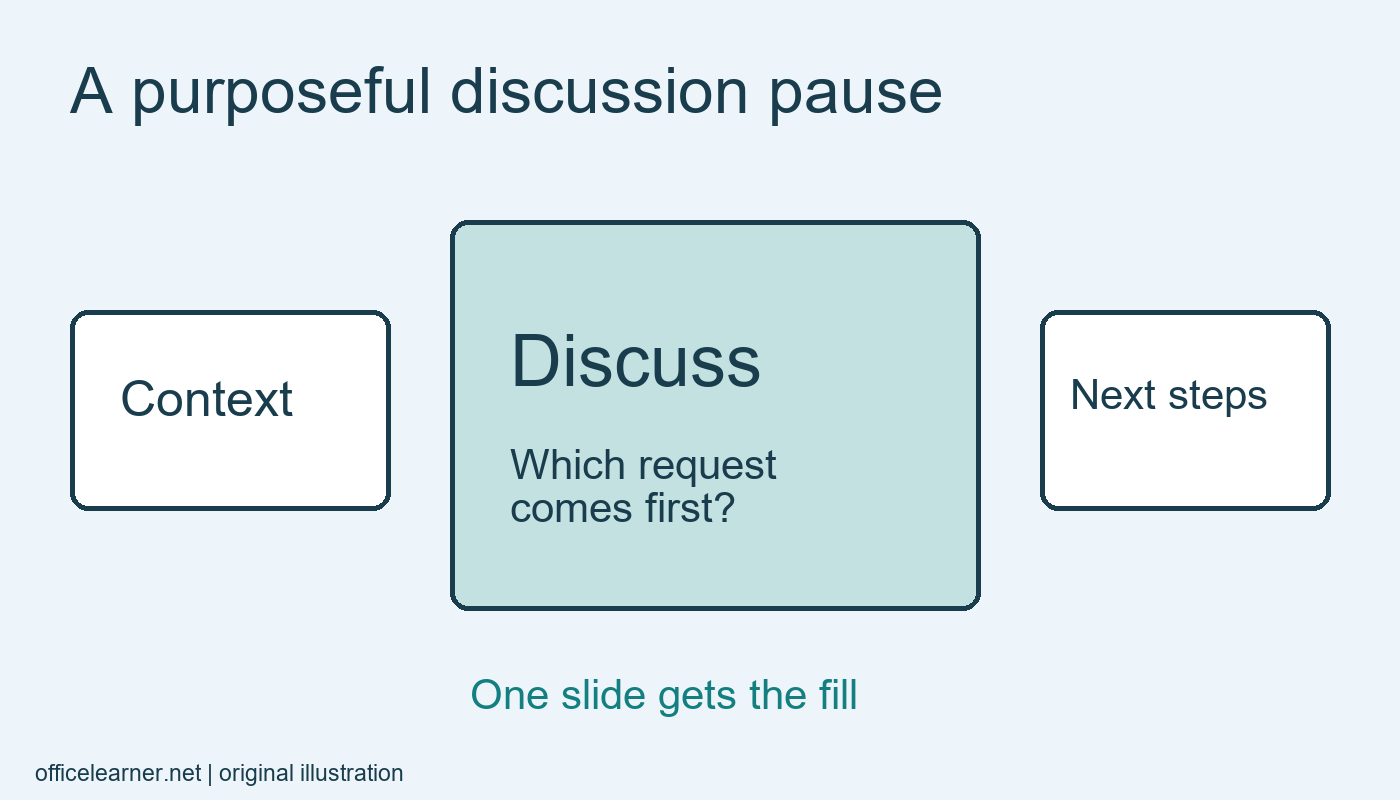
Make a practice presentation with three slides titled Context, Discuss, and Next steps. Put a short question on Discuss, such as Which supply request should we handle first. Keep the other two slides on a plain background. This small sequence gives you an obvious way to confirm the scope of the change. Save the file before experimenting so an accidental presentation-wide formatting change is easy to recover from.
Select the Discuss thumbnail in Normal view. Confirm that the large editing area displays the intended question. A selected object within a slide is different from selecting the slide itself for background work. If a shape formatting panel appears, click the slide background or return to the Design controls. The desired change belongs to the slide surface, not to a rectangle placed behind the question as an extra object.
Apply a modest solid fill
In desktop PowerPoint, use the Design tab's background controls to open Format Background. Microsoft documents Background Styles and Format Background for supported desktop versions; ribbon placement can vary with version and window width. Under Fill, choose Solid fill and select a pale color. For this example, a light blue or light cream lets dark text remain prominent without turning the slide into a dense colored panel.
Close the pane or move to another slide without selecting Apply to All. Check the Context and Next steps thumbnails. They should retain their original appearance. Return to Discuss and confirm that its background is the one you changed. This neighboring-slide comparison is more reliable than looking only at the active slide, because a presentation-wide change can look entirely correct when viewed in isolation.
Use the web controls appropriately
In PowerPoint for the web, Microsoft's documented route is Design, Background, then Solid Fill and a color from the gallery. The same scope question applies: do not select Apply to All for a one-slide exercise. Browser and desktop controls are not identical, and advanced fills may require the desktop app. A solid color is a practical common starting point when a presentation will move between environments.
This guide covers the simple background fill, not theme editing or changes to the slide master. Existing logos, inherited graphics, and placeholders may remain visible above the fill. If something still appears, identify whether it is an object or inherited graphic before deleting it. Do not remove a required organizational mark simply to make the background look cleaner. Keep the practice file separate from an approved corporate template.
Check the question at presentation size
Start a slide show or presentation preview and view the question from the distance your audience will use. A background that looks gentle at editing zoom can still make small gray text difficult to read. For the example, keep the question short and dark, with ample space around it. Avoid placing the only meaning in color: the title Discuss should still explain why the slide is different.
Also inspect notes or printed handouts if they are part of the actual delivery. Do not assume that a colored background improves a grayscale printout. If the question becomes faint on paper, use a simpler fill or a separate handout treatment. The design decision should support the specific reading situation. A colorful pause slide offers little value if the audience has to work harder to read its question.
Recover from common mistakes
If every slide changed, undo promptly and repeat with just the intended slide selected, leaving Apply to All untouched. If only a shape changed, undo that edit and open background formatting again. If the text seems to disappear, select a background color with stronger contrast against the existing text or adjust the text deliberately. Do not pile additional translucent rectangles onto the slide as an improvised repair.
If a background picture was present, choosing Solid fill replaces that picture fill on the selected slide. Before doing so in a real deck, consider whether the picture carries essential meaning. A simple background is appropriate for the practice question, but removing an explanatory image would change the content. Record what you intended to change and check that the slide still communicates the same information after the visual treatment.
Try a controlled variation
Use a pale blue background for Discuss, then try a pale cream alternative on the same slide. Compare the question's legibility, the transition from Context, and the return to Next steps. Choose one and delete any temporary experiment slides. The successful result is a purposeful visual pause with unchanged neighboring slides. Which background makes the question easiest to read without drawing attention away from the decision you want the audience to discuss?