Remove a transition from one PowerPoint slide
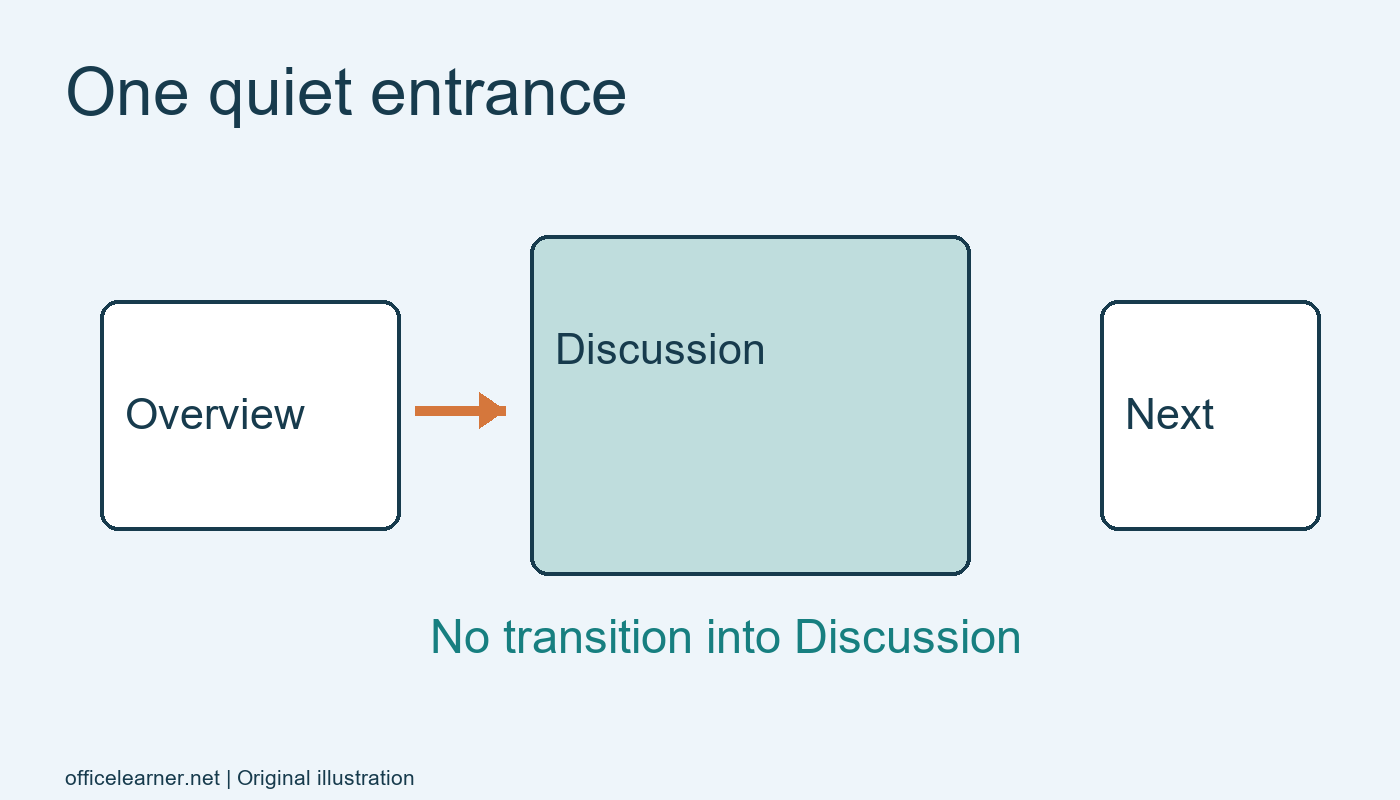
Select the slide whose entrance effect you want to remove, open Transitions, and choose None. In PowerPoint, a transition is attached to the slide that arrives, so start by selecting the destination slide. Removing one transition is useful when a quiet instruction slide should appear immediately after a demonstration. It does not remove animations on individual objects, and it does not automatically change the way the presentation advances between slides. Those are separate settings worth checking afterward.
Build a three slide practice deck
Create a disposable presentation with three simple slides titled Overview, Discussion, and Next steps. Put one sentence on each slide so that visual effects are easy to notice. Save the deck before editing. If you already have a working presentation, use a copy and identify the exact slide number and title you intend to change. Titles help when later insertions shift slide numbers. The practice deck lets you learn the direction of transition ownership without disturbing an important presentation.
Select Discussion in the thumbnail pane. If it currently has a transition, the Transitions tab should indicate the chosen effect. Select None in the transition gallery. If None is not visible, expand the gallery to inspect the available choices. Leave Apply To All alone when the requested change concerns only this slide. That button deliberately broadens the transition setting across the deck, which is a different editing scope from removing a single distracting entrance effect.
Test the boundary on both sides
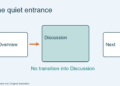
Start the slide show at Overview and advance to Discussion. The transition into Discussion should now be absent. Continue to Next steps and observe its entrance too. That second boundary is an important check: an effect entering Next steps belongs to Next steps, not to Discussion. People often select the slide they are leaving and wonder why the next entrance remains animated. Walking through both boundaries makes the ownership rule visible and gives you a reproducible way to locate the correct slide.
Do not judge the change only by clicking around in editing view. Editing thumbnails help you select slides, while slide show playback exposes the audience's experience. A transition preview can help isolate an effect, but a short playback from the preceding slide gives you context. Note whether the discussion question is readable as soon as it appears and whether the next slide behaves as intended. This example describes a verification you should perform; it is not a claim that your deck has already been tested.
Separate transitions and animations
Suppose Discussion still reveals three bullet points one at a time after you choose None. Those are likely object animations rather than a slide transition. Inspect the Animations controls and the relevant objects if you intend to change that behavior. Do not remove unrelated animations just because they also involve motion. A presenter may rely on a staged reveal to ask the audience a question before showing the answer. Ask what the motion is meant to accomplish before changing a second category of effect.
Similarly, an object that seems to move smoothly from the previous slide may have been part of a transition effect such as Morph. Choosing None changes that entrance behavior, but the underlying objects remain on the slides. Check whether the resulting immediate switch still communicates the relationship clearly. If the slide depended on motion to explain a before and after state, add a concise static label or separate explanation rather than leaving the audience to infer what changed between two nearly identical diagrams.
Check slide advance timing separately
Removing an effect does not mean the deck will now wait indefinitely for a click. The Transitions tab also contains advance controls, and a presentation may have automatic timings. Inspect the selected slide's advance settings if it moves on unexpectedly. Decide whether the presenter should control the discussion pause or whether an automatic schedule is required. Avoid changing all timing controls during an effect cleanup unless that broader timing change is part of your task and you can test it across the whole deck.
Keep a brief review note such as Discussion entrance set to None; Next steps transition retained. That wording makes the scope clear to a colleague. If you accidentally used Apply To All, use Undo promptly or restore the saved copy. Recreating a complex set of transitions from memory is much harder than recovering an earlier file. After the correction, check a few neighboring slides and save with a clear version name so the reviewed file is the one used for presentation.
Version notes and an exercise
Microsoft's transition guidance covers supported PowerPoint products, but gallery layout and feature availability vary across desktop and web versions. This walkthrough uses the familiar ribbon workflow and a basic None choice rather than a particular advanced effect. When moving a deck between products, test the actual presentation environment; a file opening successfully is not proof that every effect and timing behaves identically. Static instructional slides are generally easier to review because their meaning does not depend on a particular animation implementation.
For practice, put an entrance transition on Discussion and a different one on Next steps. Remove only the Discussion transition, then play from Overview through all three slides. Write down which boundary changed and which remained. Finally, check whether Discussion waits for the intended advance action. Can a colleague reproduce the same result from your note without guessing which slide owns the effect? If so, your edit is both scoped and reviewable, and you can apply the same reasoning to a larger deck one boundary at a time.