Remove decorative hyphens from a copied label with Power Query Text Remove
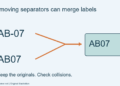
Use Text.Remove([Label], "-") in a Power Query custom column to create a copy of a text label with every hyphen removed. For example, AB-07 becomes AB07. Keep the original label beside the result so you can review the change. This is appropriate only when your source convention says those hyphens are decorative separators. A hyphen can be meaningful, and removing it without a rule can merge identifiers that were supposed to remain different.
Build an original practice table
In Power BI Desktop, create a small table with a Text column named Label and the values AB-07, AB07, and X-2-4. Open Transform data to inspect the table in Power Query Editor. Check the column's data type before writing the expression. These are labels rather than quantities, so Text is the intended type. Do not convert the identifiers into numbers to simplify them. Letters, leading zeros, and separators can carry information that a numeric conversion would either reject or discard.
Choose Add Column, Custom Column, and name the result Label without hyphens. Enter Text.Remove([Label], "-") in the formula area. The expected results are AB07, AB07, and X24. Notice that the expression removes both hyphens from X-2-4, not just the first. It operates on specified characters wherever they occur. This makes it convenient for a documented cleanup, but it also makes a careful choice of removed characters essential. The examples are reproducible exercises rather than claims of hands-on desktop testing.
Inspect the collision immediately
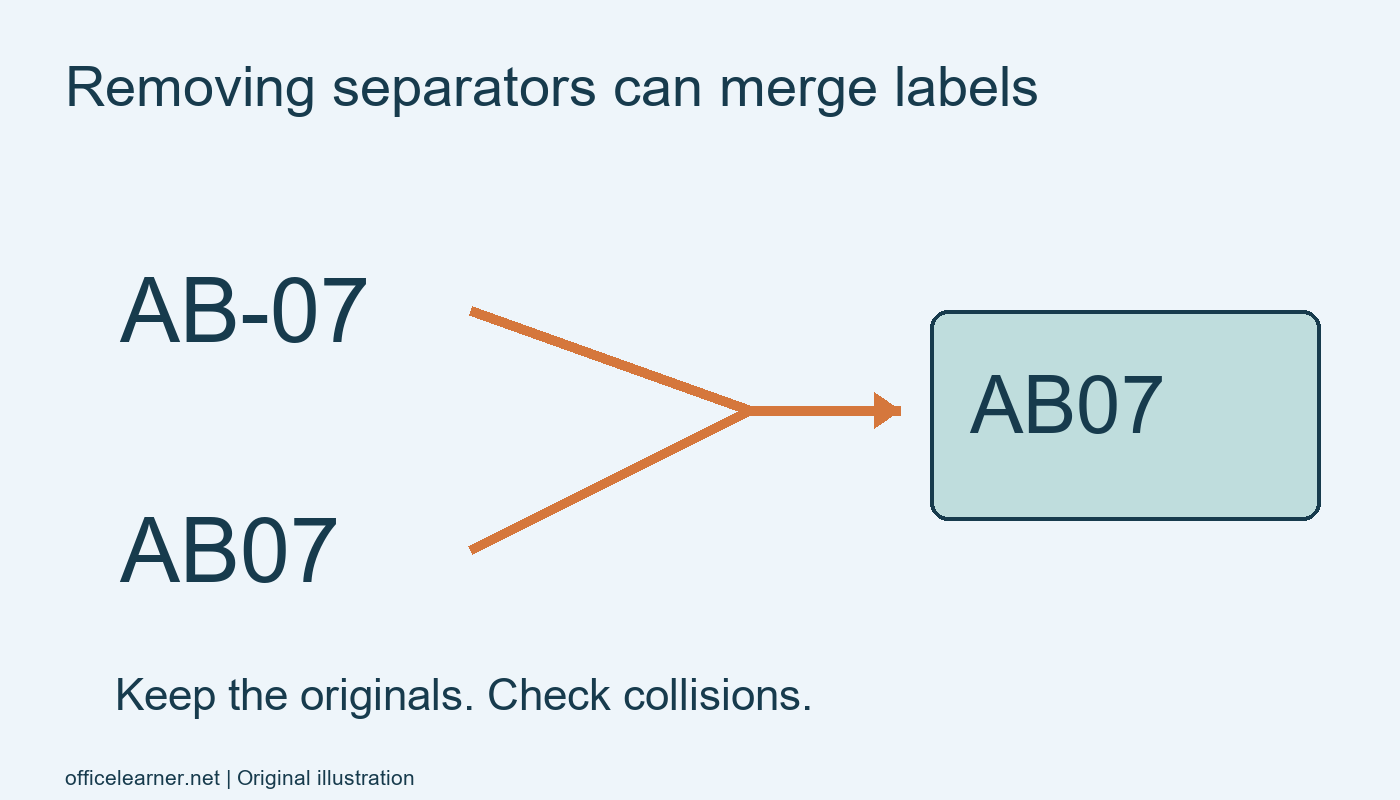
The first two inputs now produce the same result. AB-07 and AB07 both become AB07. That is a collision: different source values map to one cleaned value. Whether it is acceptable depends on the data contract. If both original labels are recognized spellings of the same bin, normalization may be intentional. If they refer to different bins, the transformation would destroy a distinction. Do not use the cleaned result as a relationship key or merge field until you have checked this issue with the source owner.
Keeping the original column makes this risk visible. You can sort or group the cleaned result during investigation and inspect which original labels share it. The purpose of that review is to understand the mapping, not to delete duplicate-looking rows automatically. Several records may legitimately describe different transactions for the same label. Separate the question of whether two labels mean the same thing from the question of whether entire records are duplicates. A text cleanup alone answers neither business question.
Understand the removal argument
Text.Remove can take a character or a list of characters to remove. For a second disposable example, Text.Remove([Label], {"-", " "}) removes both hyphens and ordinary spaces. The braces create the M list used by this expression. Do not add characters casually to make the result look tidy. Removing a space inside a phrase such as Room A changes its written form, and removing punctuation from a signed quantity would be a different and potentially incorrect task. Keep the demonstration limited to a label column with a clear convention.
This is character removal, not replacement of an entire word or substring according to its position. If you need to remove only a particular prefix or only the final separator, use a transformation designed for that narrower condition. Reusing Text.Remove because it is short can remove matching characters from places you meant to preserve. Write your intended rule in a sentence first, then check that the expression implements exactly that sentence. Every ordinary hyphen in the value is removed is a precise description of this exercise.
Check unusual characters and missing values
An ordinary hyphen is not the same character as every dash you can see on a page. Text copied from a document may include an en dash or another Unicode mark. If a separator remains after your transformation, inspect the actual source character rather than assuming the function missed it. Do not expand the removal list to every punctuation mark without reviewing examples. A visual resemblance can hide a meaningful encoding difference, and a broad cleanup can conceal inconsistent source entry that deserves a separate correction.
The documented function accepts nullable text. Preserve missing values according to your model's rules rather than inventing a label for them during punctuation cleanup. If the expression raises a type error, check for nontext values and earlier conversion steps. A raw numeric value does not become a valid identifier merely because you turn it into text. Protect the source representation first, then define the cleaning rule and test it on representative records, including values with no hyphens and values with several.
Review the step before applying it
Look at Applied Steps and keep the new column name descriptive. Avoid renaming the cleaned copy to the original name until the mapping has been reviewed. Add a note in your transformation documentation stating which characters are removed and why. Microsoft documents Text.Remove as a Power Query M function; this walkthrough uses Power BI Desktop's query editor, while other Power Query hosts may arrange the menus differently. The expression and the business rule should remain understandable even when the interface changes.
For practice, add A-B, AB, and A–B. Predict the cleaned output for each and explain why all three become AB. Then decide whether that would be acceptable for a fictional shelf-label system. Finally, propose one label where a hyphen must remain and explain why this expression should not be applied to that field. A good cleanup is not merely a shorter string. It is a documented transformation whose effects, collisions, and exceptions you can explain before using the result in a report.