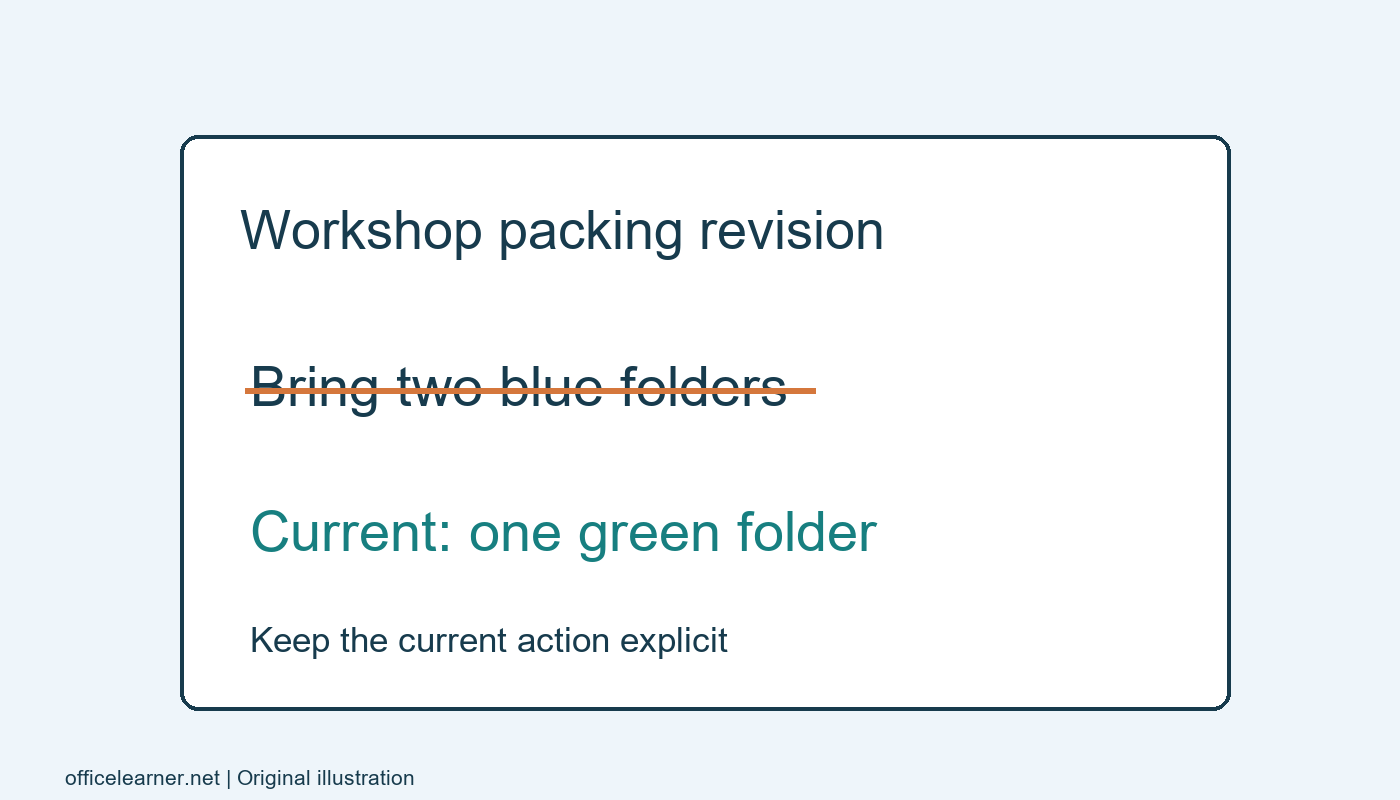
Apply strikethrough to a withdrawn instruction in OneNote for the web
In OneNote for the web, select a short passage and use the Home tab's strikethrough formatting to mark it visibly as withdrawn. Add a nearby replacement instruction so readers know what to do now. Strikethrough is useful in informal workshop notes when retaining an earlier instruction provides context. It is a visual formatting choice, not a tracked change record, an approval workflow, or proof that every reader has acknowledged the revision. Use plain explanatory wording alongside the line through the text.
Prepare a clear practice note
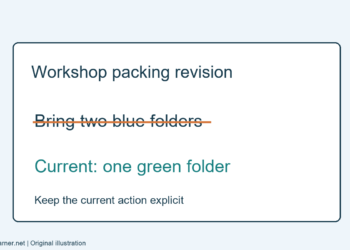
Create a practice page named Workshop packing revision in a notebook you can edit. Type Bring two blue folders as the first paragraph. Under it, type Updated plan: bring one green folder. This pair of sentences gives the formatting a specific purpose: the old instruction remains readable while the new instruction states the action. Avoid using strikethrough as the only explanation, because a faint line can be missed when someone scans quickly or reads the page through a different display setting.
Select only Bring two blue folders. Open Home and inspect the text formatting controls for strikethrough. If the window is narrow, some controls may be in an overflow menu or expanded formatting area. Apply the format, then click elsewhere on the page. Read both lines together and check that the updated plan is visually obvious. This is a browser-based OneNote editing exercise; it does not claim that the steps have been tested in your account or organization.
Keep the selection narrow
A selected passage is the safest scope for a one-time correction. If you click in the paragraph without selecting its words, toggling formatting may affect the text you type next rather than the existing instruction. If the replacement sentence also appears struck through, select it and turn strikethrough off. Check the cursor's current formatting before adding another paragraph. A small formatting state that carries forward can make several new instructions look withdrawn even though you intended to mark only one old sentence.
Keep enough of the original instruction to explain what changed, but do not bury the current action among a long sequence of crossed-out paragraphs. For a workshop packing note, one withdrawn sentence plus one replacement is easy to scan. For a page with many revisions, a concise current checklist at the top may serve readers better. Formatting should reduce the effort of finding the latest instruction. When it starts to obscure the active content, reorganize the page rather than adding more visual marks.
Add context that survives plain text
Prefix the replacement with words such as Updated plan or Current instruction. Those words still communicate the change if a reader copies the note into plain text and the line through the old sentence disappears. If the date matters, include an actual date in the note instead of using yesterday or tomorrow. An archived workshop page may be read weeks later, when relative timing has lost its meaning. Keep any author or approval information factual; do not imply someone approved the revision merely because the sentence is formatted.
For example, the note might read Withdrawn packing instruction: Bring two blue folders, with the old instruction struck through, followed by Current instruction for the December workshop: bring one green folder. The wording identifies both states without requiring color or formatting to carry the whole explanation. If several people edit the notebook, agree on who maintains the current instruction. OneNote's shared page can be convenient, but a visible formatting convention does not replace a communication process when a change affects real plans.
Check editing and synchronization
If you cannot apply formatting, confirm that the notebook page is open for editing rather than viewing and that you have appropriate access. Do not make a second copy simply to bypass a read-only shared page; that can create competing instructions. Ask the page owner through your normal collaboration process when editing rights are required. If a formatting command is hard to locate, consult the current OneNote web help and inspect the Home controls before substituting a desktop keyboard shortcut that may behave differently in the browser.
After editing, allow the browser's normal save and synchronization process to finish and check for any visible save or connection warning. Reopen the page in the same notebook to confirm the content you expect is there. This is a practical review step rather than a guarantee of synchronization across every device. If the connection has failed, avoid telling colleagues the revised page is ready until you can confirm the current instruction is saved and accessible through the intended shared location.
When a different format is better
Do not use strikethrough to indicate a completed checklist item if your team expects actual task status. A line through text and a checked task can be interpreted differently. Likewise, an essential warning should not be communicated only through a decorative style. A short status word gives readers a reliable interpretation. For formal version review, use the system your organization requires rather than treating a OneNote formatting choice as an audit trail. This guide is about making informal notes more legible, not establishing a records policy.
Try the same method with an original instruction to print six handouts and a replacement instruction to print eight. Select only the old quantity sentence, apply strikethrough, and write the current instruction on a separate line. Copy both lines into a plain text editor and check whether the meaning survives without formatting. Then return to the notebook and verify that new typing is not unintentionally struck through. OneNote web interface details can change, so use the current Home controls and review the saved page before sharing it as the current workshop reference.