


Excel is one of the most feature-rich applications ever built — and most users only scratch the surface. Beyond VLOOKUP and pivot tables, there’s an entire world of powerful, underused tools waiting to be discovered. Here are 8 hidden Excel features that professional analysts and power users rely on daily.
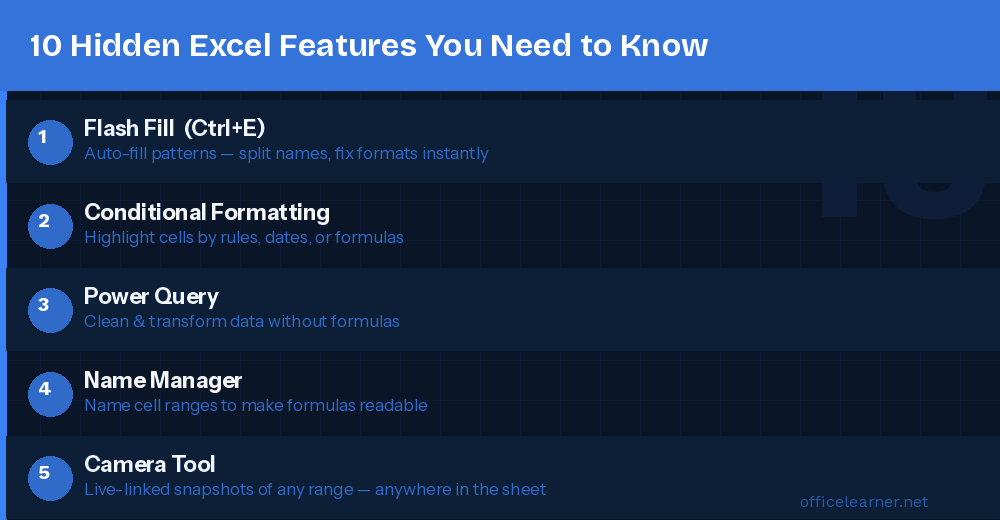
1. Flash Fill — Instant Data Transformation Without Formulas
Flash Fill detects patterns in your data and automatically fills an entire column based on a single example — no formulas required. Type an example in the next column, press Ctrl+E, and Excel fills the rest. Perfect for splitting names, reformatting phone numbers, or extracting email domains.
2. Custom Number Formats
Right-click a cell → Format Cells → Number → Custom. You can display 1500.5 as “1,500.5 kg” with #,##0.0" kg", color positives green with [Green]#,##0;[Red]-#,##0, or pad numbers with leading zeros using 0000. Custom formats change appearance without changing the underlying value.
3. Name Manager — Ditch the Cell References
Instead of =SUM(C2:C100), name that range “SalesData” and write =SUM(SalesData). Go to Formulas → Define Name or press Ctrl+F3. Named ranges make formulas readable and reduce errors when data ranges change. Create dynamic named ranges with OFFSET or INDEX to auto-expand as data grows.
4. Camera Tool — Live-Updating Image of Any Range
Add the Camera Tool via File → Options → Quick Access Toolbar → All Commands → Camera. Select a range, click Camera, then click anywhere on your sheet. A live image of that range appears and updates in real time. Perfect for executive dashboards pulling data from multiple sheets.
5. Watch Window — Monitor Cells Across Sheets
Go to Formulas → Watch Window → Add Watch. A floating panel shows the value of any cell across any sheet, even when you’re editing elsewhere. Click any row to navigate instantly to that cell. Essential for monitoring key KPIs while working in complex workbooks.
6. Paste Special — The Most Underused Paste
Press Ctrl+Alt+V to open Paste Special. Options include: Values only (paste formula results as plain numbers), Transpose (flip rows into columns), and Operations (multiply pasted values against existing ones). Multiply trick: copy 1.1, Paste Special → Multiply to increase a range of values by 10% instantly without any formula.
7. Go To Special — Select Cells by Type
Press Ctrl+G then click Special. Select all blanks (for bulk filling), all formula cells (for auditing), only visible cells after filtering (prevents copying hidden rows), or all hardcoded constants. This feature alone saves hours on data cleaning tasks.
8. LET Function — Variables Inside Formulas
Available in Microsoft 365, LET lets you assign names to values inside a formula to avoid repeating complex calculations:
=LET(share, SUMIF(A:A,D2,B:B)/SUM(B:B), IF(share>0.1, share, 0))The SUMIF runs only once, the formula is readable, and performance improves. A game-changer for complex analytical workbooks.

Quick Keyboard Shortcuts
- Ctrl+Backtick: Toggle formula/value view for all cells
- Alt+=: Auto-sum selected cells instantly
- Ctrl+Shift+L: Toggle filters on/off
- F4: Cycle through $A$1, A$1, $A1, A1 reference styles
- Ctrl+T: Convert range to an Excel Table that auto-expands
Start Using These Today
Pick one feature — Flash Fill or Paste Special are great starting points — and use it every day this week. Once it becomes muscle memory, move to the next. Within a month you’ll be noticeably faster and producing cleaner, more professional workbooks.














