
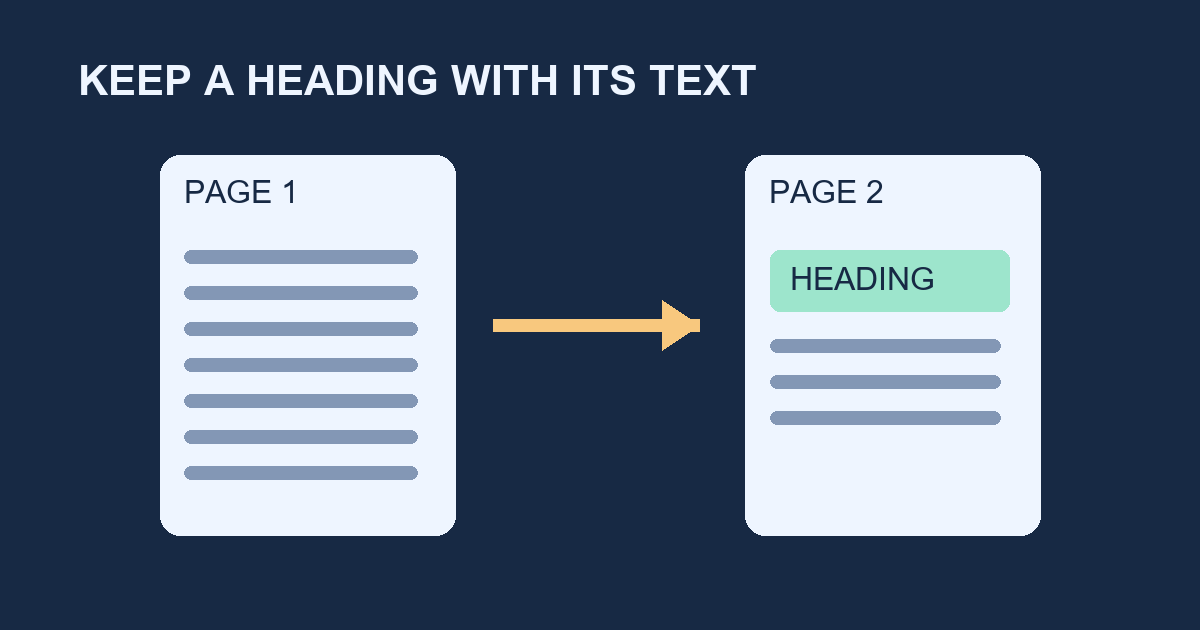
Turn on Keep with next for the heading paragraph. If there is too little room for the heading and the start of its following paragraph, Word moves the heading to the next page with that text. Use the same setting in a heading style when you want that behavior throughout a document.
Reproduce the page break
Open a blank document in Print Layout. Type Equipment checklist on one line, press Enter, and write Return the projector to the front desk by 4 p.m. Leave both paragraphs in the Normal style for this exercise. Add ordinary paragraphs above the heading until the heading fits on the last line of page one and the projector sentence starts page two. The amount of preceding text depends on your margins, font, and paper size.
Keep the heading with the instruction
Click in Equipment checklist. On the Home tab, open the Paragraph dialog from the launcher in the Paragraph group. In Line and Page Breaks, select Keep with next and confirm. In Print Layout, Equipment checklist should appear above the projector sentence on page two. Delete some preceding text until both lines fit back on page one. This gives you a quick check that the pair still responds to changes in the document.
Apply the rule across a document
If you need this behavior on every heading at a particular level, check the paragraph settings of that heading style. In desktop Word, open Modify for the style and choose Format > Paragraph. Look for Keep with next under Line and Page Breaks. It may already be selected. After changing a style, review several pages because the change applies to paragraphs that use that style.
Check what Word sees as the next paragraph
Turn on the paragraph marks from Home. An empty paragraph between the heading and the instruction is itself the next paragraph. Delete the empty paragraph and use the heading's paragraph spacing for the same visual separation. If several paragraphs move together and leave a large gap, inspect them for consecutive Keep with next settings. Keep lines together is a separate option that keeps the lines of a single paragraph on the same page.
Version notes and a practice check
The menu path targets Word for Microsoft 365 desktop on Windows. Microsoft also lists Word 2024, 2021, and 2019 for these pagination settings. If you cannot find the dialog in the browser, open the document in desktop Word. Try setting Keep with next on two successive headings followed by the projector sentence. Which paragraphs move when you add text above them?