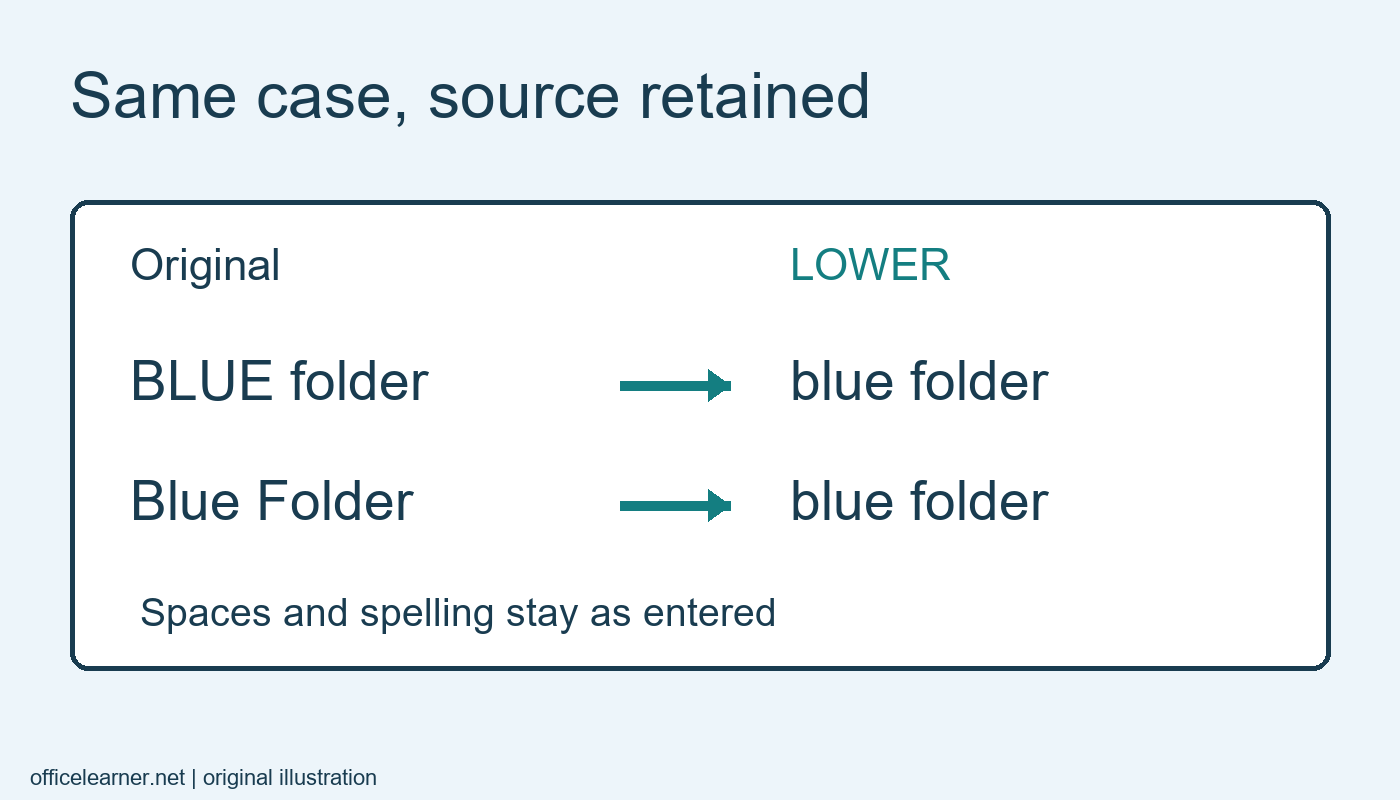
Normalize case in an Excel comparison column with LOWER
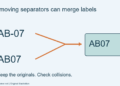
Use LOWER in a helper column when you need a lowercase version of text while preserving the original spelling. In an English language Excel workbook, =LOWER(A2) converts the letters in A2 to lowercase. This is useful for reviewing labels copied from different lists. It does not remove spaces, correct spelling, verify an address, or establish that two records refer to the same person. Keep the source column beside the result so the transformation remains visible and reversible.
Build a small review table
Start a blank practice worksheet with Original label in A1 and Lowercase review in B1. Enter BLUE folder in A2, Blue Folder in A3, blue folder in A4, and Blue Folder in A5, using two spaces between the last pair of words. Enter =LOWER(A2) in B2 and fill it down through B5. The first three results should read blue folder. The fourth retains its extra space. This deliberately imperfect row is valuable because it reveals the boundary of the function rather than making every example look clean.
The example assumes actual text cells and English formula names. LOWER is documented for current Microsoft 365 Excel and several perpetual editions, including Excel 2024 and Excel 2021; availability and translated function names depend on your installation. A single argument avoids the regional comma versus semicolon separator issue in this example. If you are following along in a localized interface, use Excel's function assistance to find the corresponding local name. This walkthrough is based on documentation, not a claim of hands-on testing in every listed version.
Preserve the distinction between a label and an identifier
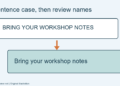
A lowercase helper can make visual comparisons easier, but it is not proof of equivalence. A product code containing case-sensitive characters may have a rule that requires the original capitalization. A personal name should retain the spelling supplied by its owner. An acronym such as USB may look less readable after conversion. In this exercise, lowercase is a review representation only. Do not replace a source field merely because the helper column looks more consistent. First decide whether that field is descriptive text or an identifier governed by a separate system.
For example, imagine an equipment cupboard with labels BLUE folder, blue folder, and Blue folder. A volunteer can use a lowercase view to notice the shared wording, then inspect the physical items before combining any inventory lines. Two equally worded labels could still refer to different sizes or locations. Add a third column called Review note and write Same wording, check shelf beside the candidates. That note captures the human decision still needed. It is more informative than silently deleting records that happen to display the same transformed text.
Read the formula before copying it
Select B2 and confirm that the formula bar contains =LOWER(A2), not a typed copy of the expected answer. Select B3 after filling down and confirm that its reference has changed to A3. A repeated reference to A2 would make every result appear identical and could conceal meaningful differences. Keep the heading outside the filled range. If the source data is an Excel table, a structured reference may appear instead of a cell address; understand which source column it names before accepting the calculated column across a larger dataset.
Try changing A3 to Green Folder. B3 should respond with green folder. This dependency check distinguishes a live formula from an old pasted result. Now restore the original example. If you need a fixed snapshot for an export, copy the reviewed helper values into a separate export sheet using Paste Values and label that sheet with its purpose. Keep the formula-based practice table intact until the export has been checked. Pasting values over the source column removes your easiest comparison and makes an accidental transformation harder to diagnose.
Troubleshoot surprising results
If Excel displays =LOWER(A2) as text, check whether the cell was formatted as Text or whether a leading apostrophe was entered. After correcting the format, re-enter the formula. If many formulas are visible across the sheet, check whether Show Formulas is enabled. If capitalization changes but a comparison still fails, inspect spaces and punctuation separately. A hyphen and an en dash are different characters. LOWER is not a general cleanup pipeline, so adding more transformations without examining the mismatch can create a result you cannot explain.
Avoid applying several cleanup steps to an entire imported file at once. Keep a few known examples with expected results, including a label that should remain distinct. Record whether spaces and punctuation should matter for your task. This makes a later review possible when someone asks why two lines were combined. For an informal cupboard list, the rule might be ignore case but preserve every other character until reviewed. For a customer or accounting export, follow the source system's documented requirements instead of inventing a normalization rule from this small example.
Try a controlled exercise
Add red tray, RED TRAY, red-tray, and red tray with a trailing space on four new rows. Predict which results will look alike before filling the formula down. Then inspect the source strings rather than relying only on the visible cell width. Write one sentence explaining why lowercase alone cannot certify duplicates. Finally, decide whether your real task needs a lowercase review column at all. If the purpose is simply a reader-friendly printed list, preserving normal capitalization may be the better choice. The useful outcome is a clearly understood transformation with an untouched source.