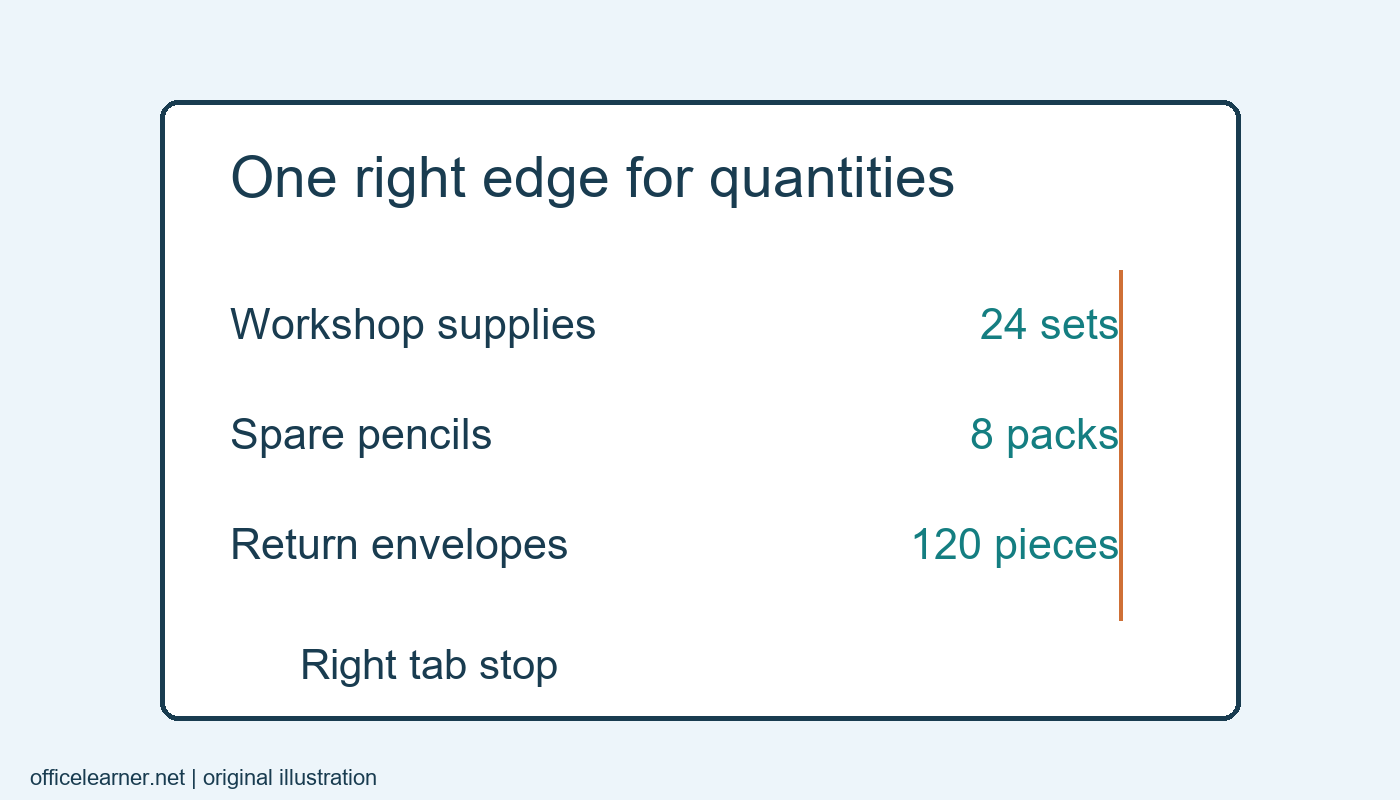
Align one Word paragraph with a right tab stop
A right tab stop aligns the right edge of text at a chosen position within a paragraph. Use it for a short line such as Workshop supplies followed by 24 sets when you want the quantity to finish at the same place on several lines. Set the stop, type the label, press Tab once, and type the quantity. Avoid making the gap with repeated spaces: their width depends on the font, and later edits make the alignment drift.
Choose a suitable small example
This walkthrough targets desktop Word for Windows with a horizontal ruler and the Paragraph tab settings available. Ribbon names and dialogs can differ on Mac and in Word for the web. If you cannot find the same controls, use your edition's documented tab-stop instructions rather than treating missing commands as a broken document. The example uses plain paragraphs, not a table. Inside a table, the Tab key normally moves to another cell, so that environment requires different handling. Start outside any table in a new practice document.
Type three separate paragraphs: Workshop supplies, Spare pencils, and Return envelopes. Keep them short enough to leave room for a quantity on the right. Turn on the ruler from the View options if necessary. Select all three paragraphs without including unrelated text. Open the Tabs settings from the Paragraph dialog launcher. Choose a tab position that fits within your actual text area, such as 5 inches from the left text boundary in a sufficiently wide page layout. Select Right alignment, choose no leader for this exercise, set the stop, and confirm the dialog.
Add one separator to each line
Place the insertion point after Workshop supplies, press Tab once, and type 24 sets. Do the same for Spare pencils with 8 packs and Return envelopes with 120 pieces. The rightmost edge of each quantity should meet the chosen stop even though the words have different lengths. Select the paragraphs and show formatting marks if you need to confirm the separator. A tab mark should appear between the label and the quantity. Multiple space dots indicate that the line was assembled differently and should be corrected before judging the tab stop.
Read the position as a location within the paragraph's layout, not a universal place on every page. Margins and paragraph indents affect the available line width. A stop beyond the usable area will not give the intended result. If five inches does not fit your page, choose a smaller location and record it. Do not change the whole document's margins merely to imitate the sample number. The reproducible part of the method is selecting a reachable position, right-aligning the stop, and inserting one tab before the final text.
Understand what happens when the wording changes
Replace 8 packs with 18 packs. The text should grow leftward while its right edge stays aligned. Now replace Spare pencils with Spare pencils for the afternoon group. If the label runs too close to the quantity, the layout may become crowded or wrap. A tab stop cannot create unlimited space. Shorten the wording, choose an appropriate stop, or use a table when the information needs stable columns across many rows. The right tool depends on the structure of the information, not on whether the first three lines can be made to fit.
A tab stop belongs to paragraph formatting. A new paragraph created from one of these lines may inherit it. If you paste the text into a differently formatted paragraph, the appearance can change. Check the ruler with the relevant paragraph selected before assuming the setting is document-wide. For a recurring form, a paragraph style can make the formatting easier to maintain, but test the individual paragraph first. A local exercise helps you understand the behavior before turning it into a reusable document rule.
Fix common alignment problems
If the quantity starts at the stop instead of ending there, inspect the alignment type: a left stop behaves differently from a right stop. If the text moves to an unexpected intermediate location, look for another custom stop earlier on the ruler. Clear only the unwanted stop in the selected paragraphs; avoid clearing settings across the whole document without checking other content. If nothing changes after adjusting the ruler, confirm that the paragraphs containing the quantities were selected. Editing a neighboring blank paragraph does not necessarily update the lines you intended to format.
Do not insert a string of tabs until a line looks acceptable. That can appear to work while actually using several default stops. The resulting file becomes fragile when a label changes. Remove the extra separators and return to one explicit right stop. If you need dots connecting labels to quantities, choose a tab leader deliberately after the basic alignment works. Leaders are decorative aids; they do not repair an unsuitable stop position or a line that contains more text than the page can comfortably hold.
Check the result as a reader
Save the practice file, then inspect the three quantities at normal reading size. Their endings should form one straight edge, with adequate separation from the labels. Try a fourth line containing only 3 boxes and a fifth containing 1,200 sheets. Explain why their starts differ while their right edges match. Finally, decide whether your real content is a short aligned list or a table with relationships that deserve proper cells. A right tab stop is useful when it keeps a modest document simple and its paragraph behavior remains clear to the next editor.