ADVERTISEMENT
  • About
  • Advertise
  • Privacy & Policy
  • Contact
Office Learner
ADVERTISEMENT
  • Home
  • Excel
  • Word
  • PowerPoint
  • Outlook
  • Microsoft Copilot
  • Power BI
  • Microsoft 365
  • Microsoft Teams
  • OneNote
No Result
View All Result
  • Home
  • Excel
  • Word
  • PowerPoint
  • Outlook
  • Microsoft Copilot
  • Power BI
  • Microsoft 365
  • Microsoft Teams
  • OneNote
No Result
View All Result
Office Learner
No Result
View All Result
Home Excel

How to Repeat Excel Column Headers on Every Printed Page

Tanjila Rashid by Tanjila Rashid
November 6, 2026
in Excel
0
How to Repeat Excel Column Headers on Every Printed Page
0
SHARES
6
VIEWS
Share on FacebookShare on Twitter

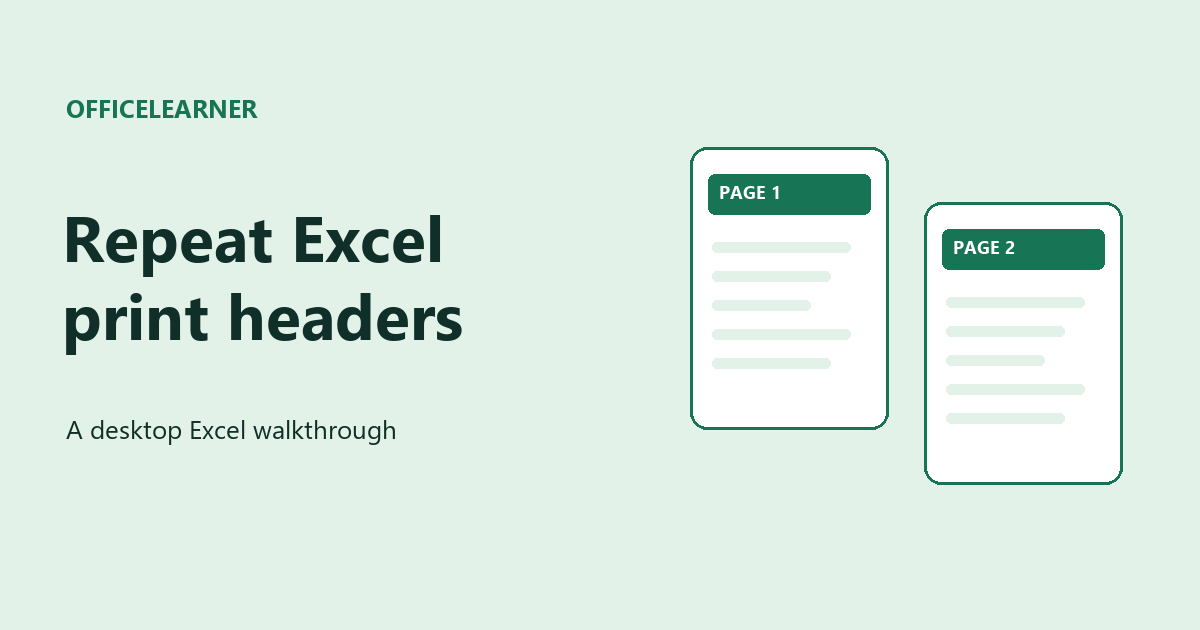
To repeat Excel column headers on every printed page, use Print Titles in desktop Excel. If your column labels are on row 1, set Rows to repeat at top to $1:$1. Then preview page 2 to make sure the labels appear above the continued data.

Build a sample inventory sheet

In A1 through D1, enter Bin, Item, Count, and Check. In A2 enter =ROW()-1. In B2 enter ="Sample item "&A2. In C2 enter =MOD(A2,12)+1. In D2 type Pending. Select A2:D101 and press Ctrl+D in Excel for Windows to fill down from row 2. You now have 100 example records. Widen column B so names such as Sample item 100 fit.

Set the print titles

Select the inventory sheet. In Excel for Windows, choose Page Layout → Print Titles and open the Sheet tab if needed. Enter $1:$1 in Rows to repeat at top, then choose OK. If your labels occupy rows 2 and 3 on a real sheet, enter $2:$3 instead. The dollar signs identify fixed row references.

Check the second page

Open File → Print. Choose No Scaling for this practice sheet so Excel can break the list across pages. Move to page 2 with the preview arrows. Look for Bin, Item, Count, and Check at the top, followed by the next inventory record. The first bin on page 2 depends on your paper size, margins, and printer settings. If the sheet still fits on one page, add more records before checking.

If the command is unavailable

Finish editing the active cell and click an ordinary worksheet cell if a chart is selected. Check that a printer is installed. If several sheet tabs are selected, ungroup them and set the print titles for each sheet individually. Microsoft documents this feature for desktop releases including Microsoft 365 and Excel 2024 and 2021. Its guide says repeating headers is currently unavailable when printing in Excel for the web. Use the desktop app for this exercise.

Try a two row heading

Insert a row above the labels and type Inventory check in A1. Change the repeat range to $1:$2. Can you see both the title and all four labels on page 2? If the extra title takes up too much space, try $2:$2 and compare the preview.


ADVERTISEMENT

Microsoft Support guide to repeating print titles

More Excel tutorials

Tags: Excelpage setupprinting
ADVERTISEMENT
Previous Post

Microsoft 365 Copilot + Power BI in 2026: Ask Copilot Chat Questions About Your Business Reports

Next Post

How to Keep a Word Heading With the Next Paragraph

Tanjila Rashid

Tanjila Rashid

Next Post
How to Keep a Word Heading With the Next Paragraph

How to Keep a Word Heading With the Next Paragraph

ADVERTISEMENT
  • Trending
  • Comments
  • Latest
10 Microsoft 365 Copilot Features That Transform Word and Outlook in 2025

8 Hidden Excel Features That Power Users Swear By (2026 Edition)

October 8, 2026
PowerPoint Morph Transition Masterclass: Create Cinematic Animations in 2026

PowerPoint Morph Transition Masterclass: Create Cinematic Animations in 2026

October 8, 2026
Excel GROUPBY & PIVOTBY: The New Array Functions That Replace PivotTables

Excel GROUPBY & PIVOTBY: The New Array Functions That Replace PivotTables

October 8, 2026
Excel PIVOTBY Function in 2026: The Ultimate Guide to Dynamic Pivot Analysis Without Pivot Tables

Excel PIVOTBY Function in 2026: The Ultimate Guide to Dynamic Pivot Analysis Without Pivot Tables

October 8, 2026
Spreadsheet Layout

What is spreadsheet? and how it works!

0
Spreadsheet Layout

Spreadsheet Layout

0
Spreadsheet Layout

IF function of Google Sheets – usage and formula examples

0

5 Google Sheets tricks that you always need!

0
Normalize case in an Excel comparison column with LOWER

Normalize case in an Excel comparison column with LOWER

November 28, 2026
Undo one accidental text edit in OneNote for the web

Undo one accidental text edit in OneNote for the web

November 28, 2026
Round positive planning quantities upward in Power Query

Round positive planning quantities upward in Power Query

November 28, 2026
Group two labeled shapes to move a PowerPoint diagram together

Group two labeled shapes to move a PowerPoint diagram together

November 28, 2026

Recent News

Normalize case in an Excel comparison column with LOWER

Normalize case in an Excel comparison column with LOWER

November 28, 2026
Undo one accidental text edit in OneNote for the web

Undo one accidental text edit in OneNote for the web

November 28, 2026
Round positive planning quantities upward in Power Query

Round positive planning quantities upward in Power Query

November 28, 2026
Group two labeled shapes to move a PowerPoint diagram together

Group two labeled shapes to move a PowerPoint diagram together

November 28, 2026
Office Learner

OfficeLearner is a place where you can learn PowerPoint, Excel, Word Data Analysis, and other Office related programs. We provide tips, how to guide and also provide Excel solutions to your business problems

Follow Us

DMCA.com Protection Status

Browse by Category

  • Clipchamp
  • Excel
  • Google Sheets
  • Loop
  • Microsoft 365
  • Microsoft Copilot
  • Microsoft Designer
  • Microsoft Forms
  • Microsoft Loop
  • Microsoft Sway
  • Microsoft Teams
  • Microsoft Viva
  • Microsoft Whiteboard
  • OneDrive
  • OneNote
  • Outlook
  • Planner
  • Power Apps
  • Power Automate
  • Power BI
  • PowerPoint
  • SharePoint
  • Teams
  • Visio
  • Word

Recent News

Normalize case in an Excel comparison column with LOWER

Normalize case in an Excel comparison column with LOWER

November 28, 2026
Undo one accidental text edit in OneNote for the web

Undo one accidental text edit in OneNote for the web

November 28, 2026
  • About
  • Advertise
  • Privacy & Policy
  • Contact

© 2022 OfficeLearner - Free Excel, PowerPoint & Word Tutorial & Online Courses

No Result
View All Result

© 2022 OfficeLearner - Free Excel, PowerPoint & Word Tutorial & Online Courses

This website uses cookies. By continuing to use this website you are giving consent to cookies being used. Visit our Privacy and Cookie Policy.