ADVERTISEMENT
  • About
  • Advertise
  • Privacy & Policy
  • Contact
Office Learner
ADVERTISEMENT
  • Home
  • Browse by Category
    • Word
      • Word Basics
      • Word Data Entry
      • Word Formatting
      • Word Templates
      • Word Tips
    • Excel
      • Excel Basics
      • Excel Shortcuts
      • Excel Charts
      • Data Validation
      • Conditional Formatting
      • Data Analysis with Excel
      • Dynamic Arrays
      • Advanced Excel Topics
      • Developing Excel Related Tools
      • Essential Excel Books
      • Excel for Accountants
      • Excel for Finance
      • Excel Functions and Formulas
      • Excel Pivot Tables
      • Excel Power BI
      • Excel Power Query
      • Excel Templates
      • Excel Training & Courses
      • Macros and Excel VBA
    • PowerPoint
      • Animation
      • PowerPoint Basics
      • PowerPoint Templates
  • About
  • Office Books
  • Courses
No Result
View All Result
  • Home
  • Browse by Category
    • Word
      • Word Basics
      • Word Data Entry
      • Word Formatting
      • Word Templates
      • Word Tips
    • Excel
      • Excel Basics
      • Excel Shortcuts
      • Excel Charts
      • Data Validation
      • Conditional Formatting
      • Data Analysis with Excel
      • Dynamic Arrays
      • Advanced Excel Topics
      • Developing Excel Related Tools
      • Essential Excel Books
      • Excel for Accountants
      • Excel for Finance
      • Excel Functions and Formulas
      • Excel Pivot Tables
      • Excel Power BI
      • Excel Power Query
      • Excel Templates
      • Excel Training & Courses
      • Macros and Excel VBA
    • PowerPoint
      • Animation
      • PowerPoint Basics
      • PowerPoint Templates
  • About
  • Office Books
  • Courses
No Result
View All Result
Office Learner
No Result
View All Result
Home Copilot / AI

10 Microsoft Copilot Features in Word & Outlook That Will Transform Your Workday

Tanjila Rashid by Tanjila Rashid
May 23, 2026
in Copilot / AI
0
10 Microsoft Copilot Features in Word & Outlook That Will Transform Your Workday
0
SHARES
0
VIEWS
Share on FacebookShare on Twitter
ADVERTISEMENT

10 Microsoft Copilot Features in Word & Outlook That Will Transform Your Workday

Published on officelearner.net | Copilot & AI | May 2026

Microsoft Copilot is no longer just a novelty. It is a fully integrated AI assistant baked into Word, Outlook, Teams, and Excel. If you are still writing emails from scratch and formatting documents manually, you are leaving serious time savings on the table.

In this guide we cover the 10 most powerful Copilot features in Word and Outlook, with practical tips on how to use each one starting today.

Advertisement. Scroll to continue reading.
ADVERTISEMENT

What Is Microsoft Copilot?

Microsoft 365 Copilot is an AI assistant powered by large language models deeply integrated into all Microsoft 365 apps. It reads your documents, emails, meetings, and calendar to give context-aware assistance.

Copilot in Microsoft Word

1. Draft an Entire Document From a Prompt

Open a blank Word document and click the Copilot icon in the ribbon. Type a prompt such as "Write a one-page project proposal for a new employee onboarding program." Copilot generates a full structured draft in seconds.

2. Rewrite Sections With a Different Tone

Highlight any paragraph, click the Copilot icon, and select Rewrite. Choose a tone: formal, casual, concise, or enthusiastic. Copilot rewrites your text while preserving the core meaning.

3. Summarize Long Documents Instantly

Open any lengthy report and click Summarize from the Copilot sidebar. You get a structured bullet-point summary with key takeaways, perfect for briefings or quick reviews.

4. Ask Questions About Your Document

Use the Copilot chat panel to ask questions such as "What are the key risks in Section 3?" Copilot answers based on the actual document content.

5. Auto-Generate a Table of Contents

Ask Copilot: "Add a table of contents based on the headings in this document." It inserts a formatted clickable TOC with accurate page references.

Copilot in Microsoft Outlook

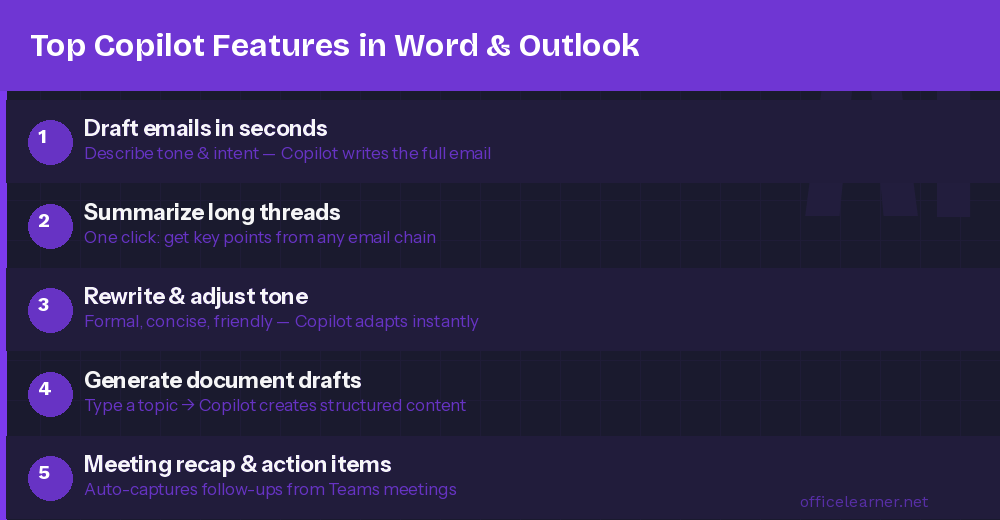
6. Draft Complete Emails From a Single Sentence

In a new email compose window click Draft with Copilot. Type a short instruction and Copilot generates the full email. Edit and send.

7. Summarize Any Email Thread

Open a long email chain and click Summary by Copilot. You get a 3 to 5 bullet summary including who said what, what was agreed, and what actions are pending.

8. Get Coaching on Your Email Before Sending

After drafting an email click Coaching by Copilot. The AI evaluates your email for tone, clarity, and sentiment, then gives specific suggestions to improve your message.

9. Schedule Emails to Send at the Right Time

Copilot can suggest the best send time. Click the dropdown arrow next to Send and choose Schedule Send with Copilot.

10. Generate Meeting Summaries and Action Items

After a Teams meeting, Copilot pulls the recap into your inbox, including a summary, key decisions, and assigned action items. No note-taking required.

Getting Started With Copilot Today

Open Word or Outlook

Look for the Copilot sparkle icon in the Home ribbon

Click it to open the Copilot sidebar

Type your first prompt and explore

Ready to save hours every week? Start with just one feature today and see the difference.

Visit officelearner.net for more Microsoft 365 tips and tutorials.
ADVERTISEMENT
Previous Post

Create Stunning PowerPoint Presentations in Minutes Using Copilot

Next Post

XLOOKUP vs VLOOKUP: Why You Should Switch Right Now (With Examples)

Tanjila Rashid

Tanjila Rashid

Next Post

How to Use DPRODUCT Function in Excel (6 Practical Examples)

Stay Connected test

  • 86.2k Followers
  • 23.9k Followers
  • 99 Subscribers
ADVERTISEMENT
  • Trending
  • Comments
  • Latest
The Evolution of Microsoft Word: A Brief History

The Evolution of Microsoft Word: A Brief History

May 3, 2023

How to Merge and Center Selected Cells in Excel (4 Ways)

February 5, 2023
How to Use Excel SUMIF to Sum Values Greater Than 0

How to Merge Cells in Excel Without Merging Actually

May 3, 2023

How to Create a Weighted Sales Pipeline in Excel

February 5, 2023
Spreadsheet Layout

What is spreadsheet? and how it works!

0
Spreadsheet Layout

Spreadsheet Layout

0
Spreadsheet Layout

IF function of Google Sheets – usage and formula examples

0

5 Google Sheets tricks that you always need!

0

How to Create Material Reconciliation Format in Excel

May 23, 2026

How to Create Radar Chart with Radial Lines in Excel

May 23, 2026

How to Draw 3-Axis Scatter Plot in Excel (with Easy Steps)

May 23, 2026

[Fixed!] Excel MATCH Function Not Working

May 23, 2026

Recent News

How to Create Material Reconciliation Format in Excel

May 23, 2026

How to Create Radar Chart with Radial Lines in Excel

May 23, 2026

How to Draw 3-Axis Scatter Plot in Excel (with Easy Steps)

May 23, 2026

[Fixed!] Excel MATCH Function Not Working

May 23, 2026
Office Learner

OfficeLearner is a place where you can learn PowerPoint, Excel, Word Data Analysis, and other Office related programs. We provide tips, how to guide and also provide Excel solutions to your business problems

Follow Us

DMCA.com Protection Status

Browse by Category

  • Advanced Excel Topics
  • Copilot
  • Copilot / AI
  • Copilot / M365
  • Copilot Studio
  • Excel
  • Excel / Copilot
  • Excel Basics
  • Excel Functions and Formulas
  • Forms / Excel
  • Loop
  • Loop / Collaboration
  • OneNote
  • OneNote / Copilot
  • Outlook
  • Outlook / Copilot
  • Power Automate
  • Power Automate / Copilot
  • PowerPoint
  • PowerPoint / Copilot
  • PowerPoint Basics
  • SharePoint
  • SharePoint / Copilot
  • Teams
  • Teams / Copilot
  • Uncategorized
  • Word
  • Word / Copilot
  • Word Basics
  • Word Tips

Recent News

How to Create Material Reconciliation Format in Excel

May 23, 2026

How to Create Radar Chart with Radial Lines in Excel

May 23, 2026
  • About
  • Advertise
  • Privacy & Policy
  • Contact

© 2022 OfficeLearner - Free Excel, PowerPoint & Word Tutorial & Online Courses

No Result
View All Result

© 2022 OfficeLearner - Free Excel, PowerPoint & Word Tutorial & Online Courses

This website uses cookies. By continuing to use this website you are giving consent to cookies being used. Visit our Privacy and Cookie Policy.