ADVERTISEMENT
  • About
  • Advertise
  • Privacy & Policy
  • Contact
Office Learner
ADVERTISEMENT
  • Home
  • Browse by Category
    • Word
      • Word Basics
      • Word Data Entry
      • Word Formatting
      • Word Templates
      • Word Tips
    • Excel
      • Excel Basics
      • Excel Shortcuts
      • Excel Charts
      • Data Validation
      • Conditional Formatting
      • Data Analysis with Excel
      • Dynamic Arrays
      • Advanced Excel Topics
      • Developing Excel Related Tools
      • Essential Excel Books
      • Excel for Accountants
      • Excel for Finance
      • Excel Functions and Formulas
      • Excel Pivot Tables
      • Excel Power BI
      • Excel Power Query
      • Excel Templates
      • Excel Training & Courses
      • Macros and Excel VBA
    • PowerPoint
      • Animation
      • PowerPoint Basics
      • PowerPoint Templates
  • About
  • Office Books
  • Courses
No Result
View All Result
  • Home
  • Browse by Category
    • Word
      • Word Basics
      • Word Data Entry
      • Word Formatting
      • Word Templates
      • Word Tips
    • Excel
      • Excel Basics
      • Excel Shortcuts
      • Excel Charts
      • Data Validation
      • Conditional Formatting
      • Data Analysis with Excel
      • Dynamic Arrays
      • Advanced Excel Topics
      • Developing Excel Related Tools
      • Essential Excel Books
      • Excel for Accountants
      • Excel for Finance
      • Excel Functions and Formulas
      • Excel Pivot Tables
      • Excel Power BI
      • Excel Power Query
      • Excel Templates
      • Excel Training & Courses
      • Macros and Excel VBA
    • PowerPoint
      • Animation
      • PowerPoint Basics
      • PowerPoint Templates
  • About
  • Office Books
  • Courses
No Result
View All Result
Office Learner
No Result
View All Result
Home Microsoft 365

Make a OneDrive Folder Available Offline on Windows

Tanjila Rashid by Tanjila Rashid
November 6, 2026
in Microsoft 365
0
Make a OneDrive Folder Available Offline on Windows
0
SHARES
2
VIEWS
Share on FacebookShare on Twitter

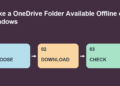
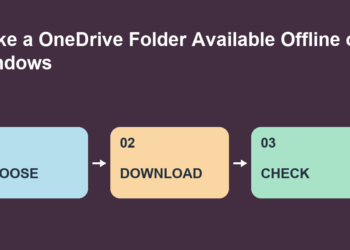
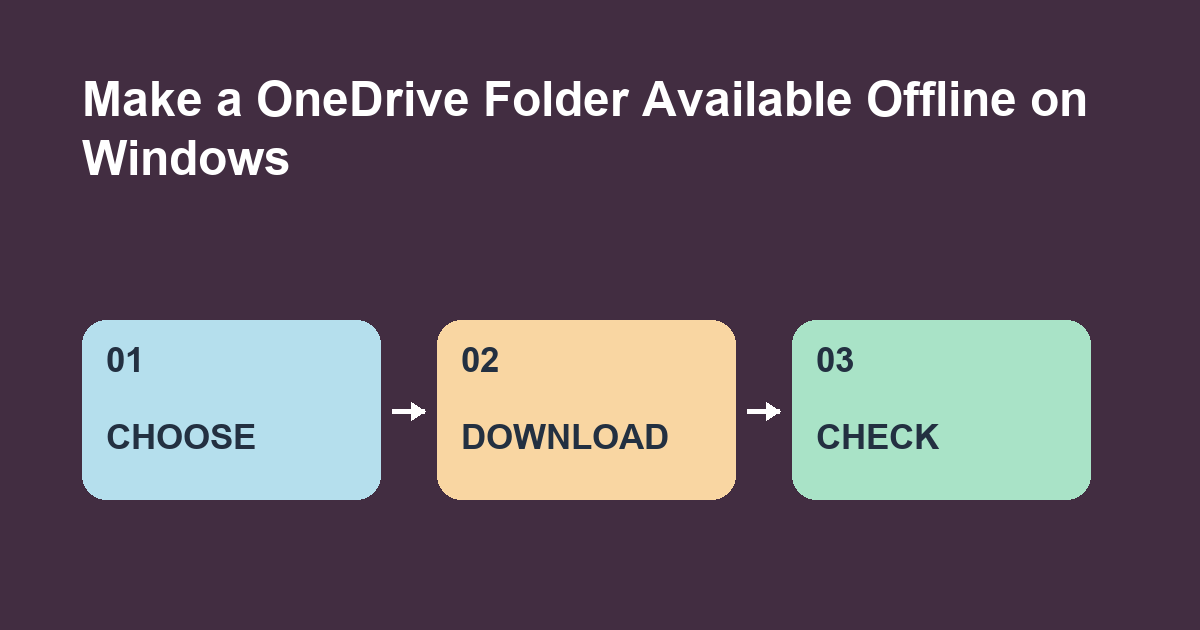
In File Explorer, right-click a synced OneDrive folder and choose Always keep on this device. Wait for the download before leaving your network. A visible filename alone does not tell you whether its contents are already on disk.

Build a small travel folder

Create Workshop pack in your synced OneDrive. Add a text file with an agenda and a short PDF. While online, mark the folder Always keep on this device. Wait for the files to show the solid green circle with a white check. Check individual items if the folder contains a mix of status icons.

Test the contents

Close both files. When it is safe to disconnect, reopen both from File Explorer. Read the agenda and turn a page in the PDF. Reconnect afterward. If one file fails, check its icon and sync status before trying the download again.

Manage disk space afterward

Pin a small working folder if local space is limited. When you no longer need the offline files and syncing has completed, use Free up space to make supported items online-only. Deleting a synced item instead can remove it from the cloud too.

Distinguish a local copy from a pinned copy

With Files On-Demand, opening an online-only file while connected can download it and make it locally available. A file you explicitly mark Always keep on this device is meant to remain downloaded. Pin the exact folder you expect to use, then check the solid green status on the files that matter. This is especially useful if you have browsed a folder before but have only opened some of its files.

ADVERTISEMENT

Check the account and the device

If File Explorer lists a personal OneDrive and a work OneDrive, open the folder under the account you intend to use. A file with the same name in the other account can be a different copy. Do the offline test on the laptop you will take with you. Making files available offline on your desktop does not demonstrate that the laptop has downloaded them.

Plan for edits away from the network

Use a disposable text file in Workshop pack to rehearse. Open it while disconnected, add a sentence, and save it. Reconnect and wait for OneDrive to sync, then check that the updated file appears when you open it from OneDrive on the web. If other people edit the same file while you are away, review its state when you reconnect before treating your copy as the latest version.

Version and exercise

This workflow targets OneDrive Files On-Demand in Windows File Explorer. Managed organization settings and Windows versions can affect what appears. Add a third file to the practice folder. Can you verify that the new file opens before you leave your network?

Primary source for this guide

Related guides on officelearner.net

Tags: files on-demandMicrosoft 365
ADVERTISEMENT
Previous Post

Sort Month Names by Month Number in Power BI

Tanjila Rashid

Tanjila Rashid

ADVERTISEMENT
  • Trending
  • Comments
  • Latest
10 Microsoft 365 Copilot Features That Transform Word and Outlook in 2025

8 Hidden Excel Features That Power Users Swear By (2026 Edition)

October 8, 2026
PowerPoint Morph Transition Masterclass: Create Cinematic Animations in 2026

PowerPoint Morph Transition Masterclass: Create Cinematic Animations in 2026

October 8, 2026
Excel PIVOTBY Function in 2026: The Ultimate Guide to Dynamic Pivot Analysis Without Pivot Tables

Excel PIVOTBY Function in 2026: The Ultimate Guide to Dynamic Pivot Analysis Without Pivot Tables

October 8, 2026
Excel GROUPBY & PIVOTBY: The New Array Functions That Replace PivotTables

Excel GROUPBY & PIVOTBY: The New Array Functions That Replace PivotTables

October 8, 2026
Spreadsheet Layout

What is spreadsheet? and how it works!

0
Spreadsheet Layout

Spreadsheet Layout

0
Spreadsheet Layout

IF function of Google Sheets – usage and formula examples

0

5 Google Sheets tricks that you always need!

0
Make a OneDrive Folder Available Offline on Windows

Make a OneDrive Folder Available Offline on Windows

November 6, 2026
Sort Month Names by Month Number in Power BI

Sort Month Names by Month Number in Power BI

November 6, 2026
Select Overlapping Objects in PowerPoint

Select Overlapping Objects in PowerPoint

November 6, 2026
How to Keep a Word Heading With the Next Paragraph

How to Keep a Word Heading With the Next Paragraph

November 6, 2026

Recent News

Make a OneDrive Folder Available Offline on Windows

Make a OneDrive Folder Available Offline on Windows

November 6, 2026
Sort Month Names by Month Number in Power BI

Sort Month Names by Month Number in Power BI

November 6, 2026
Select Overlapping Objects in PowerPoint

Select Overlapping Objects in PowerPoint

November 6, 2026
How to Keep a Word Heading With the Next Paragraph

How to Keep a Word Heading With the Next Paragraph

November 6, 2026
Office Learner

OfficeLearner is a place where you can learn PowerPoint, Excel, Word Data Analysis, and other Office related programs. We provide tips, how to guide and also provide Excel solutions to your business problems

Follow Us

DMCA.com Protection Status

Browse by Category

  • Clipchamp
  • Excel
  • Google Sheets
  • Loop
  • Microsoft 365
  • Microsoft Copilot
  • Microsoft Designer
  • Microsoft Forms
  • Microsoft Loop
  • Microsoft Sway
  • Microsoft Teams
  • Microsoft Viva
  • Microsoft Whiteboard
  • OneDrive
  • OneNote
  • Outlook
  • Planner
  • Power Apps
  • Power Automate
  • Power BI
  • PowerPoint
  • SharePoint
  • Teams
  • Visio
  • Word

Recent News

Make a OneDrive Folder Available Offline on Windows

Make a OneDrive Folder Available Offline on Windows

November 6, 2026
Sort Month Names by Month Number in Power BI

Sort Month Names by Month Number in Power BI

November 6, 2026
  • About
  • Advertise
  • Privacy & Policy
  • Contact

© 2022 OfficeLearner - Free Excel, PowerPoint & Word Tutorial & Online Courses

No Result
View All Result

© 2022 OfficeLearner - Free Excel, PowerPoint & Word Tutorial & Online Courses

This website uses cookies. By continuing to use this website you are giving consent to cookies being used. Visit our Privacy and Cookie Policy.