
ADVERTISEMENT
  • About
  • Advertise
  • Privacy & Policy
  • Contact
Office Learner
ADVERTISEMENT
  • Home
  • Browse by Category
    • Word
      • Word Basics
      • Word Data Entry
      • Word Formatting
      • Word Templates
      • Word Tips
    • Excel
      • Excel Basics
      • Excel Shortcuts
      • Excel Charts
      • Data Validation
      • Conditional Formatting
      • Data Analysis with Excel
      • Dynamic Arrays
      • Advanced Excel Topics
      • Developing Excel Related Tools
      • Essential Excel Books
      • Excel for Accountants
      • Excel for Finance
      • Excel Functions and Formulas
      • Excel Pivot Tables
      • Excel Power BI
      • Excel Power Query
      • Excel Templates
      • Excel Training & Courses
      • Macros and Excel VBA
    • PowerPoint
      • Animation
      • PowerPoint Basics
      • PowerPoint Templates
  • About
  • Office Books
  • Courses
No Result
View All Result
  • Home
  • Browse by Category
    • Word
      • Word Basics
      • Word Data Entry
      • Word Formatting
      • Word Templates
      • Word Tips
    • Excel
      • Excel Basics
      • Excel Shortcuts
      • Excel Charts
      • Data Validation
      • Conditional Formatting
      • Data Analysis with Excel
      • Dynamic Arrays
      • Advanced Excel Topics
      • Developing Excel Related Tools
      • Essential Excel Books
      • Excel for Accountants
      • Excel for Finance
      • Excel Functions and Formulas
      • Excel Pivot Tables
      • Excel Power BI
      • Excel Power Query
      • Excel Templates
      • Excel Training & Courses
      • Macros and Excel VBA
    • PowerPoint
      • Animation
      • PowerPoint Basics
      • PowerPoint Templates
  • About
  • Office Books
  • Courses
No Result
View All Result
Office Learner
No Result
View All Result
Home PowerPoint / Copilot

Create Stunning PowerPoint Presentations in Minutes Using Copilot

Tanjila Rashid by Tanjila Rashid
May 23, 2026
in PowerPoint / Copilot
0
Create Stunning PowerPoint Presentations in Minutes Using Copilot
0
SHARES
0
VIEWS
Share on FacebookShare on Twitter
ADVERTISEMENT

Create Stunning PowerPoint Presentations in Minutes Using Copilot

Published on officelearner.net | PowerPoint and Copilot | May 2026

Creating a professional PowerPoint presentation used to mean spending hours on layouts and speaker notes. With Copilot integrated into PowerPoint in 2026, that process is compressed from hours to minutes.

What Copilot Can Do in PowerPoint

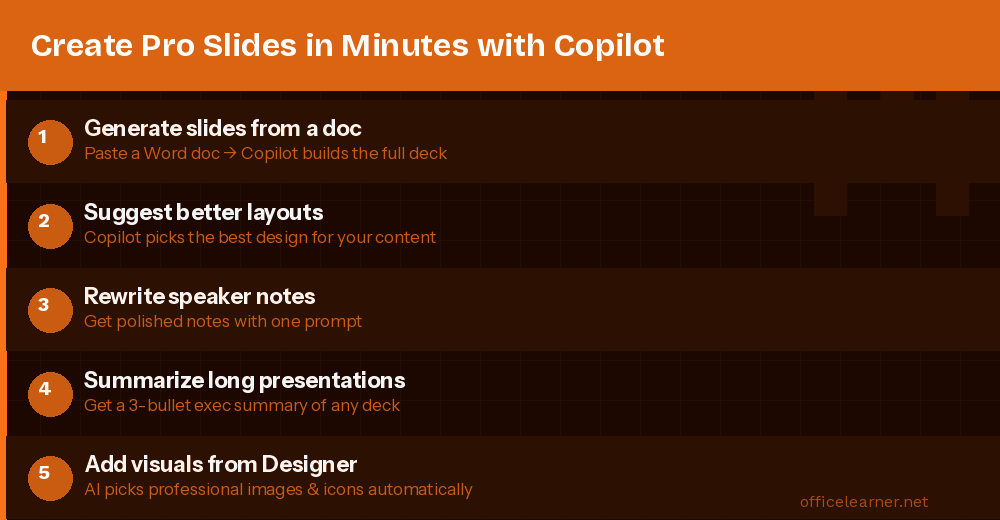
Generate an entire presentation from a text prompt or Word document

Advertisement. Scroll to continue reading.

Suggest better slide layouts and visual designs

Rewrite or expand speaker notes automatically

Summarize long presentations into an executive brief

Suggest relevant stock images and icons from Microsoft Designer

Feature 1: Generate a Full Deck From a Prompt

Open a new presentation, click the Copilot icon, and type a prompt such as:

Copilot generates the full deck including titles, content, and bullet points. This saves 2 to 3 hours of initial slide building.

ADVERTISEMENT

Feature 2: Create Slides From a Word Document

In PowerPoint click Copilot then Create presentation from file and select your Word document. Copilot reads the document structure and builds a slide for each major section. Works great for reports, proposals, and research summaries.

Feature 3: Rewrite and Improve Slide Content

Click any slide, then click Copilot and choose Rewrite this slide. Specify "Make this more executive-friendly" or "Simplify for a non-technical audience." Ask Copilot to expand thin slides while maintaining the layout.

Feature 4: Auto-Generate Speaker Notes

Click on a slide, open Copilot, and type "Write speaker notes for this slide, 3 to 4 sentences, conversational tone." Copilot creates notes based on the slide content and can adjust for detail level.

Feature 5: Summarize Any Presentation

Open any PowerPoint file, click Copilot, and ask "Summarize this presentation in 5 bullet points." Copilot reads every slide and returns a structured executive summary. Perfect for reviewing a long deck before a meeting.

Step-by-Step Workflow

Open PowerPoint and click the Copilot icon in the Home tab

Type: Create a presentation about [topic] for [audience] with [N] slides

Review the generated deck and adjust slides as needed

Use Copilot to refine content and generate speaker notes per slide

Use PowerPoint Designer under the Design tab for polished themes

Run Summary by Copilot to verify your key message is clear

Export as PDF or present directly from PowerPoint

Common Mistakes to Avoid

Accepting the first output without reviewing. Always refine at least once.

Not specifying the audience. Copilot adjusts based on who it is for.

Skipping speaker notes. They are free to generate and invaluable for presenters.

The next time you need to build a presentation, open Copilot and type your topic. You will have a working draft in under two minutes.

Visit officelearner.net for more PowerPoint, Excel, Word, and Copilot tutorials.
ADVERTISEMENT
Previous Post

Master Outlook in 2026: 8 Email Productivity Tricks You’re Not Using

Next Post

10 Microsoft Copilot Features in Word & Outlook That Will Transform Your Workday

Tanjila Rashid

Tanjila Rashid

Next Post

How to Use DPRODUCT Function in Excel (6 Practical Examples)

Stay Connected test

  • 86.2k Followers
  • 23.9k Followers
  • 99 Subscribers
ADVERTISEMENT
  • Trending
  • Comments
  • Latest
The Evolution of Microsoft Word: A Brief History

The Evolution of Microsoft Word: A Brief History

May 3, 2023

How to Merge and Center Selected Cells in Excel (4 Ways)

February 5, 2023
How to Use Excel SUMIF to Sum Values Greater Than 0

How to Merge Cells in Excel Without Merging Actually

May 3, 2023

How to Create a Weighted Sales Pipeline in Excel

February 5, 2023
Spreadsheet Layout

What is spreadsheet? and how it works!

0
Spreadsheet Layout

Spreadsheet Layout

0
Spreadsheet Layout

IF function of Google Sheets – usage and formula examples

0

5 Google Sheets tricks that you always need!

0

How to Create Material Reconciliation Format in Excel

May 23, 2026

How to Create Radar Chart with Radial Lines in Excel

May 23, 2026

How to Draw 3-Axis Scatter Plot in Excel (with Easy Steps)

May 23, 2026

[Fixed!] Excel MATCH Function Not Working

May 23, 2026

Recent News

How to Create Material Reconciliation Format in Excel

May 23, 2026

How to Create Radar Chart with Radial Lines in Excel

May 23, 2026

How to Draw 3-Axis Scatter Plot in Excel (with Easy Steps)

May 23, 2026

[Fixed!] Excel MATCH Function Not Working

May 23, 2026
Office Learner

OfficeLearner is a place where you can learn PowerPoint, Excel, Word Data Analysis, and other Office related programs. We provide tips, how to guide and also provide Excel solutions to your business problems

Follow Us

DMCA.com Protection Status

Browse by Category

  • Advanced Excel Topics
  • Copilot
  • Copilot / AI
  • Copilot / M365
  • Copilot Studio
  • Excel
  • Excel / Copilot
  • Excel Basics
  • Excel Functions and Formulas
  • Forms / Excel
  • Loop
  • Loop / Collaboration
  • OneNote
  • OneNote / Copilot
  • Outlook
  • Outlook / Copilot
  • Power Automate
  • Power Automate / Copilot
  • PowerPoint
  • PowerPoint / Copilot
  • PowerPoint Basics
  • SharePoint
  • SharePoint / Copilot
  • Teams
  • Teams / Copilot
  • Uncategorized
  • Word
  • Word / Copilot
  • Word Basics
  • Word Tips

Recent News

How to Create Material Reconciliation Format in Excel

May 23, 2026

How to Create Radar Chart with Radial Lines in Excel

May 23, 2026
  • About
  • Advertise
  • Privacy & Policy
  • Contact

© 2022 OfficeLearner - Free Excel, PowerPoint & Word Tutorial & Online Courses

No Result
View All Result

© 2022 OfficeLearner - Free Excel, PowerPoint & Word Tutorial & Online Courses

This website uses cookies. By continuing to use this website you are giving consent to cookies being used. Visit our Privacy and Cookie Policy.