Round positive planning quantities upward in Power Query
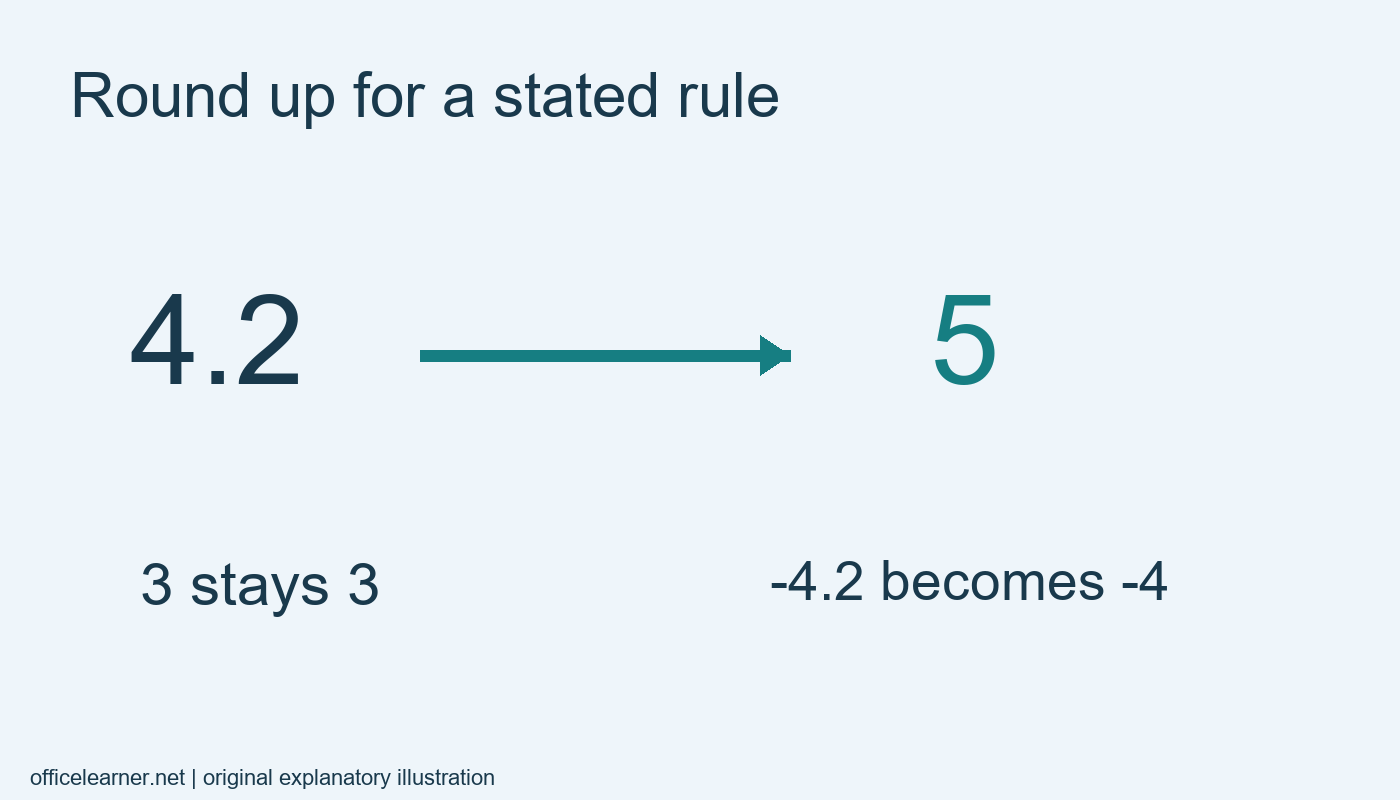
Use Number.RoundUp in a Power Query custom column when your rule requires the next whole number at or above a numeric value. For a positive planning quantity of 4.2, the result is 5; an exact 4 remains 4. Keep the original column so that readers can distinguish the source quantity from the rounded planning result. Upward rounding is a stated business rule, not a universal way to improve data.
Make a small source table
In Power BI Desktop, use Enter data to create a practice table with a column named Quantity. Add 4.2, 7.01, 3, and an empty value. Open the data in Power Query Editor and assign an appropriate numeric type to Quantity. Use decimal numbers for the fractional examples. Locale settings affect decimal separators, so inspect the parsed values rather than assuming a pasted dot or comma was interpreted correctly.
These invented quantities represent planning units rather than people, money, or measured evidence from a real organization. The exercise asks how to implement a rule once it has been chosen. It does not establish that rounding upward is appropriate for your operational report. Before applying it to real data, ask who owns the rule and whether fractional quantities should remain visible elsewhere.
Add the custom column
Choose Add Column and then Custom Column. Name the result Rounded quantity and enter Number.RoundUp([Quantity]) as the expression. The expected results are 5, 8, 3, and null for the four practice rows. Inspect every row in the preview. The exact integer remains unchanged, while a positive fraction advances to the next integer. A missing quantity remains missing instead of silently becoming zero.
The function name and field reference are part of the Power Query M language. They are not an Excel worksheet formula, and they do not belong in a DAX calculated column. Use the Power Query custom-column dialog for this example. Square brackets identify the field in the current row. If your column name differs from Quantity, insert the actual field from the dialog rather than copying a reference that does not exist.
Understand decimal precision
An optional second argument specifies the number of decimal places. Number.RoundUp(4.231, 2) returns 4.24, while Number.RoundUp(4.23, 2) leaves 4.23 at that precision. Use the argument because the rule requires hundredths, not because two decimal places look familiar. Rounding a calculation and merely formatting a displayed number are different operations with different consequences for later calculations.
Keep units visible in the column name or report documentation. Rounded quantity could mean whole cartons, tenths of a metre, or hundredths of another unit; the function cannot infer that meaning. If you need the count of cartons for loose items, division by carton capacity is a separate calculation that must happen before rounding. Validate the units and denominator independently rather than attributing the whole planning model to one rounding function.
Test the negative case explicitly
Add a fifth practice row containing -4.2. Number.RoundUp returns -4 because that number is higher on the number line. It does not return -5. This matters when data contains adjustments, reversals, or signed measurements. Rounding upward is different from increasing absolute magnitude. Do not carry an intuition learned from positive quantities into negative values without checking the mathematical rule.
For a process that accepts only nonnegative planning quantities, a negative row may need investigation rather than rounding at all. Keep that validation separate from the arithmetic. Likewise, an error caused by the text unknown should not automatically be replaced with zero. Null, zero, an invalid string, and a negative value have different meanings and can require different handling in a trustworthy report.
Check the applied step and output
Review the new step in Applied Steps and ensure the original Quantity column is still present. Set the result type intentionally, using a whole-number type when your output must be an integer. If you chose decimal precision instead, select a suitable decimal type. Then apply the query changes and compare a small report table against the Power Query preview. Formatting should not conceal the source fractions during this check.
These steps describe Power BI Desktop's Power Query Editor. Service authoring experiences, Dataflows, and future ribbon updates can differ. Number.RoundUp is documented in Microsoft's M reference; the particular planning table and review procedure are original exercises. A refresh reruns the transformation against new inputs, so verify that future rows still meet the assumptions instead of considering a successful first preview permanent proof.
Keep a short note beside the query describing why upward rounding was chosen. A future maintainer needs the planning rule as well as the expression.
Try two rules side by side
Create another custom column using Number.RoundUp([Quantity], 1). Predict the results for 4.21, 4.20, and -4.21 before looking at the preview. Explain why the negative result moves toward the higher number rather than farther from zero. Finally write a one-sentence rule naming the unit, allowed input range, and rounding precision. If you cannot write that sentence clearly, clarify the requirement before building a production visual.