Inspect text inputs with the Excel T function
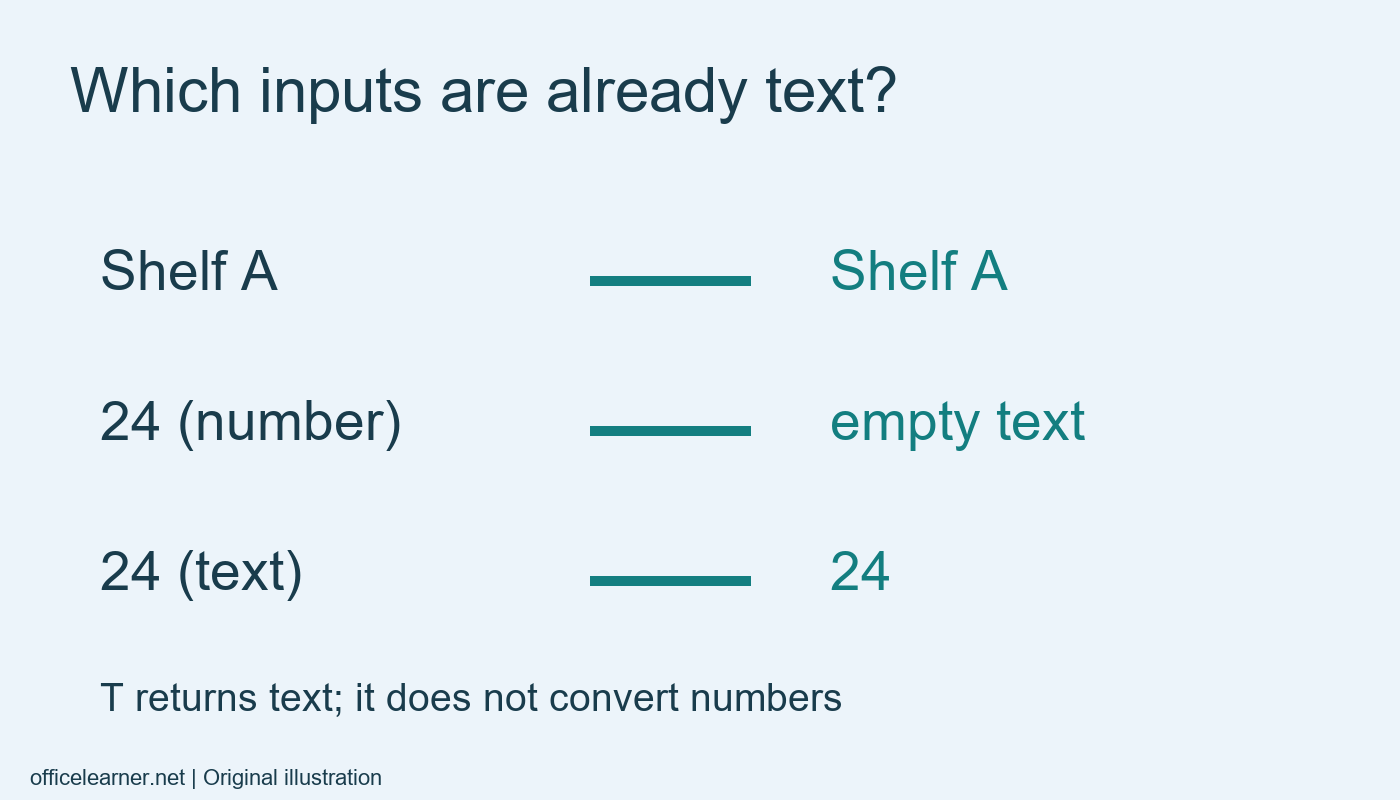
Use =T(A2) to return the text stored in A2, or an empty text result when A2 contains a number or another nontext value. This makes T useful for inspecting a mixed input column without changing the original entries. It does not convert numbers into text, clean unwanted spaces, or certify that a record is valid. Keep the source column beside the result so an empty output remains understandable.
Imagine a workshop sheet containing a mixture of shelf labels and quantities. Someone pasted both kinds of information into one column. You want to see which entries Excel already treats as text before deciding how to separate them. A small helper formula lets you investigate the situation while preserving the evidence. The following example is deliberately small enough to reproduce in a blank workbook and check cell by cell.
Build a mixed input sample
Enter Input in A1 and Text returned in B1. Type Shelf A in A2, the number 24 in A3, and Shelf B in A4. In A5 enter an apostrophe followed by 24. Excel normally uses that leading apostrophe to store the digits as text; it is an entry instruction rather than part of the displayed value. Leave A6 genuinely empty. In A7 type =TRUE() to create a logical value.
Click each source cell and look at the formula bar. A3 and A5 may look similar on the worksheet, although their stored types differ. Alignment can suggest a difference, but users can change alignment, so appearance alone is an unreliable type check. This distinction matters when information arrives from forms, copied webpages, or exports that mix identifiers and quantities in a single field.
Enter and copy the formula
In B2 type =T(A2) and press Enter. Copy the formula through B7 with the fill handle or ordinary copy and paste. B2 should show Shelf A, B3 should look empty, B4 should show Shelf B, and B5 should show 24 as text. B6 and B7 should look empty. Those predictions follow the function definition; they are an exercise to reproduce rather than a claim of testing your installation.
Click B3 and inspect its formula. The cell contains a formula even though the displayed result is empty text. Do not describe B3 as an unused cell. Likewise, B5 showing 24 does not mean T converted the number in A3. The helper returned the separate text entry from A5. Keeping the rows labeled prevents these two different observations from being confused during a review.
Interpret what the result tells you
T answers a narrow question about the supplied value. Text comes back as text; ordinary numbers and logical values produce empty text. A text label containing leading spaces still contains those spaces. A label with an unwanted punctuation mark still has that mark. If a source reference contains an error, address the error rather than assuming the helper will conceal it. Error handling and data cleaning are separate decisions.
For the workshop, preserve Shelf A and Shelf B as candidate labels. Review the numeric entry 24 with the person who supplied the data. It might be a count, or it might be an identifier that should have been stored as text. The formula cannot infer that business meaning. Record the decision in a separate notes column instead of replacing every empty helper result with a guessed label.
Compare with a deliberate conversion
Suppose you actually need the quantity 24 to appear inside a sentence. A formula such as ="Count: "&A3 joins a label and the value. That is a different purpose from inspecting its original type. If a number needs a particular display pattern, consider an appropriate TEXT formula after deciding the format. Avoid using either conversion as proof that the original imported value was already text.
A useful review sheet has three visible columns: original input, T result, and decision. For the sample, decisions might be Keep label, Ask whether count, and Keep text identifier. This keeps formulas from silently becoming approval rules. Once decisions are confirmed, build a properly structured destination table with separate label and quantity columns. Save the original sample or export so later questions can be traced back to the source.
Troubleshoot unexpected output
If every result looks empty, check the formula references first. Copying a formula from another part of the workbook may point at a different column. Then inspect one source that should contain words. If the formula itself appears as text, check whether the destination cells were formatted as Text before entry; change the format as appropriate and reenter the formula. Regional formula settings can differ, although this single argument example does not need a list separator.
If a text number unexpectedly appears, remember the apostrophe example. Numeric appearance is not the same as numeric storage. If spaces seem to disappear, widen the column and inspect the source rather than assuming T trimmed them. Work in Excel versions listed in Microsoft's T function documentation, including current Microsoft 365 and supported desktop editions. Interface details may vary between Windows, Mac, and web, while the documented function behavior supplies the basis for this exercise.
Try a second inspection
Add Workshop 3, a numeric zero, and a text entry of 0007 in three new rows. Predict the helper output before copying the formula down. Which outputs preserve letters or leading zeros, and which look empty? Explain each result using the stored type rather than the display alignment. Finish by writing one sentence describing what T can establish and one describing what still requires human judgment. That explanation is the useful outcome of this exercise.