Identify a single cell value type with Excel TYPE
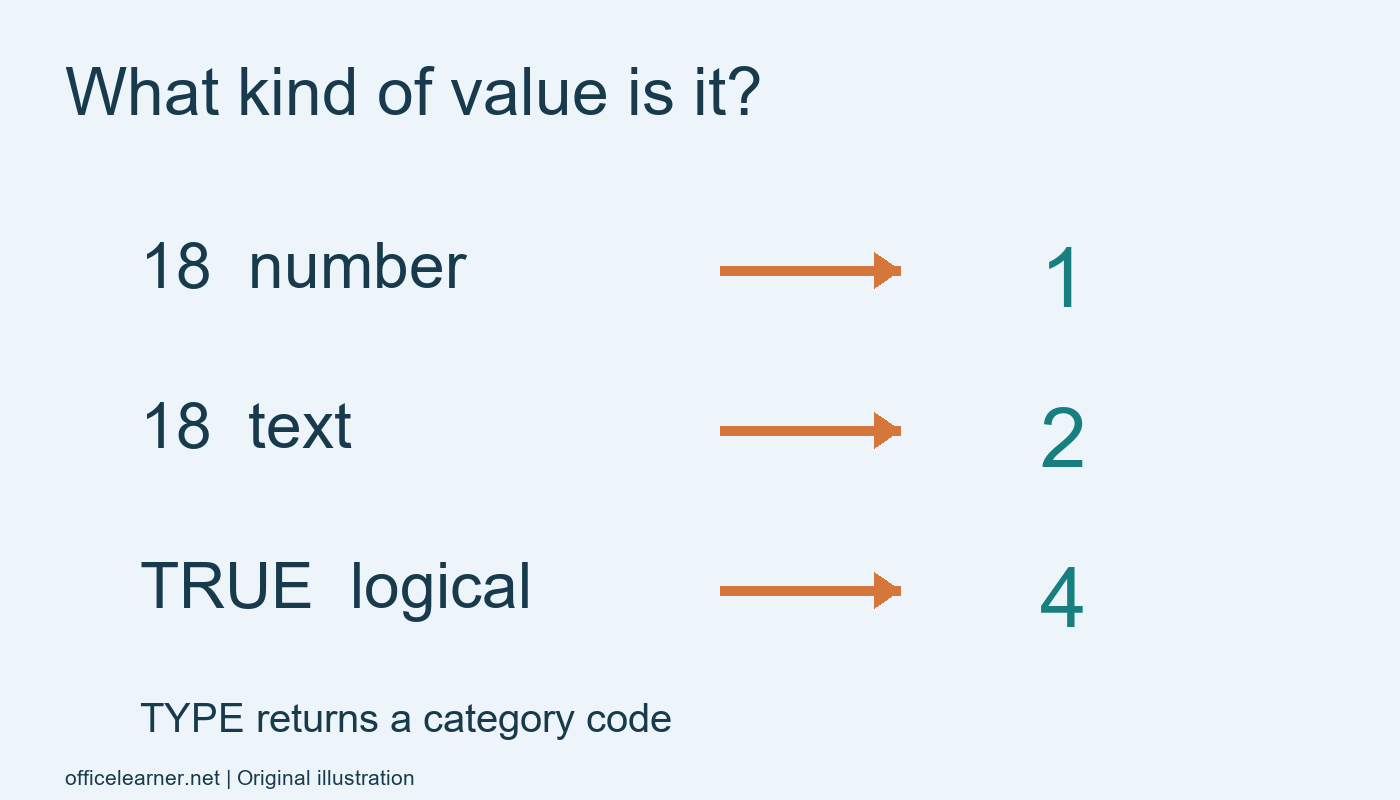
Use =TYPE(A2) to inspect the kind of value returned by one Excel cell. TYPE returns a code: 1 for a number, 2 for text, 4 for a logical value, 16 for an error, 64 for an array, and 128 for compound data in editions supporting those values. This small diagnostic is useful when two entries look alike but behave differently in formulas. It reports a category of value, not whether the value is sensible for your business task. A customer number stored as text can be entirely intentional.
Build a controlled example
Open a practice workbook and put Input in A1 and Type code in B1. Enter 18 in A2, enter '18 in A3, enter =TRUE() in A4, and enter =1/0 in A5. The leading apostrophe tells Excel to treat the second entry as text; it is not normally shown as part of the displayed value. In B2 enter =TYPE(A2), then fill that formula down through B5. The expected codes are 1, 2, 4, and 16 respectively. These are authored examples you can reproduce, rather than a claim of desktop testing.
Read each result beside its input. A2 and A3 may both display 18, but the codes distinguish a numeric quantity from a text label. A4 is a logical result rather than the letters TRUE typed into a sentence. A5 deliberately produces an error, so it belongs only in this disposable example. Do not put deliberate errors into a production report simply to demonstrate the function. Keep the test area separate from totals that other people use.
Interpret the code before changing data
Imagine a workshop supply sheet with a Quantity column and a Bin code column. Quantity 18 should probably be numeric because you intend to add quantities. Bin code 018 may need to stay text because the leading zero identifies a location. TYPE can help you inspect both columns, but it cannot decide which convention your workshop uses. Write that convention in the column heading or an adjacent note before converting any entries. Otherwise a technically consistent conversion may remove meaningful information.
For a formula cell, TYPE describes the value that the formula produces. Put =A2+2 in A6 and =TYPE(A6) in B6. The expected code is 1 because the result is numeric. This does not reveal whether A6 contains a formula; it describes the returned value. Looking for formulas and looking for value types are different inspection tasks. If you need to preserve formulas during cleanup, inspect the formula bar and use a copy of the workbook instead of treating every numeric result as a typed constant.
Use a helper column carefully
Add the diagnostic beside a small suspect range rather than replacing its contents. Give the helper a descriptive heading such as Input value type. Fill only through the actual records, then inspect unusual codes against the source information. A helper column gives you an explanation trail: the original entry remains visible, and a colleague can see why a record needs attention. Do not automatically replace every code 2 with a number. Names, codes, postal identifiers, and version labels often belong in text fields.
Keep the first exercise to individual cell references. Passing a range, array constant, or expression involving several values introduces array behavior that is less helpful for a beginner investigating one record. The documented array code is 64, but that is not a report of the type of every element inside an array. Use one helper formula per row when your question is specifically whether each individual quantity was entered as text. That arrangement is easier to audit than a compact formula whose output you have not interpreted.
Troubleshoot unexpected results
If the formula is displayed literally, check whether the destination cell was formatted as Text before entry. Change the destination to General and reenter the formula. If every filled result examines the same input, inspect the references for dollar signs that lock the row. =TYPE($A$2) always examines A2 when copied; =TYPE(A2) changes with the row. Also confirm that you filled the diagnostic formula rather than typing the first result code manually and copying that constant downward.
Do not use an empty cell as your first demonstration. Blank references and formulas returning empty text can behave differently from an obvious typed number or text label, and a type code alone is not a reliable definition of missing data. Define missingness separately for your sheet. Similarly, a date can be stored as a number and displayed with a date format. A numeric code does not prove that the cell was intended to be an ordinary count rather than a date.
Check your understanding
Create three new inputs: the number 25, the text label Room 25, and the comparison =25>10. Predict their TYPE codes before entering helper formulas. Explain why the comparison is logical even though it contains numbers. Then inspect one real column in a copied workbook and write down the type you expect before reviewing the results. Microsoft documents TYPE for current supported Excel editions including Microsoft 365; menu appearance and regional formula separators can vary. This example uses English function names and single arguments, so no list separator is needed. Keep the helper until your cleanup decision has been reviewed, then remove it if it no longer serves the workbook.