Create Stunning PowerPoint Presentations in Minutes Using Copilot
Published on officelearner.net | PowerPoint and Copilot | May 2026
Creating a professional PowerPoint presentation used to mean spending hours on layouts and speaker notes. With Copilot integrated into PowerPoint in 2026, that process is compressed from hours to minutes.
What Copilot Can Do in PowerPoint
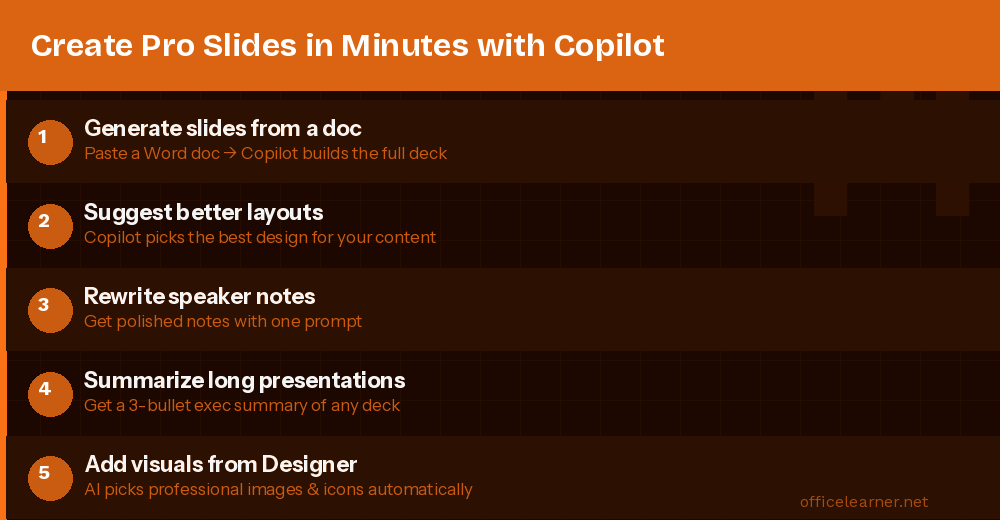
Generate an entire presentation from a text prompt or Word document
Suggest better slide layouts and visual designs
Rewrite or expand speaker notes automatically
Summarize long presentations into an executive brief
Suggest relevant stock images and icons from Microsoft Designer
Feature 1: Generate a Full Deck From a Prompt
Open a new presentation, click the Copilot icon, and type a prompt such as:
Copilot generates the full deck including titles, content, and bullet points. This saves 2 to 3 hours of initial slide building.
Feature 2: Create Slides From a Word Document
In PowerPoint click Copilot then Create presentation from file and select your Word document. Copilot reads the document structure and builds a slide for each major section. Works great for reports, proposals, and research summaries.
Feature 3: Rewrite and Improve Slide Content
Click any slide, then click Copilot and choose Rewrite this slide. Specify "Make this more executive-friendly" or "Simplify for a non-technical audience." Ask Copilot to expand thin slides while maintaining the layout.
Feature 4: Auto-Generate Speaker Notes
Click on a slide, open Copilot, and type "Write speaker notes for this slide, 3 to 4 sentences, conversational tone." Copilot creates notes based on the slide content and can adjust for detail level.
Feature 5: Summarize Any Presentation
Open any PowerPoint file, click Copilot, and ask "Summarize this presentation in 5 bullet points." Copilot reads every slide and returns a structured executive summary. Perfect for reviewing a long deck before a meeting.
Step-by-Step Workflow
Open PowerPoint and click the Copilot icon in the Home tab
Type: Create a presentation about [topic] for [audience] with [N] slides
Review the generated deck and adjust slides as needed
Use Copilot to refine content and generate speaker notes per slide
Use PowerPoint Designer under the Design tab for polished themes
Run Summary by Copilot to verify your key message is clear
Export as PDF or present directly from PowerPoint
Common Mistakes to Avoid
Accepting the first output without reviewing. Always refine at least once.
Not specifying the audience. Copilot adjusts based on who it is for.
Skipping speaker notes. They are free to generate and invaluable for presenters.
The next time you need to build a presentation, open Copilot and type your topic. You will have a working draft in under two minutes.
Visit officelearner.net for more PowerPoint, Excel, Word, and Copilot tutorials.