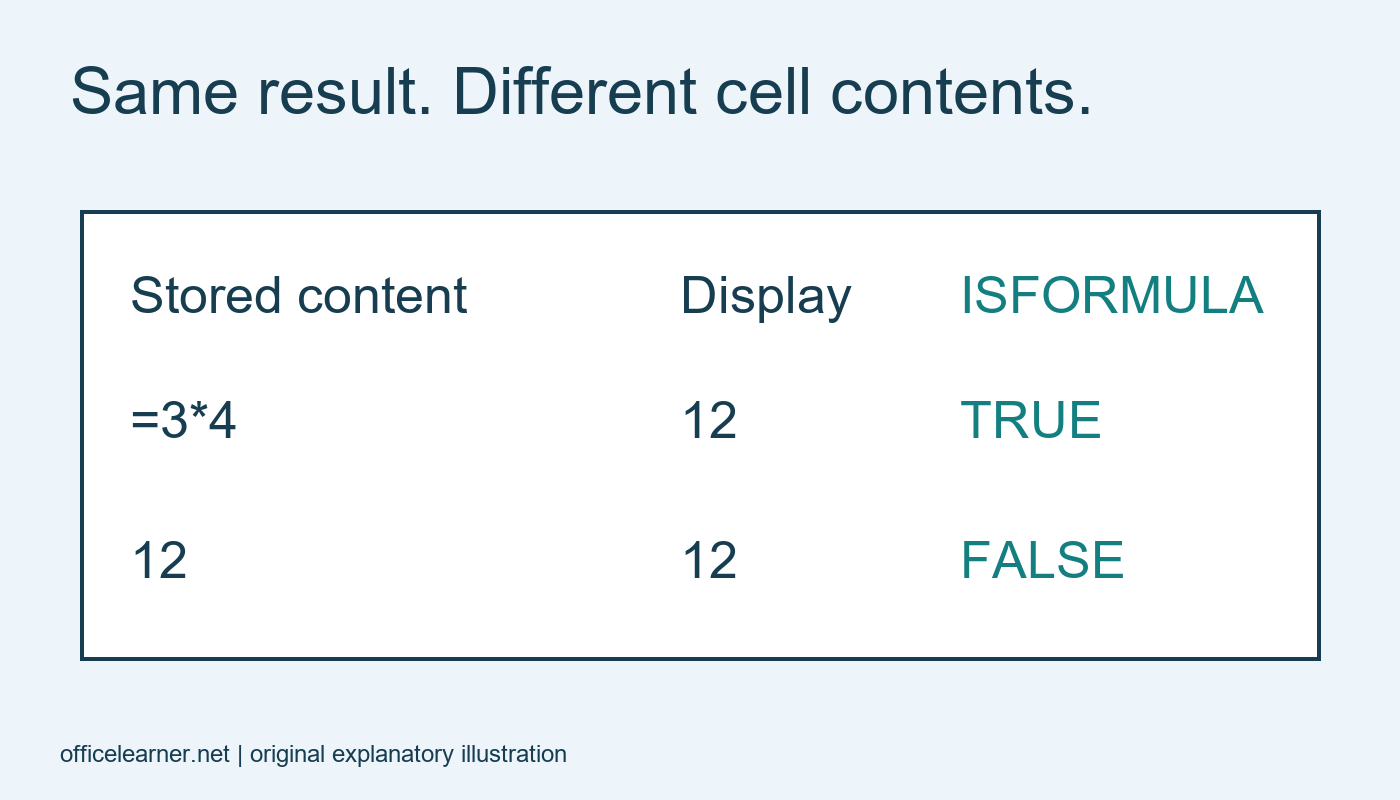
Check whether a workbook cell contains a formula with ISFORMULA
Use ISFORMULA with a cell reference to distinguish a stored formula from a typed value. For example, =ISFORMULA(B2) returns TRUE when B2 contains =3*4 and FALSE when B2 contains the typed number 12. The displayed result can look identical in both cells. This check tells you how the cell is populated; it does not establish whether the calculation is correct. Microsoft documents the function for current supported Excel desktop editions. Check the Applies To list in the linked reference for your installation.
Build a small inspection exercise
Create a blank practice workbook instead of experimenting in a shared budget. In A1 enter Item and in B1 enter Result. Put Paper in A2, Pens in A3, and Clips in A4. Enter =3*4 in B2, type 12 in B3, and enter =SUM(5,7) in B4. All three result cells should display 12 under ordinary General formatting. This is intentional: the exercise removes appearance as a reliable way to identify formulas.
In C1 enter Contains formula. In C2 type =ISFORMULA(B2), then fill that formula down through C4. Expect TRUE, FALSE, TRUE in that order. Read each answer as a statement about the corresponding B cell. C3 is FALSE because its referenced cell contains a constant. C3 itself contains a formula, but that is not the question =ISFORMULA(B3) asks. Keeping the tested cell and the inspection cell separate prevents a surprisingly common misunderstanding.
Select B2 and inspect its formula bar. You should see =3*4. Select B3 and expect 12. Use this manual comparison as a cross-check of the exercise. No desktop testing is claimed here; these are reproducible inputs and expected outcomes based on the documented function. If your regional settings require semicolons inside SUM, enter =SUM(5;7) instead. The single-reference ISFORMULA expression does not need an argument separator.
Understand what the answer proves
TRUE means the referenced cell contains a formula, including a formula that returns text or an empty string. It does not mean the formula produces a number. Try putting ="Pending" in B5 and ="" in B6, then add matching ISFORMULA checks beside them. Both should return TRUE even though one displays a word and the other appears empty. This makes the function useful when a worksheet mixes manual entries and calculated outputs.
A formula can also return an error. If B7 contains =1/0, checking =ISFORMULA(B7) identifies the presence of a formula rather than evaluating its business meaning. A TRUE answer therefore belongs in an inspection checklist alongside checks for appropriate references, units, error handling, and expected totals. Do not describe a sheet as validated merely because all intended calculation cells return TRUE. A wrong formula is still a formula.
Use a review column on a real copy
Suppose a colleague expects line totals in D2:D25 to be calculated. Save a review copy, add an adjacent inspection column outside the working table if necessary, and test each D cell individually. Filter or scan the resulting FALSE values. Investigate each exception before changing anything. A subtotal label, manually approved override, or intentionally blank future row may legitimately contain no formula. A FALSE flag is a prompt for review, not permission to insert a guessed calculation.
Document the intended rule before repairing cells. For instance, write that rows with a quantity and a unit price should contain a line-total formula, while unused rows may remain empty. Compare any suspect formula with neighboring rows and the written rule. If a constant replaced a calculation, restore the approved expression from a trusted version or consult the workbook owner. Avoid copying formulas across totals, merged headings, or structurally different sections simply to turn every flag TRUE.
Troubleshoot unexpected results
If a typed expression looks like a formula but ISFORMULA returns FALSE, inspect the formula bar and the cell format. A leading apostrophe can store =3*4 as text. A Text-formatted cell may also retain an entry as literal characters. Do not delete apostrophes throughout a workbook without understanding why they were used. In a practice copy, change the format to General, re-enter the expression deliberately, and rerun the check. Formatting alone does not necessarily re-interpret an existing text entry.
Keep this exercise to individual cell references. Microsoft documents special behavior when a reference covers multiple cells, and that behavior is easy to misread as an all-cells audit. Filling a single-cell test down a column produces a visible result for every row. If a workbook contains external references or protected content, review those conditions separately rather than assuming this simple inspection grants access to hidden logic.
Try the check yourself
Make four cells displaying the word Ready: one typed directly, one produced by ="Ready", one copied as a value from that formula, and one stored with an initial apostrophe. Predict the ISFORMULA answers before checking. Only the cell retaining the formula should return TRUE. Explain why pasting values changes the inspection result while preserving the display. Then name one additional check you would perform before accepting a calculated worksheet. The useful outcome is a clear distinction between visible content, stored formulas, and verified calculations.