Use a dashed outline to mark a proposed step in PowerPoint
To give a shape a dashed outline in PowerPoint, select the shape, open Shape Format, choose Shape Outline, point to Dashes, and select a dash style. A dashed boundary can distinguish a proposed step from confirmed steps in a simple process diagram. Include an explicit text label such as Proposed so readers do not have to infer the meaning from line style alone. This tutorial uses editable shapes and a fictional workshop process, not a screenshot of an existing presentation.
Establish the meaning before formatting
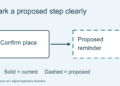
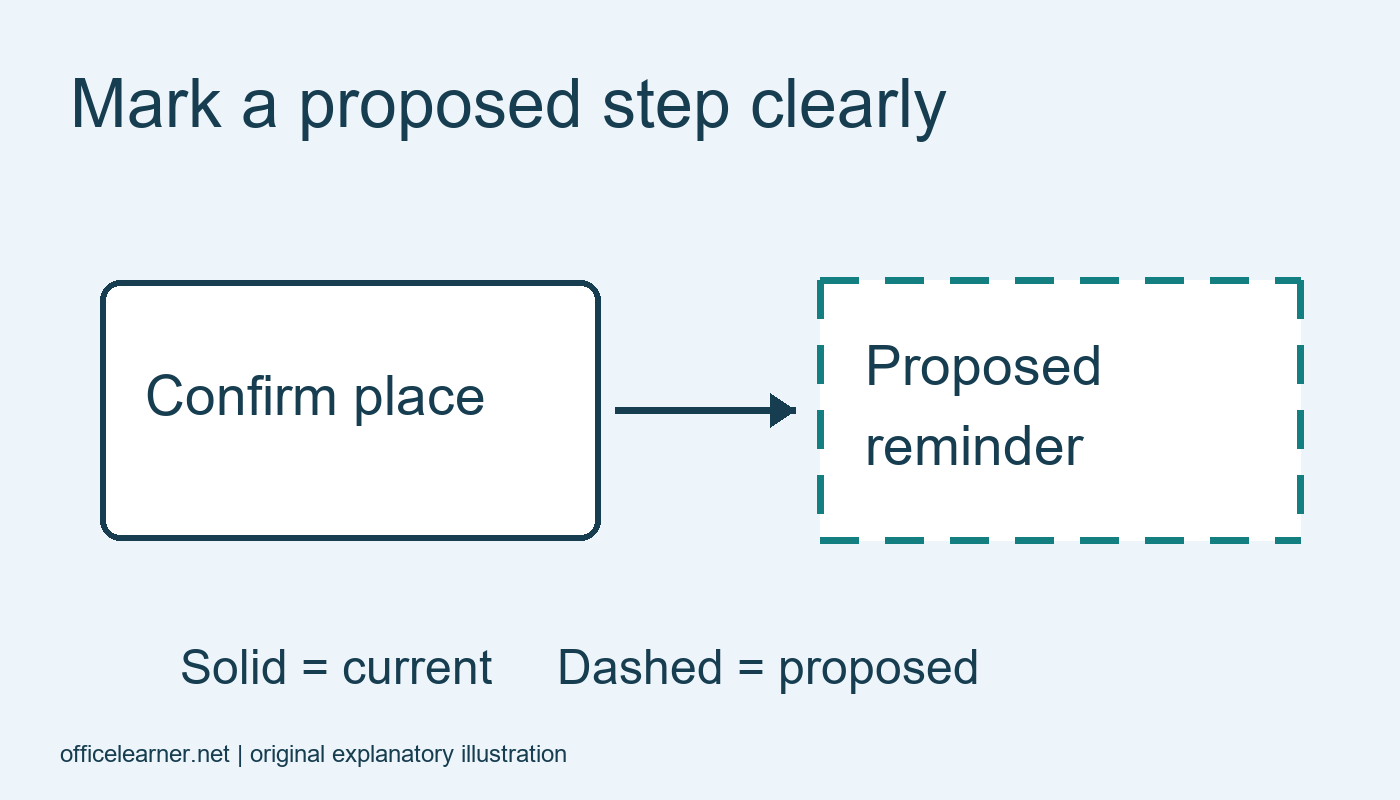
Imagine a workshop team already receives requests and confirms places, but is considering an optional reminder step. Draw the confirmed steps with solid outlines and the proposed step with a dashed outline. Write a small legend stating Solid means current and Dashed means proposed. This is a local visual convention for your slide, not a universal PowerPoint rule. Another team might use dashes for a different purpose, so state the meaning instead of assuming the audience shares it.
Open a blank slide in current desktop PowerPoint for Windows. Use Insert, Shapes to draw a rectangle, then type Receive request inside it. Add a second rectangle labeled Confirm place and a third labeled Proposed reminder. Keep the labels short enough to fit without tiny text. Use one shape family and ordinary readable type. The point of the exercise is to distinguish the status of one step, so decorative effects should not compete with that distinction.
Apply the outline to the intended shape
Select the outer boundary of Proposed reminder. If the text cursor appears inside the shape, click its edge so the object itself is selected. Open Shape Format and Shape Outline, then choose Dashes and select a clearly separated dash pattern. Keep the other two shapes solid. Microsoft documents outline styling for supported desktop editions; the browser version may use a Shape tab and slightly different command labels. Check the official reference if your ribbon differs.
Choose a suitable outline weight from the same menu. A very thin dashed line can disappear on a projector or in a small exported image. A very heavy one can overwhelm the label. Use a moderate weight and compare it at the size the audience will actually see. Do not assign a particular weight as a guarantee of readability on every screen. The appropriate result depends on the slide size, viewing distance, background, and output method.
Separate the boundary from the fill
Shape Outline controls the outside line. Shape Fill controls the interior. If changing the outline seems to have filled the whole box, undo and check which menu you used. For this exercise, use the same light fill for all three boxes and a dark outline. That keeps line style as the intended variable while the text provides a redundant explanation. You can also use No Fill when appropriate, provided the underlying background does not make the label hard to read.
Avoid using color alone to mean proposed. A slide may be printed in grayscale, viewed on a poor display, or read by someone who cannot distinguish your chosen colors. The word Proposed and the dashed boundary reinforce each other. Keep the legend near the diagram rather than burying it in speaker notes. A colleague receiving a PDF should be able to interpret the diagram without hearing your spoken explanation or opening an editable PowerPoint file.
Inspect selection and grouping problems
If every box changes, you may have selected several objects or an entire group. Undo, click the slide background, and select just the intended rectangle. If you are editing a grouped diagram, select the group first and then select the specific member as your edition allows. Do not ungroup a complex shared graphic merely to change one line until you understand what else the group contains. Work on a duplicate slide when experimenting with an established diagram.
Some imported graphics are pictures rather than editable shapes. Selecting a picture will not expose the same shape-outline controls for its internal boxes. Applying a picture border would surround the whole image instead of changing the proposed step within it. Recreate a simple diagram with native shapes when that is appropriate and authorized, or ask for the editable source. This tutorial does not recommend painting a dashed line over a screenshot and presenting it as the original software interface.
Review the slide as a reader
Run Slide Show and read the diagram from the audience's perspective. Confirm that each label fits, the proposed boundary is visibly dashed, and the legend remains readable. If you export a PDF or image for distribution, inspect that actual output too. Dashes that look clear in the editor can become subtle after downscaling. This is a suggested review procedure; no projector, print, or native PowerPoint test is claimed for your device.
Ask a colleague to identify the optional step without explaining it first. If they need to guess, improve the text or legend before adding more decoration. Then duplicate the slide for practice, mark the reminder as approved, and restore its outline to solid while changing the label to Send reminder. Explain what needs updating when status changes: both the visual convention and the words must remain consistent. Which other diagram in your work would benefit from an explicit proposed label rather than a color distinction alone?