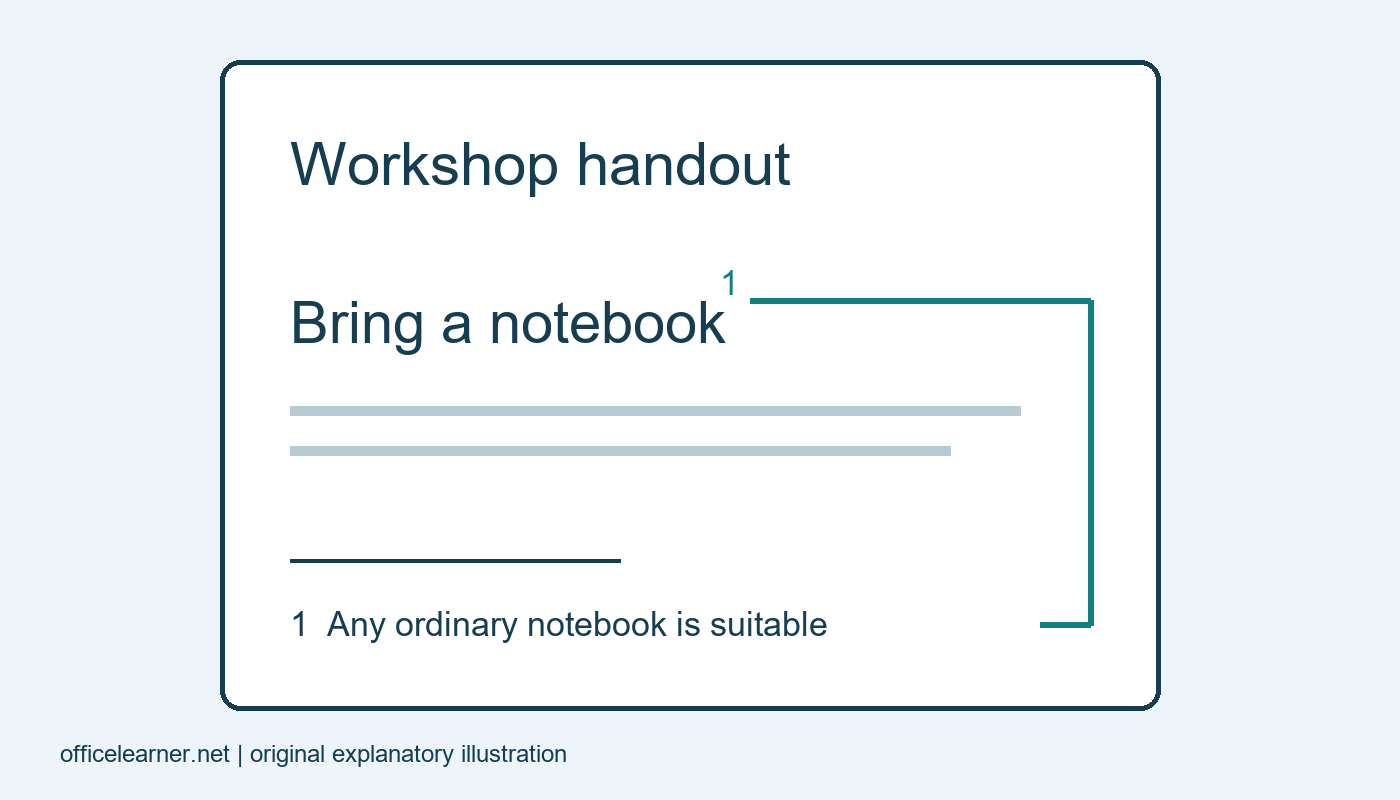
Insert a real footnote in a Word workshop handout
To add a footnote in desktop Word for Windows, place the cursor after the passage you want to explain, choose References, Insert Footnote, and type the note text in the note area. Word creates a reference marker linked to the note. This is preferable to typing a small raised number yourself when notes need automatic numbering. Use footnotes for brief supporting explanations or source details that readers may need without interrupting the main sentence.
Prepare a harmless practice document
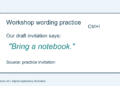
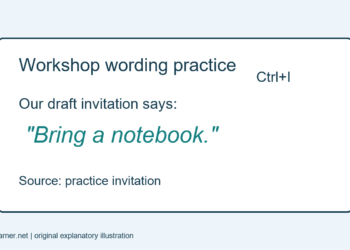
Open a blank document and type two short paragraphs. Use this first sentence: Bring a notebook to the workshop. Use this second sentence on the next paragraph: Printed reference sheets are available at the desk. These are invented workshop instructions, not an announcement of a real event. Save the file with a name such as footnote-practice.docx so it cannot be confused with a finished handout. Keep the content short enough that you can see both the paragraph and the note on the screen.
Place the insertion point immediately after notebook and before the following space. Go to References and choose Insert Footnote. Type Any ordinary notebook is suitable in the footnote area. Return to the main paragraph and read the sentence again. The note should supplement the word notebook without replacing it. This separation lets the main instruction remain concise while preserving the extra detail for a reader who wants it. Avoid putting essential attendance requirements only in a small note.
Add another note and inspect numbering
Place the cursor after reference sheets in the second paragraph. Insert another footnote and type Large print copies can be requested from the organizer. That sentence is also practice text. Inspect the markers in the body and their corresponding notes. Under ordinary default settings, the notes should have consecutive numbers. A customized document may use a different number format or restart rule, so inspect the actual settings before assuming that an unfamiliar marker is broken.
Now insert a third note earlier in the document, after Bring. Write Practice note added earlier in the text. Observe how Word manages the numbering of real footnotes as their order changes. A manually typed superscript number would not participate in that sequence. This is the practical reason to use the footnote command for an evolving report: the reference and its note form a managed relationship instead of two unrelated pieces of text that happen to display the same digit.
Keep notes short and useful
Use a footnote to answer a question raised by a specific passage. In this example, the notebook note answers what kind of notebook is needed. It does not need to repeat the workshop instruction or describe every possible stationery choice. Read the note without its marker and ask whether it adds information. Then read the main sentence without the note and ask whether the reader can still follow the instruction. Both checks help prevent a handout from becoming a collection of detours.
For a source note, include enough information to identify the source and use a real verified address where relevant. In a draft, label an incomplete source rather than inventing an author, date, page number, or publication title. Footnote formatting does not make an unsupported claim reliable. If your school or publisher requires a particular citation style, follow its rules for punctuation and bibliographic detail. This tutorial concerns Word's note structure rather than prescribing a citation standard for every subject.
Delete a practice note correctly
To remove a footnote, select its reference marker in the main document and delete that marker. Word removes the associated note. Deleting only the explanatory words in the note area can leave an empty note and its marker behind. Try removing the earlier practice note you inserted after Bring, then inspect the remaining sequence. Undo the deletion once if you want to compare the before-and-after behavior before cleaning up the exercise file.
Do not delete every small raised character in a real document just because it resembles a footnote marker. Superscript may also represent a mathematical power, a unit, or a manually formatted reference to a figure. Click carefully and inspect the context. If the document is shared, make a review copy and follow the team's editing process. A clean note sequence is useful, but it does not justify silently removing supporting explanations that another editor still needs.
Check layout and edition differences
Microsoft documents footnote and endnote features across multiple Word editions. Ribbon location, editing capabilities, and navigation can vary in browser and mobile versions, so use the linked instructions for the edition you actually have. Endnotes collect notes at the end of a document or section rather than at the bottom of a page. Choose between them based on the reader's needs and the document's requirements, not merely the first button you notice.
Before distributing your handout, inspect Print Layout and any exported PDF. Check that each note remains readable and that note markers correspond to the intended words. Long notes can change pagination, particularly after later edits to margins or font sizes. This exercise does not claim native Word rendering or printing in your installation. Finish by creating one additional useful note, deleting one through its marker, and explaining to a colleague why automatic footnotes are easier to maintain than typed superscript numbers.