Convert an all capitals Word heading to sentence case
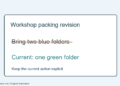
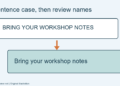
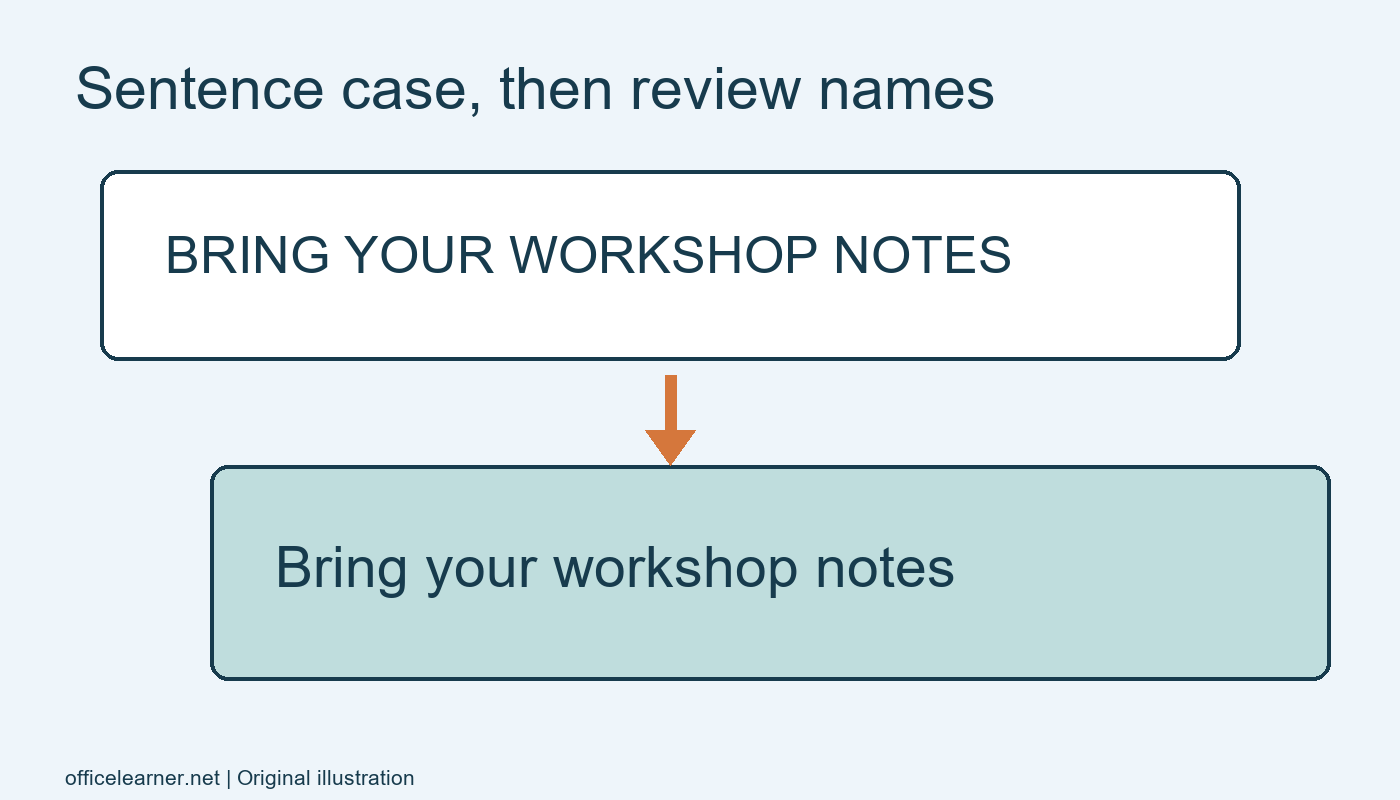
In desktop Word, select an all capitals heading and choose Home, Change Case, Sentence case to convert it into an ordinary sentence style. Review proper names and acronyms afterward because automatic case conversion cannot know your editorial intent. This is useful when a handout arrives with headings such as BRING YOUR WORKSHOP NOTES and you want quieter, more readable typography. Change case affects capitalization; it does not assign a heading style or decide which words deserve capital letters.
Make a small review copy
Save a copy of the document before a broad formatting cleanup. In a practice paragraph, type BRING YOUR WORKSHOP NOTES and put a second paragraph underneath containing CONTACT NASA BEFORE FRIDAY. These two examples expose different review needs. The first can become a straightforward sentence case heading. The second contains an acronym and a weekday name that may need manual correction. Having both examples prevents you from assuming that a clean result on ordinary words proves the conversion is editorially complete.
Select only the visible letters in the first heading. On the Home tab, look for Change Case in the font controls, commonly represented by Aa. Open its menu and choose Sentence case. Read the result: Bring your workshop notes. Keep the insertion point in the heading and check its paragraph style separately if you need it to remain a real navigable heading. Capitalization and document structure serve different purposes, so one command should not stand in for the other.
Select the intended scope
For a single heading, selecting the exact text is easier to inspect than applying the change to the entire document. Broad selection can alter acronyms in captions, product names in instructions, and capitalization in quoted material. If you need several headings changed, work through a short section first and review the result before continuing. A few deliberate conversions may be faster overall than one document-wide conversion followed by a search for all the names that lost their intended capitalization.
Pay attention to punctuation in the selected text. Sentence case treats the text according to sentence boundaries rather than your visual impression of a title. A heading containing a colon, abbreviation, or several sentences deserves a separate read. For example, a workshop heading that combines an instruction and a room label may need the room name capitalized even when it is not at the beginning. Write the desired final heading in plain language before relying on the menu to approximate it.
Correct names after conversion
Now convert CONTACT NASA BEFORE FRIDAY in the practice copy. Inspect the acronym and the day name. Restore NASA and Friday as appropriate, producing Contact NASA before Friday. This extra pass is part of the task, not an indication that sentence case has failed. Word can change letters systematically, but it cannot reliably determine every organizational abbreviation, local place name, or brand spelling that a particular audience expects. A short heading is small enough to check word by word.
Keep a mini style list beside you when the document repeats the same terms. It might say OneDrive, PowerPoint, NASA, and Friday. After changing each heading, compare it with that list. Do not globally replace short strings without checking whole words and context; a fragment of a product name may also occur inside an unrelated word. If a source quotation must preserve original capitalization, leave it alone or follow the quotation policy that governs the document rather than normalizing it for appearance.
Distinguish case from visual font effects
Sometimes text appears in capitals because a font effect displays it that way. Changing the underlying letters may not produce the expected visible result while an All caps effect remains applied. Inspect the Font settings if the case command appears to make no difference. A heading style can also carry a capitalization effect, so the same appearance may return when the style is reapplied. Work out whether your aim is to change the letters, the display effect, or the paragraph style before making additional edits.
Use Undo immediately if you changed the wrong selection. Do not try to reverse a sentence case operation by choosing UPPERCASE and assume you have recovered the original mixture of upper and lower case. Such a conversion cannot reconstruct special capitalization that was lost. Undo or the saved review copy is the dependable way to recover the prior text. Once you are happy with the edited heading, continue to the next one and keep the review scope manageable.
Version caveats and a reader exercise
This workflow targets desktop Word editions whose Home tab includes Change Case. Microsoft documents case conversion for supported desktop products; the web version does not offer the same case-changing feature in the documented workflow. Keyboard shortcuts can behave differently on Windows and Mac, so the menu route is the clearest starting point. If you cannot find the control in a collapsed ribbon, expand the window or inspect the font group rather than repeatedly pressing an unfamiliar shortcut.
Try converting REVIEW THE ONEDRIVE CHECKLIST BEFORE MONDAY in a practice heading. Then restore the product spelling and weekday so it reads Review the OneDrive checklist before Monday. Explain which changes the automatic command handled and which required your judgment. Finally, scan the heading beside the paragraph beneath it. Does it still express a clear instruction, preserve the correct names, and retain its intended heading style? That combined check catches the common mistake of improving visual tone while accidentally weakening the document's meaning or structure.