Undo one accidental text edit in OneNote for the web
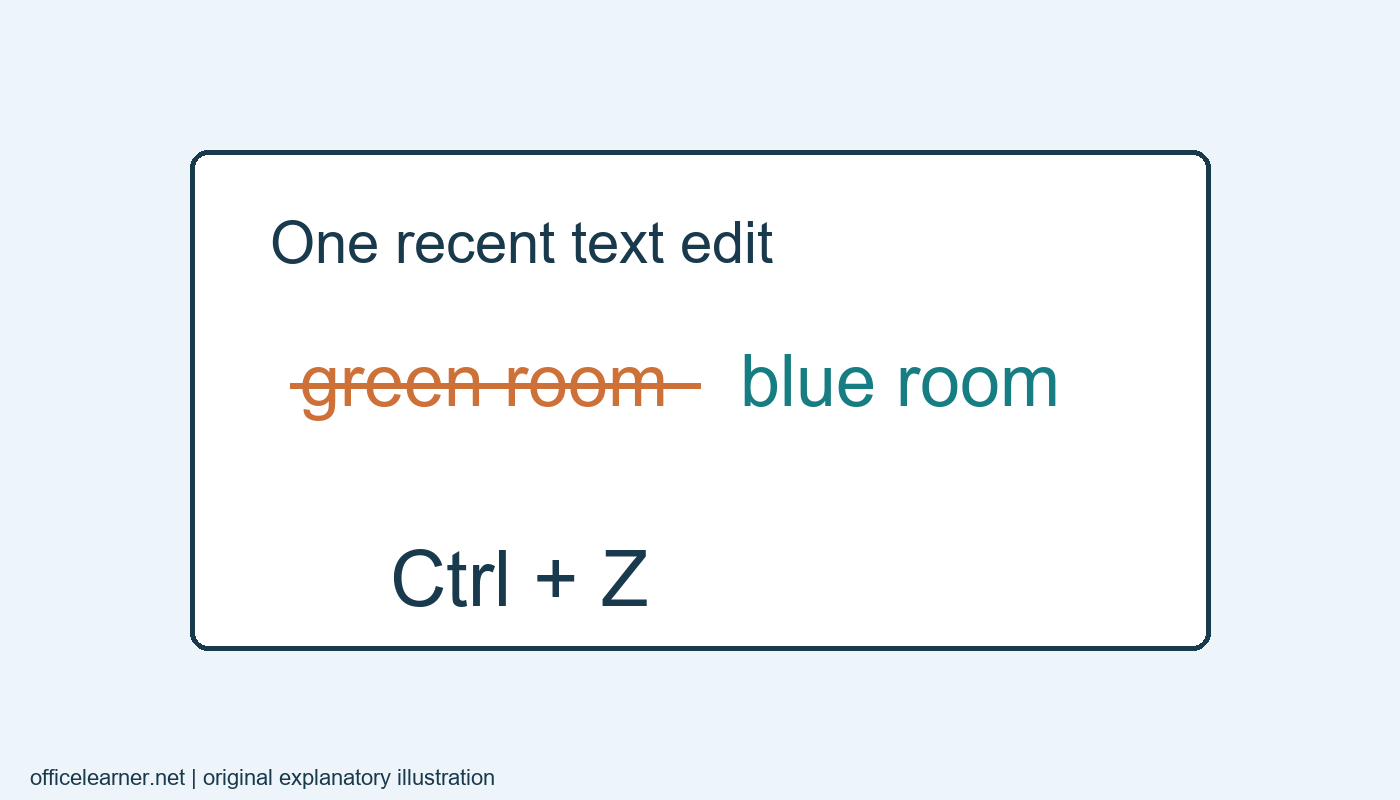
With the note editor active in OneNote for the web, use Ctrl+Z on Windows or Command+Z on a Mac to undo a recent text-editing action. Inspect the result after each command. Undo is useful for an immediate mistake, but it is not a substitute for recovery tools or a backup. In particular, do not assume this text-editing shortcut restores a deleted page in the web application.
Use a private practice page
Create a page called Undo practice in an editable notebook. Type a short invented sentence: The workshop starts in the blue room. Keep the exercise separate from a shared meeting record so that you can observe changes without affecting colleagues. Confirm that you can place the insertion point inside the sentence and type. A read-only notebook will not allow the editing sequence this exercise requires.
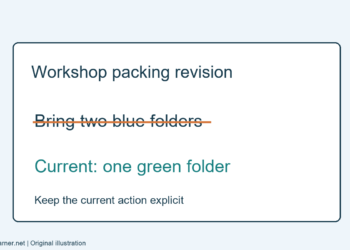
Select only blue and replace it with green. Read the sentence again so you know the exact state you are about to reverse. Do not make several unrelated formatting changes first. The purpose is to learn how an immediate text replacement responds, rather than to guess which of several recent actions occupies the next position in the undo history.
Undo and inspect once
Keep focus inside the page's note-editing area and press the shortcut once. The sentence should return to its earlier wording if the replacement is the action being undone. Read the entire sentence, including spaces around the restored word. A visible return of blue is your check; merely pressing the keys is not evidence that the intended edit was reversed.
If the result is different from your prediction, stop and inspect what actually changed. Editing applications can group typing into undo actions, and focus can move between the note and the browser interface. Repeatedly pressing Undo without looking can reverse additional work. A short pause between commands is more useful than a rapid sequence whose consequences you must later reconstruct.
Distinguish app focus from browser focus
Browser applications share keyboard shortcuts with the browser and operating system. If your insertion point is in the address bar, an undo command can act on address text instead of the note. Click back inside the practice sentence before trying the note command. Do not assume that a selected tab automatically means the editor has keyboard focus.
If a menu or another control has focus, close it or return to the editing area first. On a managed machine, keyboard remapping or remote-access software may also intercept commands. Use current Microsoft help to identify the available app controls rather than changing unrelated browser settings. The practice remains narrow: reverse one recent edit in the note body and verify its text.
Understand what automatic saving means
OneNote for the web saves note changes automatically through the connected service. That does not make Undo unnecessary. An accidental edit can be saved just as a useful edit can. Undo changes the current editing state; it should not be confused with selecting an earlier backup file. Check for connection or save warnings before assuming a correction is visible on another device.
After the practice sentence returns to blue, allow the app to finish saving normally. You can inspect the page again after returning to it, but do not make the exercise depend on a second device being available. If a save warning remains, resolve that condition before trusting the page as a current shared reference. A successful keyboard action and a successfully synchronized page are separate observations.
Keep page deletion outside this exercise
Microsoft's web-page deletion guidance warns that deleted pages require the Deleted Notes recovery route. The shortcut described here should not be generalized into a promise that every destructive action can be reversed the same way. Do not delete a valuable page as a test. If a real page is missing, consult the current recovery instructions and your organization's retention arrangements.
Likewise, Undo is not a dependable way to reconstruct an old state after an extended editing session, a browser restart, or changes by other people. Those situations may require a different recovery mechanism. State what you know about the mistake and preserve the current evidence before experimenting. For this article, the intended scope is an immediate, ordinary text replacement on a private practice page.
Work carefully in a shared notebook
Before undoing changes in a collaborative note, consider whether the current text includes another person's useful work. Keep the action local and inspect the result. If the situation is unclear, coordinate through your normal collaboration process rather than issuing a long chain of reversals. A shared page's history can be more complicated than a single-author practice example.
These instructions concern OneNote for the web with English help terminology. Desktop OneNote, mobile applications, and browser interfaces can expose different commands and recovery options. Windows and Mac use different modifier keys for this shortcut. The reproducible example is an authored exercise, not a claim that every browser, account type, and release has been tested with identical undo grouping.
Try a prediction exercise
Type a second short sentence on the practice page, replace one word, and predict what one Undo will reverse. Issue the command once and compare the result with your prediction. Then explain why clicking the address bar before the command would change the context. Finish by keeping or deleting only this disposable practice material through the appropriate app controls. The useful skill is a deliberate action followed by a text check, rather than confidence in an unlimited recovery promise.
Sources and related reading
Make a manual workshop checklist in OneNote