

Keep a number and its unit together in Word
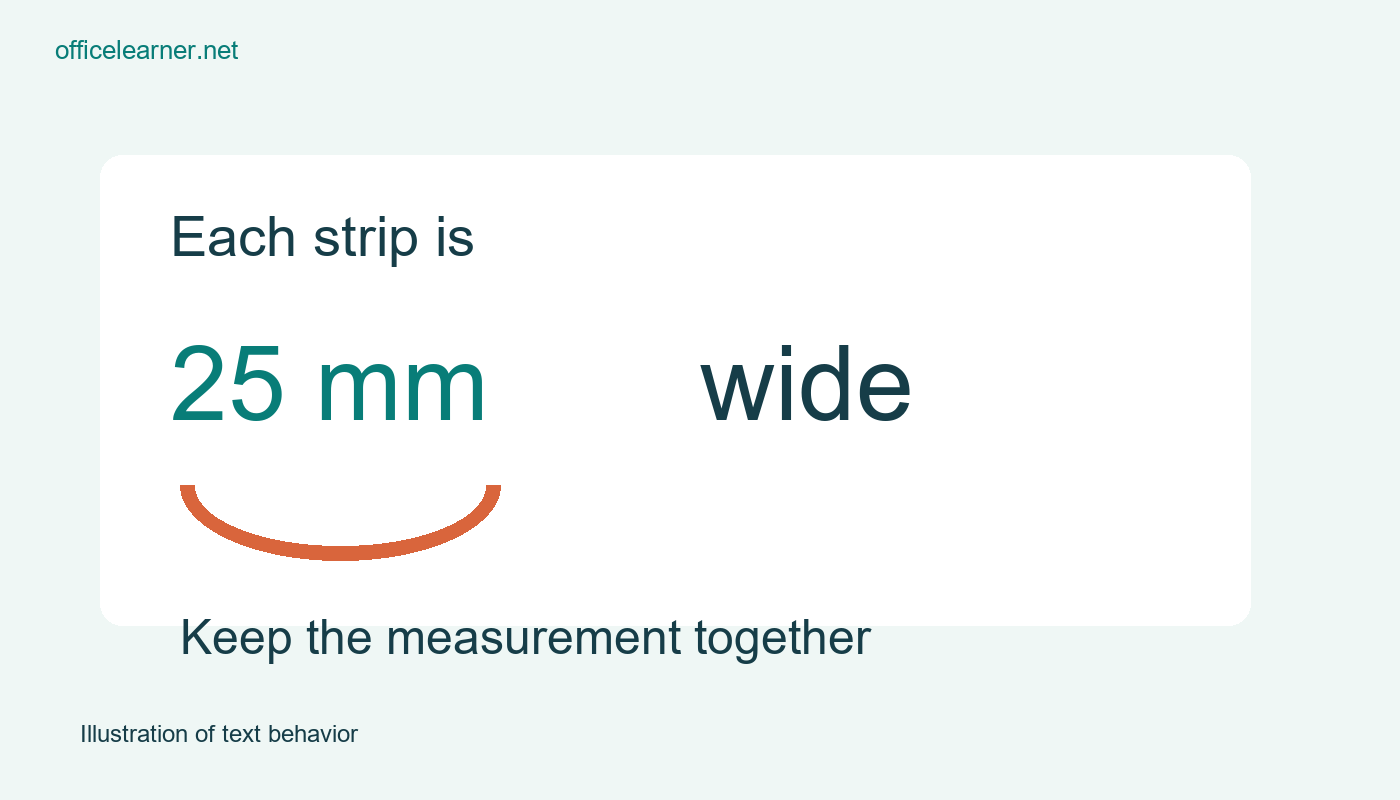
Insert a nonbreaking space between a number and its unit when you want Word to keep that short pair on the same line. On Windows desktop Word, replace the ordinary space with Ctrl plus Shift plus Spacebar. For example, 25 followed by a nonbreaking space and mm stays together when the paragraph wraps. Use this sparingly for meaningful pairs in a handout, then inspect the finished pages at the intended paper size.
Set up a visible wrapping example
Create a practice document rather than changing a finished report. Type a paragraph about cutting paper strips and include the phrase Each strip is 25 mm wide. Add enough surrounding text for the measurement to approach the right margin. Use a normal paragraph style and a readable font. You are testing how a short piece of text behaves inside ordinary prose, so avoid text boxes, columns, and a table until you understand the basic behavior.
Save the document with a practice filename. If the measurement does not fall near a line end, add a few words before it or temporarily make the paragraph narrower with its right indent. The goal is to see the number on one line and the unit on the next, not to manufacture a permanent layout. Do not insert a manual line break just to create the demonstration, because that introduces a separate cause of wrapping.
Replace only the intended space
Click immediately after 25 and select just the ordinary space before mm. Press Ctrl plus Shift plus Spacebar to replace it with a nonbreaking space. If selection feels difficult, delete that one space and insert the special space at the same position. Keep the letters and digits unchanged. Word should now move the complete measurement to the next line if there is insufficient room for the pair at the previous line end.
Turn on Show Hide in the Home tab if you want to inspect formatting marks. Ordinary spaces and special spaces can be easier to distinguish with marks visible, although their appearance depends on the display settings and version. Those marks are editing aids, not extra printed letters. Move the paragraph indent back and forth slightly to confirm that the number and unit travel together. Restore the original indent before evaluating the document layout.
Choose pairs that deserve the treatment
A measurement such as 25 mm is a good candidate because the unit explains the number. A short name or label may also benefit if splitting it would confuse the reader. Make an editorial decision about each type of expression. Do not replace every space in a paragraph. Long chains of words joined with nonbreaking spaces can force awkward gaps or leave too little flexibility for Word to compose a readable line.
For an original practice sentence, use Prepare six strips that are 25 mm wide and label the stack Sample A. Protect the measurement first. Then decide whether Sample A should remain together under your document's naming rules. The two decisions have different purposes: one preserves a quantity, while the other preserves a short identifier. Explaining that purpose helps a colleague maintain the document when a new sample name or measurement is added later.
Separate text behavior from paragraph layout
A nonbreaking space protects the short text pair; it does not keep an entire paragraph on one page. If a heading becomes separated from its explanation, paragraph pagination settings are the appropriate tool. If a new section must start on a new page, a page break addresses that requirement. Using repeated nonbreaking spaces or empty paragraphs to imitate these effects usually makes later edits harder and can create unexplained blank areas in the document.
Consider the final output width. A pair that fits in a full page paragraph may be too wide for a narrow table cell or mobile view. An extremely long identifier may need a different presentation, such as a separate line or a wider column. Protecting the text does not make it physically smaller. If a line looks badly spaced after your edit, examine the protected expression before changing the font size throughout the whole document.
Review and troubleshoot carefully
If the shortcut does nothing, check that focus is in the document text and that you are using the Windows desktop shortcut. Microsoft documents platform specific shortcuts; Mac and web behavior can differ. The Insert Symbol dialog in desktop Word also provides special characters, including a nonbreaking space. Use the documented command available in your installation rather than assuming a browser or operating system will pass the same key combination to Word.
Review the original and revised sentence with formatting marks visible. There should be one space between the number and unit, not an ordinary space plus a special one. An accidental double space can hide the actual wrapping behavior. If you need to reverse the edit, replace the special space with an ordinary space and observe the result again. Check adjacent punctuation too, especially if you selected more than the single intended character during the replacement.
Finish with a small editing exercise
Create three practice measurements: 8 cm, 25 mm, and 120 g. Place each near a line end and predict what will happen when the paragraph becomes narrower. Protect only the spaces inside the measurements, then compare the results. Save a PDF if that is your distribution format and inspect the same lines there. Which short pairs in your next handout should stay together, and which should remain free to wrap naturally?














