

Flip a direction arrow in a PowerPoint process diagram
Use PowerPoint's Flip Horizontal command to reverse a selected arrow from left to right or right to left. This is useful when a process diagram needs one return path without redrawing the arrow. Select the arrow object itself, apply the flip, and check its relationship to the neighboring steps. A direction change should communicate a real change in the process rather than merely balance the slide visually.
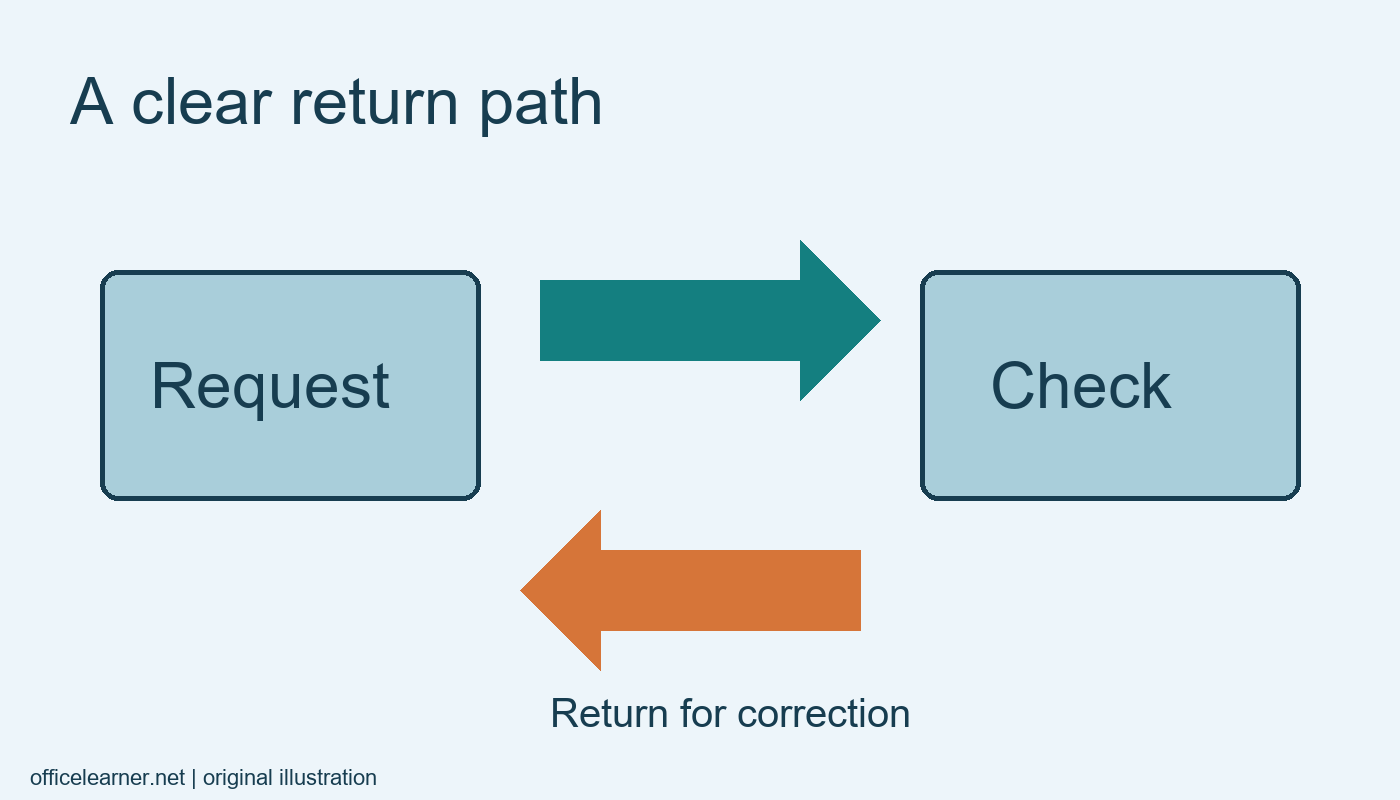
This exercise uses three original process labels: Request, Check, and Return. A forward path runs from Request toward Check, while a separate arrow points back toward Request when information is missing. You are building an explanatory slide, not editing a photographed interface or claiming that the drawing is a technical workflow standard. The labels and directions should be understandable without a presenter explaining them aloud.
Build a simple practice slide
Start a new presentation and add a blank slide. Insert two rectangles with a generous gap between them. Label the left rectangle Request and the right rectangle Check. Add a plain block arrow between them, pointing from left to right. Keep the shapes large enough that their outlines and words remain clear when you view the slide at a reduced size.
Add a second arrow below the first one, initially pointing in the same direction. Put the word Return near the lower arrow as a separate text box. Keeping this label separate makes the exercise easier to inspect: you can reverse the graphical direction without experimenting with how text inside a particular shape behaves. Align the lower path so it does not touch either rectangle's text.
Reverse the lower arrow
Click the lower arrow and check that its selection handles surround that object alone. Open the rotation controls, which Microsoft documents through Home, Arrange, Rotate in its PowerPoint training. Choose Flip Horizontal. The arrowhead should now face left, so the lower path returns from Check toward Request. A contextual Shape Format tab may also expose arrangement controls in your desktop layout.
Do not choose Flip Vertical for this task. A horizontal flip reverses left and right; a vertical flip reverses top and bottom. A symmetric arrow can make some transformations look deceptively similar, so inspect the arrowhead rather than assuming a command worked because the selection handles moved. If you used a different shape, undo and compare before continuing with the diagram.
Distinguish flipping from rotating
Rotating an object turns it around a center. Flipping mirrors it across an axis. With a simple straight arrow, a half turn can resemble a horizontal flip, but the two operations can produce different results for asymmetric shapes or pictures. Learning the distinction now helps when you later work with a bent arrow, a curved return route, or an illustration containing details on one side.
For this example, keep the lower arrow horizontal. A diagonal return arrow could imply a connection to another object on a crowded slide. Move the arrow if necessary so it clearly belongs to the same pair of steps. The goal is a legible relationship: one path submits information for checking, and another path returns it for correction. Geometry should support that message.
Add meaning beyond color
Place the label Forward near the upper arrow and Return for correction near the lower arrow. You may use different colors, but do not rely on color alone to distinguish the paths. An arrowhead, position, and explicit label together make the diagram easier to follow in grayscale printing and for people who do not distinguish your chosen colors reliably.
Read the diagram from both directions. A colleague should be able to explain what starts at Request, what happens at Check, and why something could come back. If the return label appears closer to an unrelated object, move the label rather than adding a long explanatory footnote. Short process diagrams work best when the words are physically associated with the relevant objects.
Troubleshoot selection problems
If several objects flip together, you probably selected a group or multiple shapes. Undo, click an empty part of the slide, and select only the arrow. On a crowded slide, the Selection Pane can help identify objects, but this practice slide deliberately keeps the object count small. Do not ungroup a complex existing diagram casually; work on a duplicate slide when exploring unfamiliar objects.
If the arrow points correctly but the composition looks wrong, the problem may be position rather than transformation. Flipping does not decide which process steps should be connected. Likewise, a picture that contains readable words may produce an unsuitable mirrored image. Use a native arrow shape for this exercise and keep descriptive text separate so the intended transformation is visually unambiguous.
Review and extend the example
Run the slide show and view the diagram from a normal reading distance. Check that the two arrowheads remain visible, that labels do not overlap the lines, and that no decorative object suggests a third route. Then save the practice presentation with a descriptive filename. If you are updating a real presentation, compare the old and new process meaning before replacing the original slide.
Microsoft's cited training covers PowerPoint for Microsoft 365 and listed desktop editions including 2024 and 2021. This walkthrough uses desktop arrangement controls; web and mobile interfaces may differ. No hands-on application test is claimed. For your exercise, change the right rectangle to Approval and explain whether a return arrow still makes sense. Would a separate Rework step make your actual process clearer than reversing an arrow alone?














