

Add a descriptive external reference link in OneNote for the web
In OneNote for the web, use Insert and Link to connect descriptive text on a note page to an external reference address. Write a label that explains what the destination contains, then verify that the link opens the intended page. This creates a useful reference note without pasting a long, hard-to-read address into the middle of your instructions. A link points to external content; it does not preserve a permanent copy of that content.
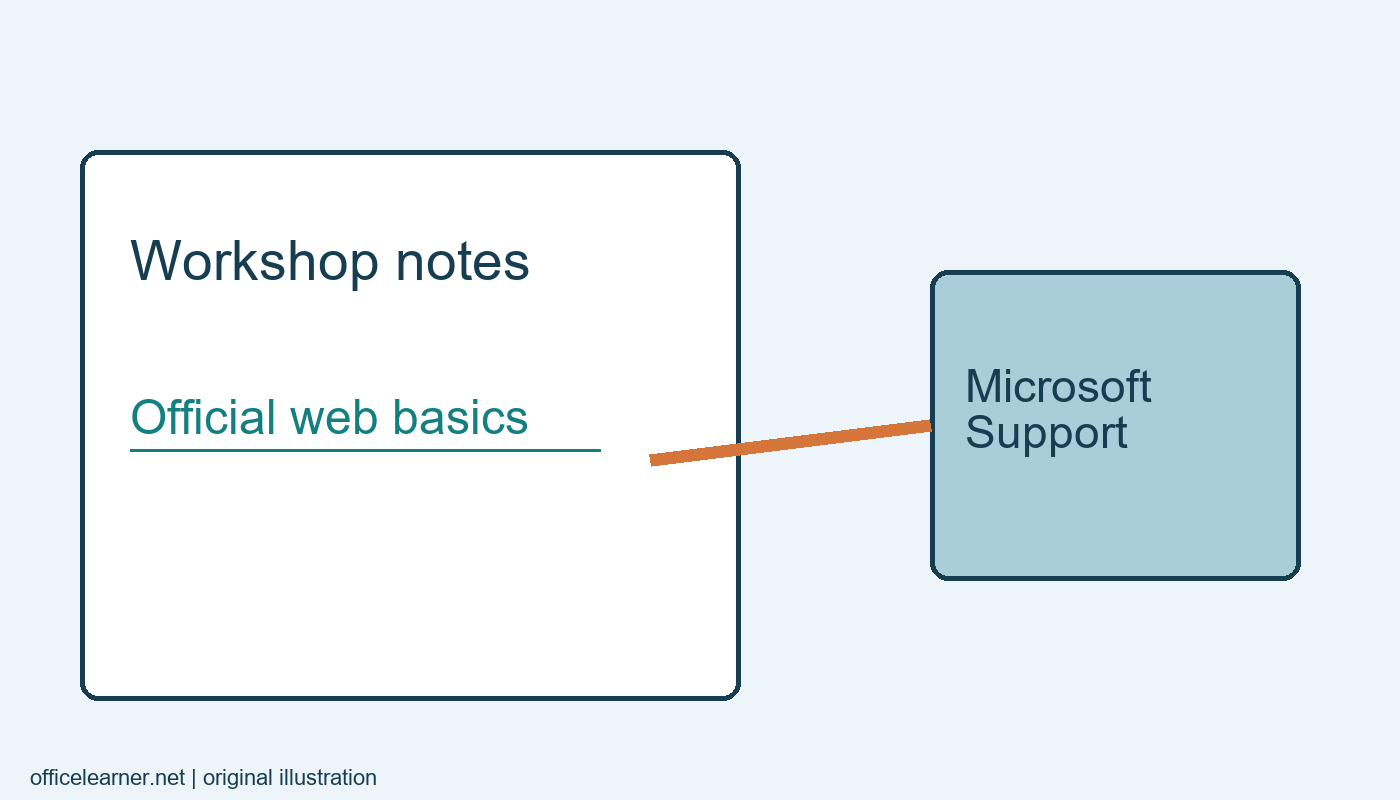
For this exercise, imagine a workshop page that tells volunteers where to find official instructions for using their notebook. You want a link labeled Official OneNote web basics, followed by a short sentence explaining why the page is useful. This is a narrow reference-writing task. It does not cover sharing notebook permissions, creating internal page links, or archiving websites for offline use.
Choose a trustworthy destination
Open the external reference in a separate browser tab before inserting it. Use the official Microsoft support page listed with this article as your practice destination. Read its title and check that its address belongs to Microsoft's support domain. Copy the address from the browser address bar rather than guessing a shortened path from memory or taking a search result's display text.
A descriptive link is only helpful when the destination matches its promise. If you label a general help landing page as a specific troubleshooting fix, a colleague will have to search again after clicking it. For a real workshop note, choose the closest relevant page and write a label at the same level of specificity. If the destination requires sign-in, tell readers before they attempt to use it.
Insert the link in a practice note
Open a notebook you are authorized to edit in OneNote for the web and create or use a practice page. Type Official OneNote web basics where you want the reference to appear. Select those words, open Insert, and choose Link. In the link dialog, check the display text and paste the verified destination into the address field. Confirm the dialog to insert the link.
The exact layout can vary with browser width and current web interface changes. Microsoft's basic-tasks documentation describes inserting a link from the Insert tab. If a compact ribbon hides the command, expand the relevant controls or consult the current help page rather than assuming that a desktop keyboard shortcut will behave identically in your browser. Keep the practice task small enough to undo easily.
Add context around the reference
After the link, add a sentence such as Use this guide when you need to create a page or enter a short note in the browser. That sentence explains the reason for the reference without copying the source's instructions into your notebook. You can also add the date you last checked the link. A checked date records your review; it does not guarantee that the destination will remain unchanged.
Avoid labels such as Click here when several links appear on the same page. Readers scanning the note should be able to distinguish a setup guide from a materials list without opening every destination. Also avoid displaying a confident claim such as Always works offline unless you have verified that exact behavior. The external link and the notebook's own offline availability are separate questions.
Verify the destination and access
Use the page's normal link-opening behavior and confirm that the expected Microsoft article opens. Browser and editing modes can affect whether a first click selects a link or follows it, so use the available open-link action when necessary. Compare the destination title and domain with the source you selected. A successful insertion is not enough if an extra character has broken the address.
If the link opens in your signed-in account, consider whether your intended readers will have similar access. An external public support article is a straightforward practice choice because it avoids relying on your private notebook permissions. A private organizational document may be appropriate in real work, but the note's link does not grant permission to that separate document. Test access through your organization's approved process.
Repair a misleading reference
If you need to change the destination, use OneNote's link-editing controls and inspect both the visible text and the address. Do not change only the label when the actual destination has moved. Conversely, changing the address to a broader landing page may require rewriting the label so readers know they are opening a general guide rather than the original detailed instruction.
If an address contains an obvious copying error, replace it from the verified source tab. Avoid repeatedly trying unofficial shortened links to make a broken reference work. For a useful note, a clear explanation that a source needs replacement is better than a polished label pointing to an unrelated page. Preserve any substantive instructions in the note so the reference failure does not erase the whole task context.
Review the note as a reader
Read the page from beginning to end without opening the link. Can you understand the local task and why the external reference is included? Then open the link and check that it adds the promised detail. A reference should support a note that already makes sense, rather than forcing the reader to leave the notebook just to discover what the page is about.
This exercise targets OneNote for the web within Microsoft 365; desktop and mobile link dialogs can differ, and organizational controls may affect available actions. No hands-on browser editing test is claimed. As an exercise, add a second verified reference with a different descriptive label, then ask a colleague which link they would choose for a new-page question. What wording made that choice clear?













