

Compare case sensitive stock labels with Excel EXACT
Use Excel EXACT to compare two stock labels when uppercase and lowercase letters matter. The formula =EXACT(A2,B2) returns TRUE when the text matches exactly and FALSE when it differs. This is useful for reviewing typed labels against a reference list without changing either list. It is a comparison tool, so a FALSE result is a prompt to investigate rather than permission to overwrite the entry.
This original exercise uses fictional shelf identifiers rather than passwords or confidential records. Microsoft documents EXACT as case sensitive and says it ignores formatting differences. The desktop steps suit current supported Excel editions, including Microsoft 365. Names and argument separators can vary by language. Some localized installations require semicolons where this article shows commas. The example uses ordinary worksheet formulas and needs no macros, array entry, or external connection.
Build a deliberately imperfect comparison
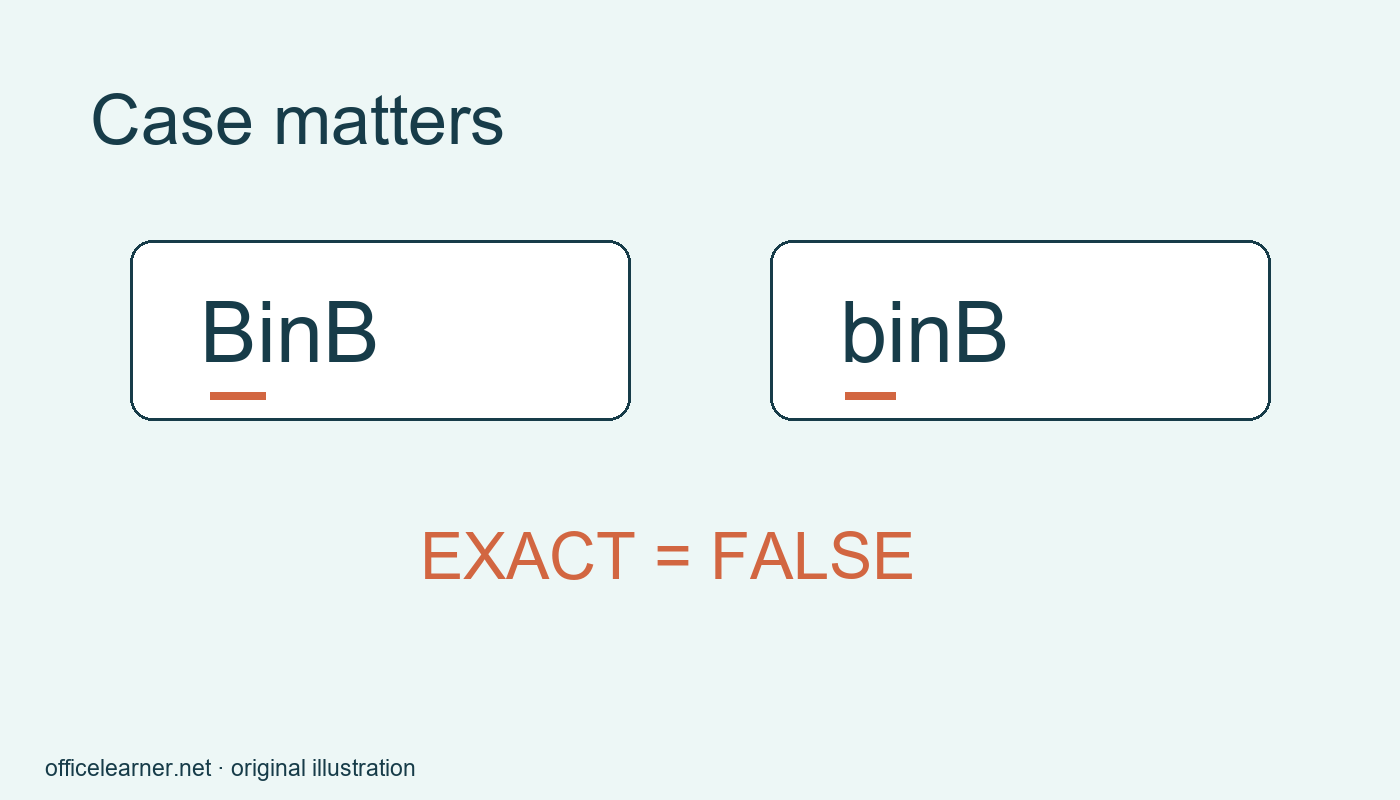
Create a blank worksheet. Type Reference in A1, Typed label in B1, and Exact match in C1. In row 2 enter BinA in both A2 and B2. In row 3 enter BinB in A3 and binB in B3. In row 4 enter BinC in A4 and Bin C in B4. These three rows separate a perfect match, a difference in capitalization, and an additional internal space. Keep the invented names short enough to read without widening the sheet excessively.
Enter =EXACT(A2,B2) in C2 and press Enter. Copy C2 down through C4. The expected results are TRUE, FALSE, and FALSE. Click each result and read the formula bar to confirm that the references have moved to its own row. C4 must compare A4 with B4 rather than accidentally continuing to compare the first pair. Write these expected outcomes in a note beside the exercise so another reader can reproduce the check independently.
Understand what the formula does not compare
Select B2 and make its text bold or give it a different font color. C2 should remain TRUE because formatting is outside this comparison. Change the text itself to bina and the result should become FALSE. This contrast makes a useful teaching demonstration: visible appearance and stored text are different things. A blue label is not necessarily a different label, while a lowercase character may represent a meaningful difference under the rules of your particular stock system.
Decide that rule before using the result operationally. Many everyday inventories intentionally treat capitalization as irrelevant. EXACT would flag differences that do not matter to those inventories. Conversely, if an external labeling convention requires a specific mixture of letters, a casual visual check may miss an error. Document the intended rule as a sentence above the table. For this practice sheet, use “Match the reference text character for character, including capitalization and spaces.” That makes the meaning of TRUE clear.
Review exceptions without destroying evidence
For row 3, compare BinB and binB slowly from left to right. The first letter differs. Ask whether the reference is authoritative before editing B3. If you confirm that it is, change only the first letter and watch C3 become TRUE. For row 4, remove the unwanted space between Bin and C. C4 should then become TRUE as well. Keeping the corrections separate shows which discrepancy caused each result and makes the exercise easier to explain.
Avoid a blanket replacement of every lowercase letter in a real file. That would alter labels that may already be correct. Keep a copy of imported data and make corrections in a working sheet. A formula establishes that two values differ, but it cannot establish which value is right or whether the source itself is outdated. If two teams disagree about the approved spelling, record the question and resolve it with the owner of the labeling convention before making changes.
Troubleshoot a surprising result
If two labels look identical yet return FALSE, inspect spaces at the beginning and end as well as between words. Edit the cell carefully or place the cursor at its boundaries to look for extra characters. Do not assume that all spaces came from accidental typing; spacing can be intentional in descriptions. Likewise, if a result seems unexpectedly TRUE, verify that the formula points to two different intended cells rather than comparing A2 with itself. A self comparison hides every discrepancy.
If the formula appears literally in the cell, check whether the cell was formatted as Text before entry and whether a leading apostrophe was typed. Set the result cell to General and reenter the formula. If your localized Excel rejects the comma, use its accepted argument separator. Keep both input columns intact while troubleshooting. This small worksheet is a controlled learning example, not a claim that every imported identifier or unusual Unicode character has been tested across all Excel versions.
Try a review exercise
Add row 5 with ShelfD in A5 and ShelfD in B5, but give B5 italic formatting. Predict the result before copying the formula down: it should be TRUE. Add row 6 with ShelfE and Shelf E and expect FALSE. Finally, deliberately change the formula in C6 to compare A6 with A6. Explain why TRUE is now misleading even though Excel calculated the formula correctly. Which check would help you catch that reference mistake before reviewing a larger file?
Save the workbook with the reference rule and expected results still visible. A colleague should be able to open it, identify the three kinds of difference, and reproduce the outcomes without guessing what TRUE means. For a larger task, first test a few known matches and known mismatches. Expand only after the comparison rule and references are correct. This keeps a simple text function useful as a transparent review aid rather than turning an unexplained Boolean column into an automatic decision.














