

Check short item codes with Excel LEN
Use Excel LEN to count the characters in each item code, then compare the result with the length your list expects. This is a useful first check for a short stock list or workshop label sheet. It can reveal an extra space or a missing character, but it cannot prove that a code identifies the correct item. Keep the original code beside the result so a person can investigate each exception.
Build a five row practice list
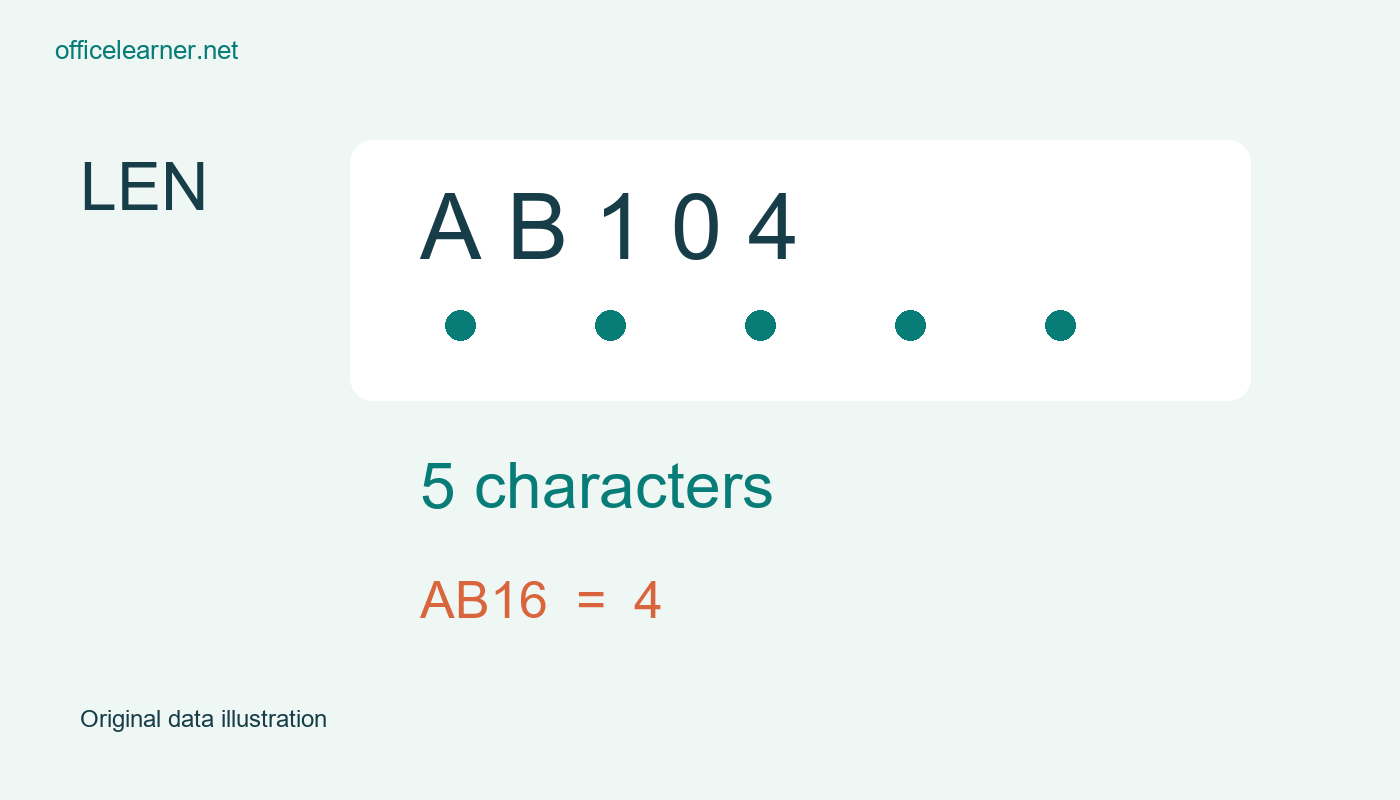
Open a blank workbook and save a practice copy. In A1 enter Item code and in B1 enter Characters. Format A2 through A6 as Text before entering the codes. Type AB104 in A2, AB105 in A3, AB16 in A4, XY210 in A5, and XY211 in A6. These are invented examples for a rule that expects exactly five ordinary letters or digits. The shorter AB16 is deliberately included so the check has something useful to find.
In B2 type =LEN(A2) and press Enter. The result should be 5. Select B2 and fill the formula down through B6. The expected results are 5, 5, 4, 5, and 5. Read the formula in B4: it should refer to A4. If it still refers to A2, the reference may have been made absolute or the formula may have been pasted as text. Fix that before reviewing any code decisions.
Turn a count into a review decision
In C1 enter Expected and put 5 in C2 through C6. In D1 enter Length matches. Enter =B2=C2 in D2 and fill down. The fourth column should show TRUE for the five character entries and FALSE for AB16. A logical result is enough for this small exercise. It avoids a complicated formula and makes both the measured count and the expected count visible for someone checking your work.
Do not automatically add a zero to the short entry. AB16 might be missing a letter, might belong to another coding scheme, or might already be correct under an exception. Mark it for review against the authoritative item list. If the correct code is AB016, enter that only after confirmation. Formatting as Text helps retain a code such as 00124; a length check performed after leading zeros have already disappeared cannot reconstruct them.
Find an invisible trailing space
Return to A3, edit its value, and add one ordinary space after AB105. The displayed code may look unchanged, but B3 should now report 6 and D3 should report FALSE. LEN counts spaces as characters. This makes the helper column useful when a copied list contains whitespace that is difficult to notice. Expand the column or inspect the formula bar while you review the entry rather than guessing which character is responsible.
Delete the trailing space from this practice value and check that the result returns to 5. Do not indiscriminately remove all spaces from a real list. A space may be part of a valid identifier, and removing it could create a different code. Record the source correction when working with shared records. For a large import, agree on the coding rule before applying any bulk cleanup or replacing the original column.
Understand the limits of this test
AB104 and ZZ999 both have five characters. LEN will accept their length even if ZZ999 does not exist in your inventory. Likewise, a transposed code such as AB140 has the same length as AB104. Treat the result as one validation step alongside an authoritative lookup and a visual review of exceptions. It is especially useful for catching structural mistakes early, before you spend time checking whether every code belongs to the right object.
This exercise uses basic Latin letters and digits to keep the counting rule simple. Modern Excel compatibility settings can affect how some Unicode characters are counted, particularly surrogate pairs and variation selectors used with emoji. Do not adapt this five character rule directly to display names containing emoji or complex scripts without testing the exact character convention your system requires. Character count, byte length, and the width of printed text are different measurements.
Troubleshoot before using the result
If the formula displays literally, remove a leading apostrophe and change the formula cell from Text to General before entering it again. A narrow column can hide a long value without changing its length. A numeric cell may display a formatted code that differs from its underlying value, so inspect the formula bar and preserve identifiers as text. These checks concern stored data; widening the column alone does not repair an incorrect identifier.
LEN is documented for Microsoft 365 and several perpetual desktop versions of Excel. The example uses English function names; localized installations may display a translated name. No multiargument separator is needed here. Before sharing the sheet, save it, reopen it, and verify one normal entry and the deliberate exception. Keep the helper columns until the reviewer has finished, since a lone TRUE result without its original code and expected length is difficult to audit.
Try a controlled extension
Add the code Q700 to a new row and predict its count before filling down. Then enter Q0700 as a separate text code. Explain why one fails the five character rule and the other passes, while neither has been confirmed as a real item. Which other check would your own label list need before it could be printed? Write that rule beside the sheet so the next person understands what the length test establishes.














