Reverse a text label for a diagnostic Power Query check
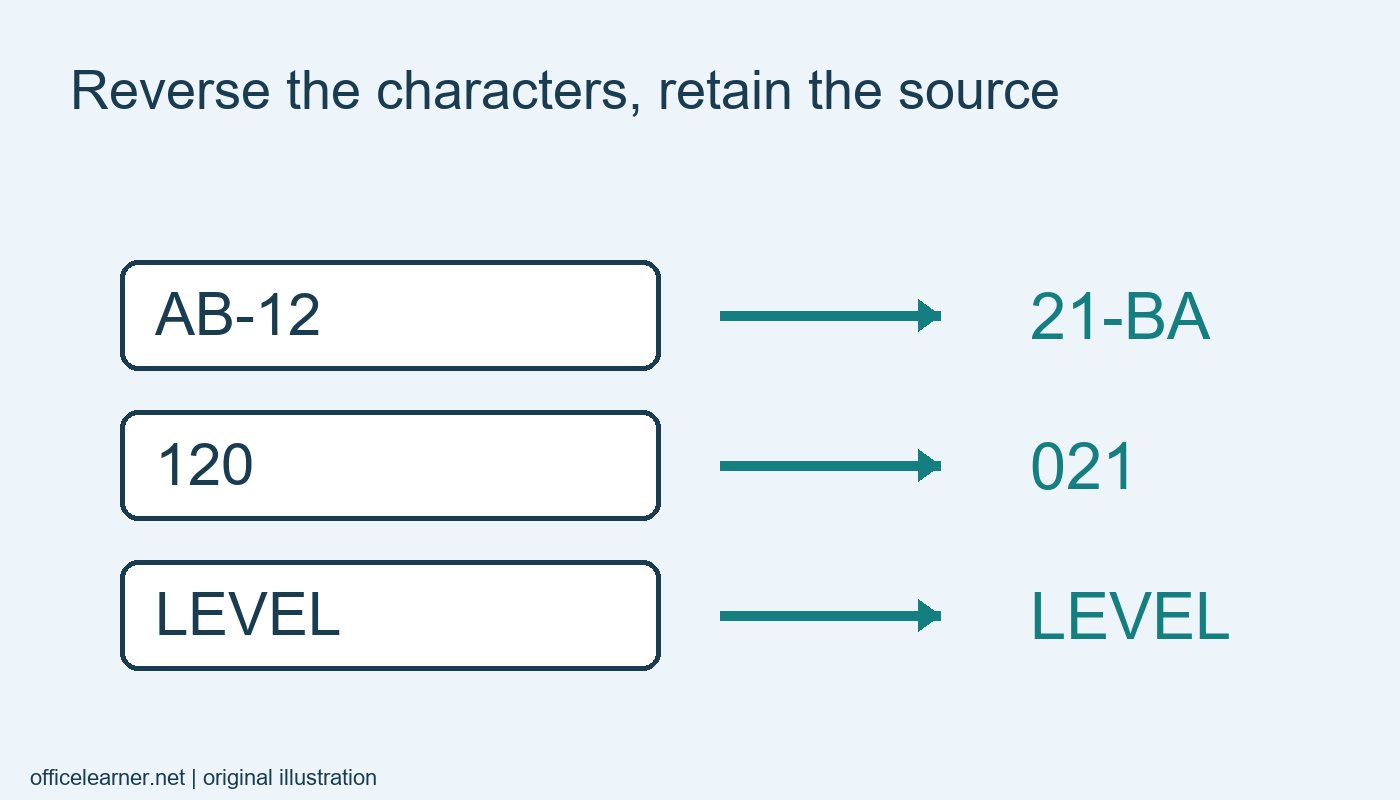
Text.Reverse returns the characters of a text value in reverse order in Power Query. For example, Text.Reverse("AB-12") returns "21-BA". Use a separate custom column when you want to inspect this transformation without replacing the original label. Reversing text can be a useful small diagnostic or teaching exercise, but it does not encrypt information, validate an identifier, or repair a code with an unknown format. Keep the task narrow and check the character-level result beside the source.
Choose a deliberately simple text sample
Create a practice table with a Label column and the values AB-12, BOX, 120, and LEVEL. These are ordinary Latin letters, digits, and punctuation chosen so that you can predict the reversal by inspection. Treat 120 as text, not as a number. If a source system converted an identifier to a numeric value and removed leading zeroes, reversing the remaining characters cannot restore the lost information. The input representation is part of the problem. Set and inspect the data type before drawing conclusions from the output.
This example uses Power Query Editor in Power BI Desktop and the documented M function Text.Reverse. It is not a DAX expression and does not belong in a report measure. Power Query experiences in other Microsoft products may expose different interface paths, although the M function's purpose remains the same. The steps are based on documentation rather than a claim of hands-on verification in your installed build. Microsoft's function reference supports the core transformation; the practice cases and diagnostic routine here are original examples designed to make its limits visible.
Add a result column that preserves the input
Use Enter Data to make the small Labels table, then open it in Power Query Editor. Confirm that Label has a text data type. Add a custom column named Reversed label and enter Text.Reverse([Label]). Commit the expression and inspect the preview. AB-12 should become 21-BA, BOX should become XOB, and the text 120 should become 021. LEVEL should remain LEVEL because its character sequence reads the same in both directions. That unchanged result is not evidence that the function failed. It is an expected property of this particular input.
Keep Label and Reversed label next to each other while reviewing. Read the original from right to left and compare each output character. The hyphen in AB-12 moves with the sequence; it is not a delimiter that the function interprets as a special boundary. Text.Reverse operates on the supplied text rather than understanding which portion is a category and which portion is a serial number. If your business rule requires swapping two fields around a delimiter, specify that different task explicitly instead of assuming that complete character reversal will accomplish it.
Use a second reversal as a diagnostic
Add another custom column named Round trip using Text.Reverse([Reversed label]). For the simple ASCII examples, the second reversal should reproduce the original text. Check the text 120 carefully: its first reversal contains a leading zero, and the second returns 120. If you insert a numeric conversion between the reversals, you can lose the leading zero in 021. The resulting round trip would then expose a type-change problem. This makes the exercise useful for teaching why an identifier represented by digits may still need to remain text.
A successful round trip does not prove that the data is correct, complete, or private. It only checks a specific property of this transformation on the chosen values. AB-12 could be a mistyped label and still reverse twice perfectly. Likewise, anyone who sees a reversed value can reverse it again. Do not use this method to hide passwords, personal information, or confidential codes. If the task requires privacy protection, follow an appropriate established process rather than describing a reversible character rearrangement as security.
Investigate exceptions before replacing errors
If the custom column shows Error, inspect the message and the source type. A non-text value or a changed column name can explain the problem. Do not immediately replace every error with blank text; that can conceal an upstream schema change. The documented function accepts nullable text, so a null input is a separate case from a text value containing zero characters. If missing values matter in your actual query, add explicit test cases and record how they are represented. A visually empty preview cell is not enough to establish that two inputs have identical meaning.
For this beginner exercise, stay with the simple characters provided. Human writing can contain combining marks, multi-code-point symbols, and scripts whose display behaviour makes reversal more complicated than a line of English letters. Do not generalize the sample into a claim about reversing every language correctly for display. If your real task involves international text, define the intended behaviour and use suitable Unicode-aware tooling and tests. A function that produces an output is not automatically performing the linguistic operation a reader expects from the word reverse.
Decide whether the diagnostic belongs in the final model
After inspecting the practice results, explain what each added column demonstrates. Keep the round-trip check in a learning query if it helps, but avoid loading unnecessary diagnostic columns into a production model without a reason. Name applied steps clearly so another editor can follow the sequence. As a final exercise, predict the reversals of A-007, red tray, and AAA before refreshing. Which cases change visibly, and which preserve their appearance? The useful outcome is a controlled understanding of a text operation, including its type assumptions and its very limited role as a data-quality check.