

Rename a OneNote web section for a clear workshop purpose
In OneNote for the web, rename a section by right-clicking its name, choosing Rename Section, entering the new name, and confirming the dialog. On a Mac, use Control-click to open the context menu. Choose a name that describes the pages already in that section. Renaming helps navigation, but it does not move pages, reorganize their contents, or change who can access the notebook.
Decide what the section contains
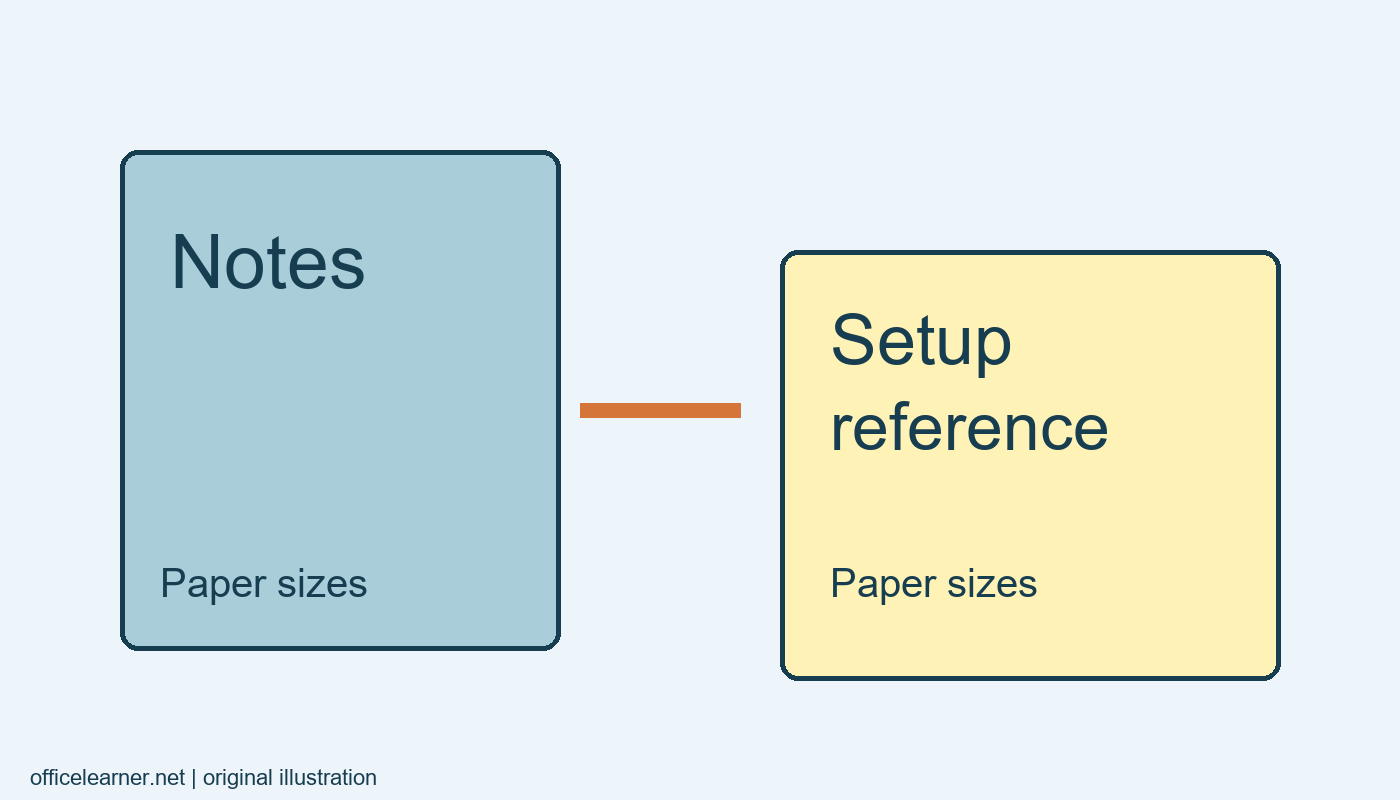
Imagine a practice notebook called Workshop planning. It has a section named Notes containing three pages: Paper sizes, Tool list, and Table layout. The pages are reference material for setting up a room. A name such as Setup reference is more informative than Notes because it gives readers a reasonable expectation before opening it. This is an original naming example, not a claim that OneNote analyzes page contents or recommends that title automatically.
Open the section and inspect its page list before changing anything. If it also contains attendance records and completed-session reflections, Setup reference may be too narrow. You can choose a broader accurate name now and plan a separate reorganization later. Avoid making the title promise a tidy content boundary that the pages do not actually follow. A useful section name is a concise description of an existing collection, not a substitute for checking what has accumulated there.
Rename the section in the browser
Open the notebook in OneNote for the web and locate the section name in its navigation area. Right-click Notes on a PC, or Control-click it on a Mac, and choose Rename Section. In the Section Name dialog, replace the old text with Setup reference, then confirm with the available OK control. Microsoft documents this browser workflow. Be careful to open the menu on the section rather than on an individual page, since those are different objects with different naming effects.
After confirming, look at the navigation label and open Paper sizes again. The page title should still be Paper sizes. The notebook should still be Workshop planning. These checks establish that you renamed the intended level. OneNote organizes content into notebooks, sections, and pages, and those names serve different purposes. If the page title changed instead, correct that separately and repeat the section action. Do not keep renaming nearby objects to make the navigation appear consistent by accident.
Choose a name another person can use
Prefer familiar nouns over private abbreviations. Setup reference is easier for a new helper to interpret than SR misc, especially if the notebook is used only occasionally. If two sections have similar roles, make their difference visible: Setup reference and Session reflections communicate different activities. A section named Important does not tell a reader whether to look there for a supply list, a schedule, or a decision. Specific wording reduces that guesswork.
Keep the label short enough to recognize in the available navigation space. A long sentence may be truncated, leaving several sections with identical visible beginnings. Put the distinguishing words early. For example, Setup reference and Feedback reference are easier to separate at a glance than Workshop planning material for setup and Workshop planning material for feedback. This is an editorial convention you can adopt with collaborators; it is not a technical requirement or a limit enforced by the rename command.
Review collaboration and access separately
In a shared notebook, tell collaborators about a meaningful naming change through your usual agreed process. A familiar location may look different after synchronization. Renaming a section is not a way to make sensitive pages private or to give another person permission. Review notebook sharing controls separately when access needs change. Do not infer security from a label such as Private or Team only, because the words in a section name do not themselves enforce either condition.
If the rename option is missing or the change does not save, check whether you are in an editable notebook and whether the browser session is connected. An organization may restrict editing or provide a read-only view. Reload only after checking the current save state, and avoid creating a second section as a quick workaround before understanding the problem. A duplicate section can split future notes across two nearly identical places and make the original naming issue harder to resolve.
Test the navigation after the change
This walkthrough is for OneNote for the web using Microsoft's documented section context menu. Desktop and mobile editions can expose different controls. The notebook's layout may also vary with the browser and updates, so identify the section by its place in the content hierarchy rather than by a fixed screen coordinate. The example is a reproducible exercise, not a claim of hands-on testing in your account. A practice notebook is the best place to learn the distinction before editing shared material.
For an exercise, write down the three sample page titles and suggest two possible section names. Choose the one that a new workshop helper would understand without a verbal explanation. Rename the practice section, switch to another section, and return to it using only its new label. Confirm that all three pages remain present. Finally ask whether an unrelated page would belong there. If you cannot answer consistently, refine the content boundary or the wording before using the convention across the rest of the notebook.














