

Count label characters with Text Length in Power Query
Use Text.Length in Power Query to count the characters in a text label. In Power BI Desktop, a custom column such as Text.Length([Label]) can help inspect a list of workshop item codes before loading it. Keep the original label beside the result. A character count is a useful clue about inconsistent entries, but it cannot prove that a code is valid, unique, or assigned to the correct item.
Prepare a deliberately small table
Open a practice Power BI Desktop file and use Enter data to create a table with one column named Label. Add KIT-07, BOX-105, and TAG. Open Transform data to work in Power Query Editor. Confirm that Label has the Text data type. The examples intentionally differ in length. They are not supposed to follow one standard, so the count column is descriptive rather than a pass-or-fail rule. Naming the column Label also makes the formula easier to follow.
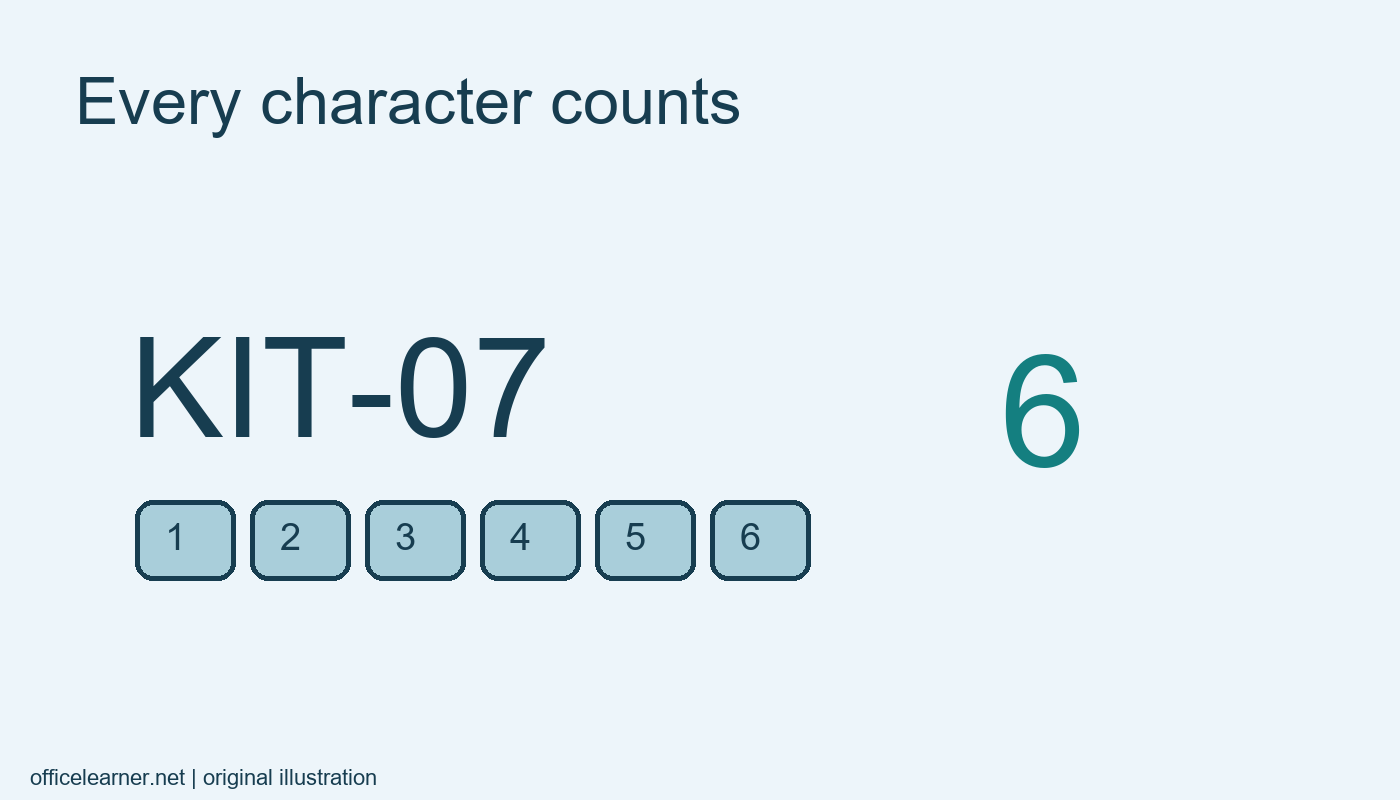
Count each example manually before creating the calculation. KIT-07 contains three letters, one hyphen, and two digits, giving six characters. BOX-105 contains seven characters. TAG contains three. The hyphen is part of the text and contributes to the count. This is a character exercise rather than a word-count exercise. Do not divide a label at punctuation or ignore digits simply because they look like a separate meaningful component of the code.
Add an inspection column
On Add Column, choose Custom Column. Name the new column LabelCharacters and enter Text.Length([Label]) as its expression. Power Query M names are case-sensitive, so preserve the capital T and L and the period between them. The square brackets refer to the column value in the current row. Apply the formula and expect 6, 7, and 3 beside the three labels. Microsoft documents Text.Length as returning the character count of text; this inspection table is an original worked example.
If you want the labels loaded with the count, use Close & Apply after checking the preview. If this is only a disposable practice query, save it separately from production work. Power Query transformations are applied in steps, so look at the Applied Steps pane and note where the count was added. A later step can remove or change Label, and an earlier step can alter what gets counted. The result describes the text at this point in the transformation sequence.
Investigate a suspicious difference
Suppose another row visually resembles TAG but reports four characters. Inspect it for an ordinary space at the beginning or end. A count can expose that something differs without identifying the exact character. Do not remove spaces from every column automatically: a space inside a descriptive label may be meaningful. If the source is expected to contain a strict code, confirm the code specification before trimming or replacing characters. Preserve the source entry while investigating.
The same caution applies to leading zeros. A value such as 007 must arrive as text if those zeros matter to the identifier. Converting a numeric seven to text later cannot reconstruct zeros that were discarded earlier without a separate formatting rule. Counting characters is therefore downstream of a type decision. Record the intended type when importing the data, and check that automatic type detection has not already changed the source representation before you add LabelCharacters.
Handle missing and unsuitable values
The documented Text.Length signature accepts nullable text and returns a nullable number. A null input is not the same as an empty text string. An empty string has a length of zero, while a null represents missing text and remains null. Decide how your report should describe those cases rather than treating both as a valid three-character label. In a real import, a missing code may need review even when it does not cause a calculation error.
If an error appears, click the error cell and read its details. Check for a numeric value, a misspelled column name, or a source error that existed before the custom column. Correct the type or the source step deliberately. Avoid replacing every error with zero, because that makes an unsuitable value look like a legitimate empty string. Also avoid using this simple example as a rule for complex multilingual text without additional testing; user-perceived symbols and encoded text can require more careful interpretation.
Keep the report claim narrow
This guide uses Power BI Desktop's Power Query Editor and English interface names. Text.Length is an M function, not a DAX measure and not an Excel worksheet formula. Similar wording in those environments does not make their syntax interchangeable. Desktop menu placement can change with releases; the essential operation is a custom column evaluated on the text value. No refresh or desktop walkthrough is claimed here. Reproduce the small table in your installed build before extending it to a shared model.
Try a fourth label, AB-0009, and predict its count before applying the query. There are two letters, one hyphen, and four digits, so the expected result is seven. Then compare it with BOX-105: the equal lengths do not make the labels equal. Explain that distinction in a note beside your inspection output. A useful next question is which additional rule would detect an invalid prefix while leaving a correctly sized but incorrect code visible for review.














