

Find leftover labels with Excel MOD
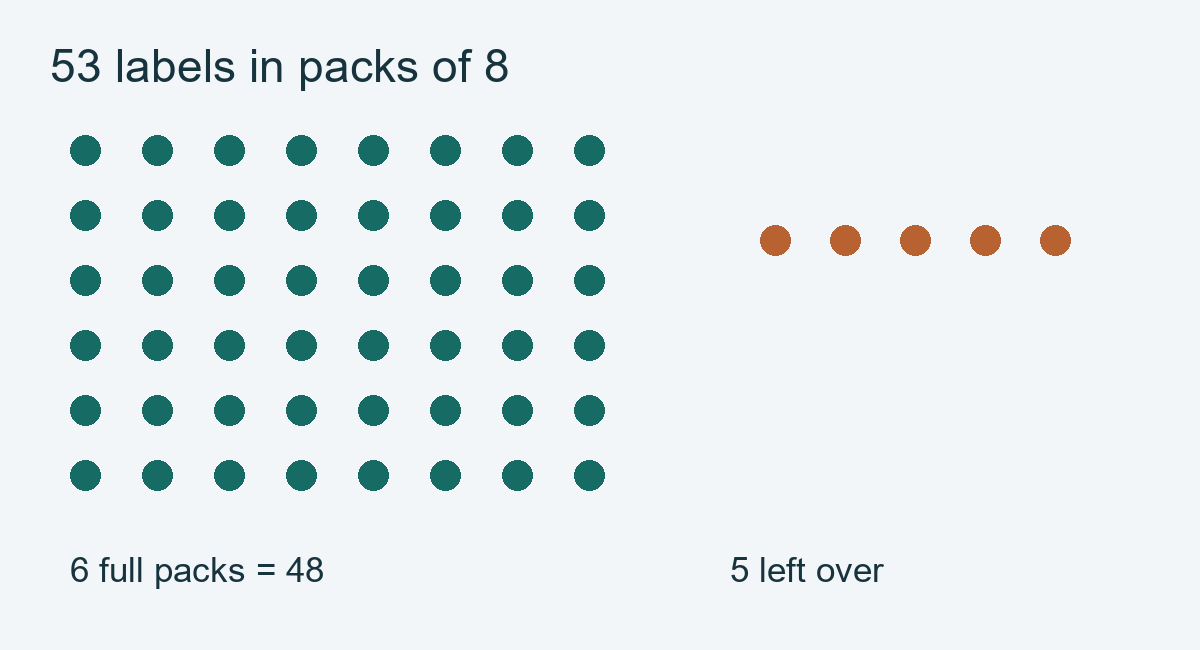
Use Excel MOD to find how many labels remain after making equal packs. For positive whole numbers, =MOD(total,pack_size) returns the leftover quantity. If you have 53 labels and each pack needs 8, the remainder is 5. This answers a different question from how many complete packs you can make, which is 6 in this example.
The exercise below uses a fictional workshop stock sheet. It needs no macros, add-ins, or subscription-only functions. Microsoft documents MOD for current supported desktop editions and Excel for the web. Localized Excel installations may use a translated function name or semicolons between arguments. Keep the arithmetic and the meaning of the columns unchanged when adapting the syntax.
Build a small stock sheet
Open an empty workbook and enter Item in A1, Labels in B1, Pack size in C1, and Left over in D1. Enter Blue circles, 53, and 8 across row 2. Enter Green squares, 40, and 8 across row 3. Enter Red stars, 7, and 8 across row 4. These values deliberately cover a partial pack, an exact division, and a quantity smaller than one pack.
In D2 enter =MOD(B2,C2). Press Enter and expect 5. Copy the formula to D3 and D4. The expected results are 0 and 7. Select each result and inspect the formula bar: the references should move to the matching row. A correct first result does not establish that the copied formulas reference the right inputs further down the sheet.
Use ordinary number formatting with zero decimal places for this whole-label exercise. Do not type the unit into the numeric cells. A value entered as 53 labels is text rather than the plain numeric count the example needs. Keep units in headings or explanatory notes where they are visible without interfering with calculation.
Explain the result in physical terms
For the blue circles, six packs use 48 labels because 6 multiplied by 8 equals 48. Subtracting 48 from 53 leaves 5. Those five labels remain loose. They are not five additional packs, and they do not mean that five labels are missing from each completed pack. Naming the output Left over helps prevent this interpretation error.
For the green squares, five packs use all 40 labels. A remainder of zero means the count divides evenly; it does not mean there are no labels. For the red stars, no full pack is possible, so all seven remain. These checks make the formula easier to explain to a colleague who might otherwise treat every spreadsheet result as a count of finished products.
If your real task instead asks how many additional labels are needed to finish the next pack, make a separate column. For the blue row that answer is 3, while the remainder stays 5. When the remainder is zero you usually need zero extra labels, rather than another complete pack. State the business question before building that second calculation.
Check unusual inputs before copying widely
A pack size of zero is invalid division and produces an error. Fix the input instead of hiding the problem behind a blank result. A blank pack-size cell can also undermine the calculation. In a small manual sheet, checking that each pack size is a positive whole number is more transparent than adding complicated error handling before you understand the data.
Negative quantities have a defined mathematical behavior in MOD, but they do not represent loose physical labels in this worksheet. Returns, corrections, and inventory adjustments need their own documented treatment. Likewise, a pack size of 2.5 is inappropriate when labels cannot be split. Decide whether fractional units are meaningful before allowing decimals into a real inventory model.
Do not confuse the displayed result with a changed input. Formatting 8.4 to appear as 8 does not make the stored pack size equal to eight. Click the cell and inspect its underlying value when an answer seems surprising. For this exercise, type whole counts directly and avoid calculations involving measured weights or decimal lengths.
Extend the example without losing its meaning
Add Yellow triangles with 66 labels and a pack size of 10. Predict the leftover count before filling the formula into that row. Six complete packs use 60 labels, so the expected remainder is 6. Then change the count to 70 and confirm that it becomes zero. Changing a single input is a useful way to see what the formula actually depends on.
Keep a note beside the sheet explaining whether the total includes damaged labels. If someone counts unusable labels in stock while another person excludes them, both can use the same formula and still disagree about available packs. The arithmetic cannot repair inconsistent definitions. Agree on what the count represents and use that definition for every row.
Try a reader exercise
You have 95 name labels and need 12 per envelope. Write down the number of complete envelopes, the remainder, and the extra labels needed for one more envelope. The answers are 7 complete envelopes, 11 remaining labels, and 1 extra label. Verify the remainder with MOD, then explain the other two answers in words. Which column would a packing volunteer actually need first?














