
ADVERTISEMENT
  • About
  • Advertise
  • Privacy & Policy
  • Contact
Office Learner
ADVERTISEMENT
  • Home
  • Browse by Category
    • Word
      • Word Basics
      • Word Data Entry
      • Word Formatting
      • Word Templates
      • Word Tips
    • Excel
      • Excel Basics
      • Excel Shortcuts
      • Excel Charts
      • Data Validation
      • Conditional Formatting
      • Data Analysis with Excel
      • Dynamic Arrays
      • Advanced Excel Topics
      • Developing Excel Related Tools
      • Essential Excel Books
      • Excel for Accountants
      • Excel for Finance
      • Excel Functions and Formulas
      • Excel Pivot Tables
      • Excel Power BI
      • Excel Power Query
      • Excel Templates
      • Excel Training & Courses
      • Macros and Excel VBA
    • PowerPoint
      • Animation
      • PowerPoint Basics
      • PowerPoint Templates
  • About
  • Office Books
  • Courses
No Result
View All Result
  • Home
  • Browse by Category
    • Word
      • Word Basics
      • Word Data Entry
      • Word Formatting
      • Word Templates
      • Word Tips
    • Excel
      • Excel Basics
      • Excel Shortcuts
      • Excel Charts
      • Data Validation
      • Conditional Formatting
      • Data Analysis with Excel
      • Dynamic Arrays
      • Advanced Excel Topics
      • Developing Excel Related Tools
      • Essential Excel Books
      • Excel for Accountants
      • Excel for Finance
      • Excel Functions and Formulas
      • Excel Pivot Tables
      • Excel Power BI
      • Excel Power Query
      • Excel Templates
      • Excel Training & Courses
      • Macros and Excel VBA
    • PowerPoint
      • Animation
      • PowerPoint Basics
      • PowerPoint Templates
  • About
  • Office Books
  • Courses
No Result
View All Result
Office Learner
No Result
View All Result
Home Power BI

Extract a three character code prefix with Power Query

Tanjila Rashid by Tanjila Rashid
November 18, 2026
in Power BI
0
Extract a three character code prefix with Power Query
0
SHARES
1
VIEWS
Share on FacebookShare on Twitter

Extract a three character code prefix with Power Query

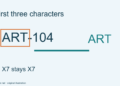
Use Text.Start in Power Query when a meaningful prefix occupies the first characters of a text field. For a practice table of workshop item codes, Text.Start([Code], 3) returns the first three characters in each row. Keep the original Code column and create a separate Prefix column so readers can compare the transformation against its source. A prefix is only useful when the code design actually assigns meaning to those positions.

Enter a small reproducible dataset

In Power BI Desktop, use Enter data to create a table named WorkshopCodes with one column called Code. Enter ART-104, LAB-205, ART-310, and X7 as four text values. Load the table, then open Transform data to work in Power Query Editor. This is a deliberately small invented dataset: ART and LAB represent classroom zones, while X7 is an exception included to test the rule.

Check the Code column's data type. It should be Text. In the editor, use Add Column and choose Custom Column. Name the new column Prefix and enter Text.Start([Code], 3) in the formula box. Confirm the operation. The outputs should be ART, LAB, ART, and X7. The last value remains short because the input contains only two characters; the function does not create a third character to satisfy your naming convention.

Understand what the rule does

The count argument specifies how many characters to take from the beginning. It does not mean a zero-based position, and it does not search for a hyphen. For ART-104, the first three characters happen to be the zone label because that is how this example was designed. A code such as A-104 would return A-1 under the same rule. That may be technically correct while still being wrong for your intended business meaning.

Before using the transformation on a real table, write a one-sentence rule describing the code format. For example: every standard workshop code begins with a three-letter zone followed by a hyphen and three digits. Then decide how exceptions will be reviewed. This article does not implement full validation of that pattern. Keeping X7 visible reminds you that extraction and validation are separate tasks requiring separate decisions.

Keep the transformation traceable

Leave Code in the query while testing. The side-by-side columns make it easy to see whether a prefix was extracted from the intended field. Give the applied step a descriptive name if helpful, but avoid naming it Validated zones unless you actually added validation. A column containing ART is a derived string, not proof that ART is an approved location or that the rest of its code is correct.

Set the resulting Prefix column to Text if needed, then review the preview. Power Query previews are useful for development but are not a substitute for checking every relevant case in a real dataset. Before removing source columns or loading a final model, include representative short codes, unexpected punctuation, and other exceptions in a controlled test. Record how you expect each case to behave so a refresh does not silently change your interpretation.

Handle spaces and missing information deliberately

A leading space counts as a character. If the input is a space followed by ART-104, taking three characters will not return ART. Inspect the actual value before changing the rule. You might need an explicitly documented trim step upstream, but do not add cleaning merely to make one unexpected result disappear. In some identifiers, spaces can be significant, and removing them changes the data rather than simply improving its display.

Similarly, do not replace missing identifiers with made-up prefixes. The Microsoft function signature accepts nullable text, but a production query still needs an agreed policy for missing or invalid source records. Keep those decisions visible to whoever owns the data. For this exercise, all four rows contain text, which keeps the initial formula easy to reproduce without implying that every real import will be as clean.

Troubleshoot formula errors

Power Query M is case-sensitive. Use Text.Start with its capital T and S, and put the field name in square brackets. A column named Item Code needs [Item Code] rather than [Code]. Check the column name exactly as it appears in the editor. Also distinguish the Custom Column expression from a full Advanced Editor query: the short expression belongs inside the custom-column dialog and is evaluated for each row.

If you see an error after changing the source, inspect whether the column was renamed or its type changed. Revisit the first failing applied step rather than repeatedly modifying later outputs. Once the practice results match the four expected values, select Close & Apply to return to the model. The formula is evaluated during query processing and refresh; it is not an interactive DAX measure responding to a report slicer.

Extend the exercise

Add LAB-999 and AB to the original practice data, refresh, and predict their prefixes before checking. They should be LAB and AB. Then discuss whether AB should be permitted under the proposed three-letter zone convention. Current Power BI Desktop supplies Power Query Editor, while service authoring and other Power Query hosts can have different entry points. The underlying M reference documents the function; this workshop coding scheme is an original teaching example.


ADVERTISEMENT

Sources and related reading

Primary reference and scope

Split a Combined Code in Power BI Power Query

Tags: extract a three character code prefix with power queryPower BI
ADVERTISEMENT
Previous Post

Sample a diagram color with PowerPoint Eyedropper

Next Post

Check off a short workshop packing list in OneNote

Tanjila Rashid

Tanjila Rashid

Next Post
Check off a short workshop packing list in OneNote

Check off a short workshop packing list in OneNote

ADVERTISEMENT
  • Trending
  • Comments
  • Latest
10 Microsoft 365 Copilot Features That Transform Word and Outlook in 2025

8 Hidden Excel Features That Power Users Swear By (2026 Edition)

October 8, 2026
PowerPoint Morph Transition Masterclass: Create Cinematic Animations in 2026

PowerPoint Morph Transition Masterclass: Create Cinematic Animations in 2026

October 8, 2026
Excel GROUPBY & PIVOTBY: The New Array Functions That Replace PivotTables

Excel GROUPBY & PIVOTBY: The New Array Functions That Replace PivotTables

October 8, 2026
Excel PIVOTBY Function in 2026: The Ultimate Guide to Dynamic Pivot Analysis Without Pivot Tables

Excel PIVOTBY Function in 2026: The Ultimate Guide to Dynamic Pivot Analysis Without Pivot Tables

October 8, 2026
Spreadsheet Layout

What is spreadsheet? and how it works!

0
Spreadsheet Layout

Spreadsheet Layout

0
Spreadsheet Layout

IF function of Google Sheets – usage and formula examples

0

5 Google Sheets tricks that you always need!

0
Check off a short workshop packing list in OneNote

Check off a short workshop packing list in OneNote

November 18, 2026
Extract a three character code prefix with Power Query

Extract a three character code prefix with Power Query

November 18, 2026
Sample a diagram color with PowerPoint Eyedropper

Sample a diagram color with PowerPoint Eyedropper

November 18, 2026
Find a workshop phrase in OneNote for the web

Find a workshop phrase in OneNote for the web

November 17, 2026

Recent News

Check off a short workshop packing list in OneNote

Check off a short workshop packing list in OneNote

November 18, 2026
Extract a three character code prefix with Power Query

Extract a three character code prefix with Power Query

November 18, 2026
Sample a diagram color with PowerPoint Eyedropper

Sample a diagram color with PowerPoint Eyedropper

November 18, 2026
Find a workshop phrase in OneNote for the web

Find a workshop phrase in OneNote for the web

November 17, 2026
Office Learner

OfficeLearner is a place where you can learn PowerPoint, Excel, Word Data Analysis, and other Office related programs. We provide tips, how to guide and also provide Excel solutions to your business problems

Follow Us

DMCA.com Protection Status

Browse by Category

  • Clipchamp
  • Excel
  • Google Sheets
  • Loop
  • Microsoft 365
  • Microsoft Copilot
  • Microsoft Designer
  • Microsoft Forms
  • Microsoft Loop
  • Microsoft Sway
  • Microsoft Teams
  • Microsoft Viva
  • Microsoft Whiteboard
  • OneDrive
  • OneNote
  • Outlook
  • Planner
  • Power Apps
  • Power Automate
  • Power BI
  • PowerPoint
  • SharePoint
  • Teams
  • Visio
  • Word

Recent News

Check off a short workshop packing list in OneNote

Check off a short workshop packing list in OneNote

November 18, 2026
Extract a three character code prefix with Power Query

Extract a three character code prefix with Power Query

November 18, 2026
  • About
  • Advertise
  • Privacy & Policy
  • Contact

© 2022 OfficeLearner - Free Excel, PowerPoint & Word Tutorial & Online Courses

No Result
View All Result

© 2022 OfficeLearner - Free Excel, PowerPoint & Word Tutorial & Online Courses

This website uses cookies. By continuing to use this website you are giving consent to cookies being used. Visit our Privacy and Cookie Policy.