
Find a workshop phrase in OneNote for the web
Use search in OneNote for the web to find a distinctive workshop phrase within the current section. Open the relevant notebook and section, choose the search icon, and type the phrase. Microsoft documents quotation marks for an exact phrase and notes that web search does not search across notebooks. Confirm the section you are searching before concluding that a missing result means the note was never written.
This exercise focuses on the browser version of OneNote available through Microsoft 365. Desktop OneNote has different search controls and scopes, so do not assume its broader options exist in the web interface. Account permissions and notebook availability also affect what you can open. The practice uses invented material descriptions rather than confidential notes. It demonstrates retrieval and verification without sharing a notebook, changing access, or claiming a hands-on test of your particular account.
Create a small searchable section
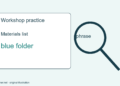
In a practice notebook, create or choose a section called Workshop practice. Add a page titled Materials list and type Blue folder beside the projector as a sentence. Add a second page titled Room setup and type Put the blue folder on the front table. These pages deliberately contain the same distinctive phrase in different contexts. Avoid filling the pages with unrelated content; the small example makes the scope and results easier to understand.
Wait until your edits have been saved before relying on search results. If the browser shows a saving or connection problem, resolve that first. Search cannot compensate for a page that was never successfully stored in the notebook you are viewing. Keep the page titles specific so the results are meaningful when you encounter them later. A title like Materials list is more helpful in this exercise than Untitled page, especially when several pages contain the same object name.
Search and inspect the actual passage
Select the search icon in the navigation area and enter blue folder. Review the results and open a matching page. Read the surrounding sentence rather than stopping at the highlighted words. The Materials list page says the folder is beside the projector, while Room setup gives an instruction to put it on the front table. Both can match the query, but they serve different purposes. A result is a route to the note, not a guarantee that you have found the latest instruction.
Try the same query with quotation marks around "blue folder" to request the exact phrase. Microsoft describes this as a way to search a phrase instead of its component words. Then try a single distinctive word such as projector. Comparing the results helps explain why query wording matters. If a phrase is too specific to find a note, a shorter keyword may help you discover a variation in wording. Confirm the intended page through its title and context afterward.
Understand the search boundary
Microsoft’s web guidance says search defaults to the section currently open and can be limited to the current page. It also says the web app does not support searching across notebooks. Read the scope shown in your interface and do not describe your result as an account-wide search. If another notebook contains the workshop plan, open that notebook and navigate to its relevant section before repeating the query. This deliberate scope check is often more useful than endlessly changing the keywords.
To make the limitation concrete, create a separate practice section called Archive and put a page containing blue folder there. Return to Workshop practice and search again. Do not assume that a result list from the current section covers Archive. Navigate to Archive and repeat the query within that section. This is an exercise in understanding boundaries, not a promise about indexing timing or every interface variation. Preserve the original pages while experimenting so you can compare their locations.
Troubleshoot an absent result
Check spelling, section selection, and the saved page content in that order. If you remember only that the note mentioned a folder, search folder instead of a long remembered sentence. If you pasted a picture of a list, do not use this typed-text exercise as proof of what image text search should return. The example concerns ordinary typed page text. Different content types and application versions may have capabilities that need their own verification and documentation.
If a page opens but contains an older instruction, inspect its surrounding notes and ask the notebook owner about the current version rather than editing it on the strength of a search hit. Search does not determine which note is authoritative. Likewise, do not create duplicate pages immediately when a search fails. First navigate through the expected section and check the page list. A duplicate may make the next search more confusing by adding a second plausible result with nearly the same title.
Make future retrieval easier
Use consistent object names when you author notes. If the workshop’s folder is called blue folder in one page and welcome wallet in another, searching only one name can miss the other page. A short clarification in the note can connect the terms without repeating keywords unnaturally. Keep page titles tied to their purpose, such as Room setup or Materials list. These are simple writing habits that make a small notebook easier to navigate without installing an indexing tool or reorganizing everything.
For a reader exercise, add a third page called Packing check with the sentence Return the blue folder to the cupboard. Search the exact phrase and identify which result describes preparation, which describes setup, and which describes packing away. Can you explain why the same phrase produces several useful pages rather than a single final answer? Close the search view when finished and return to the page you need. Save the practice notebook as a transparent example of scoped retrieval.