

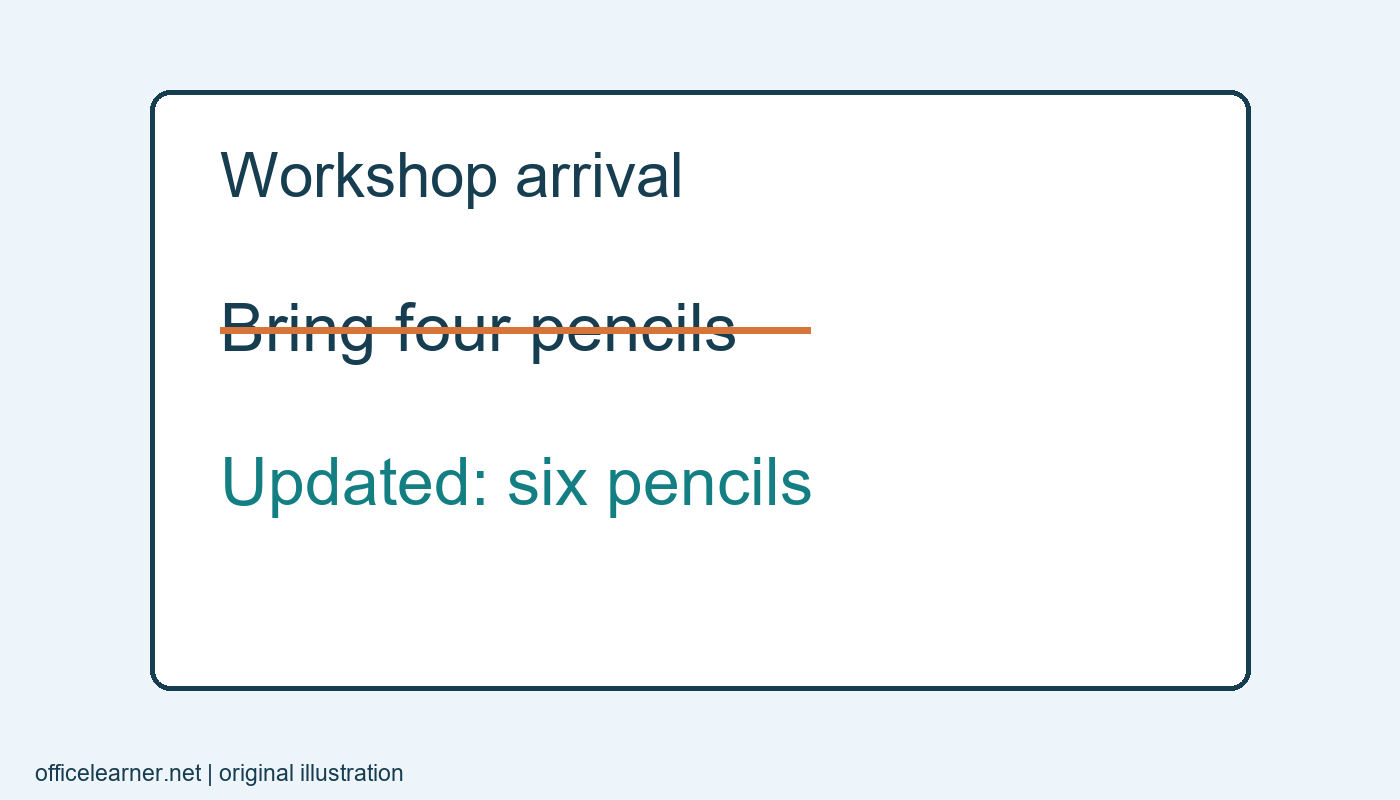
Cross out a superseded instruction with Word strikethrough
To leave an old instruction visible while showing that it has been superseded, select its words and apply single strikethrough from Word's Home tab. Add the replacement in ordinary text nearby. This is useful in a simple working handout where readers need to see both versions. It is visual formatting, however, and does not provide the review history, authorship, or acceptance controls of Track Changes.
This example targets desktop Word for Windows, using the Home tab and its Font controls. Microsoft's reference covers Word for Microsoft 365 and supported perpetual desktop editions such as Word 2024 and 2021. Web, Mac, and mobile interfaces can arrange controls differently. If the specific command is unavailable in your edition, use its official help rather than assuming that every screenshot or keyboard shortcut applies to your device.
Write an instruction pair
Create a practice document titled Workshop arrival note. Type this sentence as a paragraph: Bring four colored pencils. On the following line type: Updated instruction: Bring six colored pencils. The example changes only a quantity, making it easy to see what is old and what should guide the reader. Save this file separately from an actual event handout so an exercise cannot be mistaken for a live instruction.
Decide how much of the old sentence to mark. Selecting only four makes the exact change easy to identify, but it leaves the old sentence partly active in appearance. Crossing out the entire sentence makes its superseded status clearer. For this exercise, choose the entire old sentence while leaving the paragraph mark outside the selection. The replacement remains intact in the next paragraph.
Apply and inspect the formatting
Select Bring four colored pencils. Open Home and choose Strikethrough in the Font group. The letters should remain readable with a line through their middle. Click elsewhere to inspect the result without the selection shading. Confirm that the updated instruction has no line through it and that its quantity is six. The objective is a clear old-and-current pair, not a decorative effect across unrelated text.
Select the old sentence again and choose the same single strikethrough control to remove it. Apply it once more so you can recognize the toggle behavior. This small reversal helps distinguish an intentional formatting choice from a mysterious line introduced by a border, a drawing, or tracked deletion markup. A horizontal paragraph border would span a different area and would not follow the selected characters in the same way.
Make the current instruction unambiguous
Add a short label before the old line, such as Superseded instruction. Keep Updated instruction before the new one. Those words matter because a reader may be using a reading tool, copying the text into another program, or viewing a low-quality printout where the line is faint. The labels communicate the status without requiring the reader to interpret typography alone.
For a final public handout, consider whether readers need the old quantity at all. If the answer is no, make a clean final copy that contains only the current instruction. Keeping obsolete instructions can help a small working group compare revisions, but it can also create avoidable ambiguity. Choose the presentation for the reader's task rather than keeping crossed-out material simply because the feature is available.
Understand the difference from document review
Strikethrough does not identify who made the change or when. It also does not protect the old wording from editing. Someone can select the sentence and type over it, or remove the effect, just as they can change bold or italic. If your workflow requires a formal review record, agree on a document review process and use the appropriate review tools instead of treating this formatting as evidence of approval.
Imagine a colleague receives two files, one labeled working and one labeled final. The working file might show the old instruction and its replacement for discussion. The final file might contain only the approved version. Keep filenames and document labels consistent with that distinction. A crossed-out sentence in an unlabeled attachment does not tell the recipient whether a decision has been made or merely proposed.
Troubleshoot lines in the wrong place
If new text also appears crossed out, the insertion point may have inherited the effect. Select the newly typed words and turn off Strikethrough. Alternatively, place the cursor where you want to type and inspect the Font controls before continuing. Verify the actual new sentence after typing rather than relying only on whether a ribbon button looks selected while the cursor is elsewhere.
If the old line does not appear marked, check the selection. Clicking inside a word is different from selecting the full sentence. If the document uses Track Changes, review markup settings separately; tracked deletions can have their own display. Avoid repeatedly clicking unrelated formatting controls to solve an unfamiliar mark. Undo a mistaken change, identify what is selected, and apply the intended operation once.
Check a print or export copy
Open print preview and inspect the two paragraphs at a readable zoom. Check that the line through the old text is visible, the replacement has enough separation, and neither quantity is clipped. If you export a PDF for readers, open that actual PDF and check it too. An editable document looking correct on your screen does not prove that every later delivery format will preserve the distinction equally clearly.
Try the exercise again with a change of location instead of quantity: Old instruction: Meet in Room Cedar. Updated instruction: Meet in Room Maple. Apply strikethrough to the superseded sentence and leave both status labels readable. Ask a colleague which room they would use based only on the document. If they hesitate, simplify the layout or distribute a clean current version. Which part of your real workflow needs comparison, and which part needs a single clear instruction?














