Create a repeated text pattern with Text Repeat in Power Query
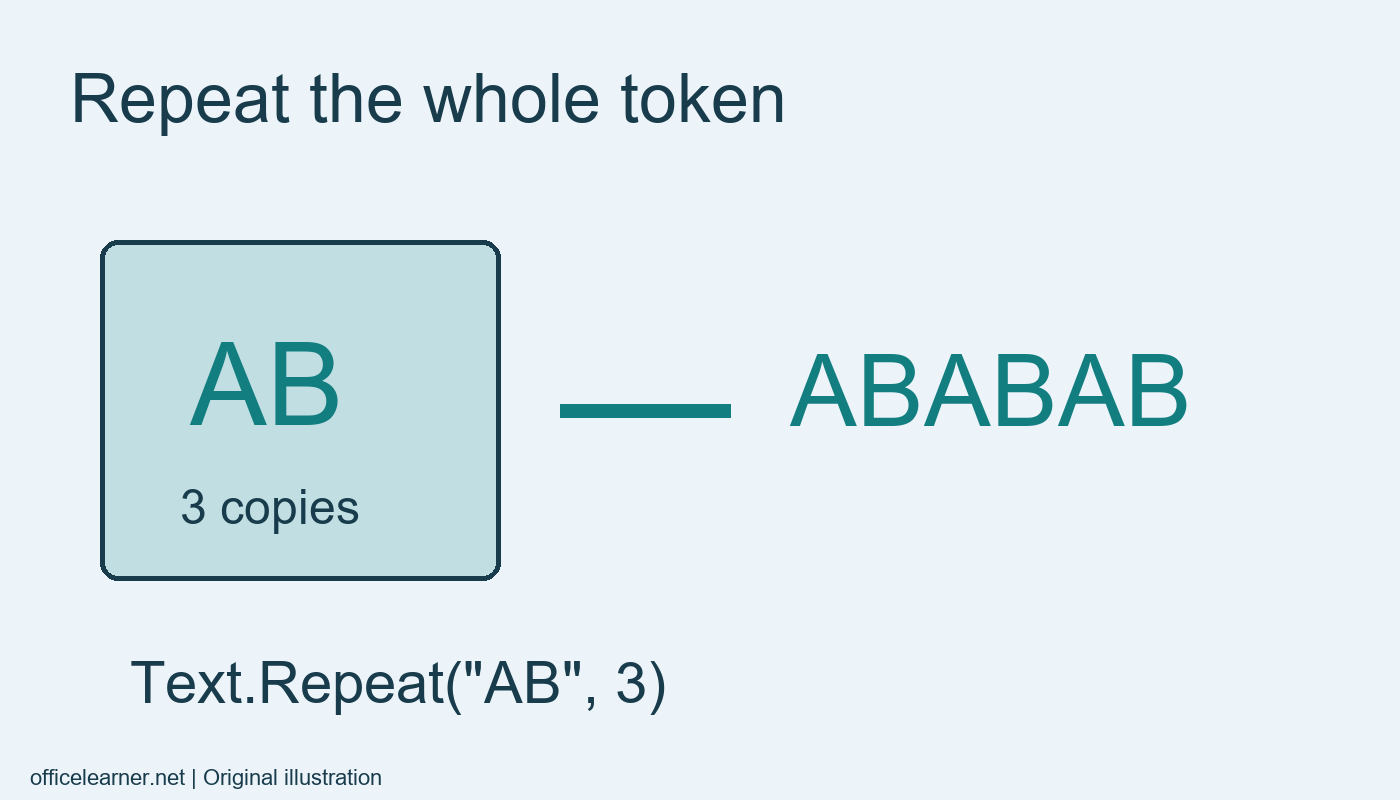
Use Text.Repeat("ab", 3) in Power Query M to produce ababab. The function repeats the complete supplied text the requested number of times. It can help build a small diagnostic pattern or a deliberately repeated label in a transformation. It is not a way to multiply quantities, mask confidential information securely, or infer how many items a record represents.
This example builds a tiny pattern table for checking a workshop label export. Each row contains a short token and a repetition count. A separate custom column shows the repeated result, while the original token and count remain visible. The purpose is to understand how a text transformation behaves before deciding whether it belongs in a real reporting workflow.
Create a small input table
In Power BI Desktop, choose Enter data and create two columns named Token and Copies. Add AB with 3, xy with 2, and dot with 1. Give the query a clear practice name and open Transform data. Check that Token has a text type and Copies has a whole number type. This exercise uses small nonnegative whole numbers so the expected results are easy to inspect.
Write the expected results on paper before adding a formula. AB repeated three times should be ABABAB; xy twice should be xyxy; dot once should remain dot. These simple predictions make it easier to notice a wrong reference or unexpected space. The examples are authored calculations, rather than a claim that a particular Power BI release was tested on your computer.
Add the custom column
Choose Add Column and Custom Column. Name the result Pattern and enter Text.Repeat([Token], [Copies]) in the formula area. Confirm and inspect every row. You should see the complete token repeated with no separator automatically inserted. Uppercase and lowercase letters remain as supplied because repetition does not normalize capitalization. Keep the input columns available while reviewing the new result.
For an additional controlled test, change one token to AB followed by a space. Repeating that token includes the space each time. A trailing space can be difficult to see in a preview, so compare the source text carefully. If you want separators between repeated items, design that requirement explicitly. Adding a separator to the token also adds it after the final repetition, which may be unsuitable for a real exported label.
Separate text repetition from arithmetic
The Copies value controls how many times the text is repeated. It does not cause a token containing digits to become a numeric calculation. Text.Repeat("12", 3) returns the text 121212, rather than the number 36. If the task is to calculate three packs of twelve supplies, use numeric multiplication in an appropriately typed column. Choose the transformation according to meaning rather than the appearance of the result.
Likewise, repeating a symbol to make a visual tally is only a display technique. It does not replace a numeric measure used for sorting, aggregation, or chart axes. A report containing large counts can become unreadable if each count is represented by a very long string. Retain the numeric value as the authoritative field and keep any illustrative pattern short enough for the intended output.
Define the permitted input range
For this workshop exercise, restrict Copies to small nonnegative whole numbers and review exceptions before transformation. Include a zero test and inspect the empty text result. Decide separately what a missing token or missing count should mean in the real dataset. Microsoft's signature permits nullable text, but that does not decide your business rule. Missing data should not quietly become an approved label simply because a formula can return a value.
Avoid experimenting with huge repetition counts in a production query. An accidental count of millions can produce large text values and make the preview harder to handle. A reasonable process validates the source range and flags unexpected entries before building decorative output. Do not hide every error with a generic replacement unless you also preserve a way to find and correct the original bad records.
Trace and troubleshoot the step
If you receive an error, check the spelling and capitalization of Text.Repeat and the bracketed column names. M identifiers are case sensitive. Verify the type of Copies rather than assuming a column of numeric looking text is already numeric. Inspect the preceding Applied Step to see whether a renamed column or type conversion changed the input. Fix the cause at the relevant step and refresh the preview.
Power Query is available in Power BI Desktop and other Microsoft products, but command placement and host features differ. This example targets the Power BI Desktop query editor. Text.Repeat is documented as an M text function, and the custom column expression is distinct from a DAX formula. Entering it in a report measure will not reproduce the query editor exercise. Keep the editor and formula language visible in your notes.
Extend the practice table
Add a token consisting of a single dash and a Copies value of four. Predict the output, then compare it with the generated pattern. Next add a token of 12 and a count of three and explain why the output is not an arithmetic total. Finish by naming a legitimate use for a short repeated pattern and a case where a numeric measure would serve readers better. Keep your input and output together as a reference for future transformations.