Compare variance magnitudes with Number Abs in Power Query
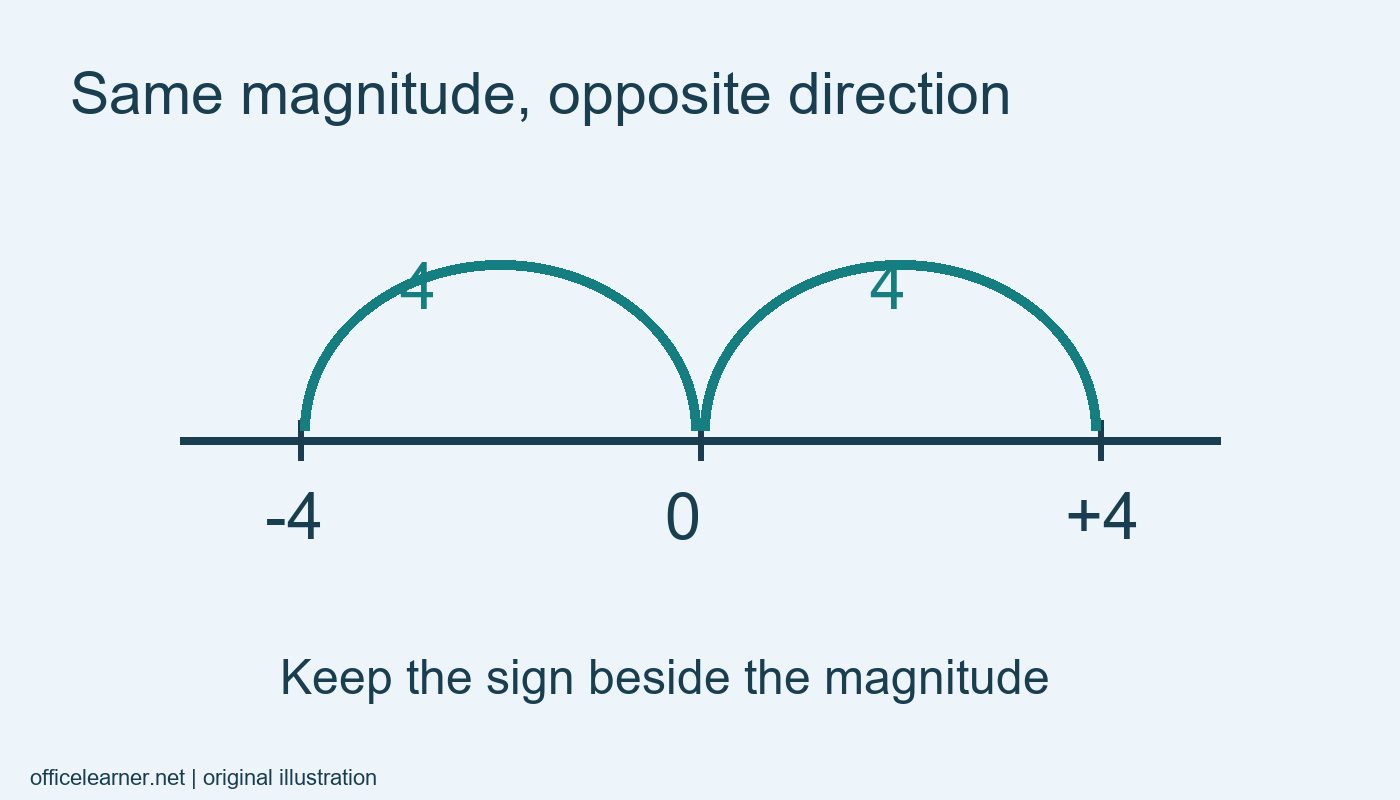
Use Number.Abs in a Power Query custom column to turn a signed numeric difference into its nonnegative magnitude. For example, Number.Abs(-7) returns 7 and Number.Abs(7) also returns 7. Keep the original signed difference beside the new result, because the magnitude alone cannot tell you whether the actual amount was above or below the plan.
This worked example uses workshop supply counts in Power BI Desktop's Power Query Editor. It creates an absolute variance column for inspection, without claiming that the largest magnitude is automatically the most important business problem. Microsoft's M reference defines Number.Abs, including its handling of null. The supply data and the review decisions in this guide are original examples intended to make that definition reproducible.
Build a tiny source table
In Power BI Desktop, create an Enter Data table with three columns named Item, Planned, and Actual. Add Folders with planned 20 and actual 16, Pencils with planned 30 and actual 36, and Rulers with planned 12 and actual 12. Open the table in Power Query Editor. Set the count columns to Whole Number after confirming that the source values are valid counts rather than mixed labels.
Add a custom column named Signed variance using [Actual] – [Planned]. For the three rows, expect -4, 6, and 0. The order of subtraction matters. Actual minus planned makes a shortfall negative in this example. If a team uses the opposite convention, document that convention prominently. Absolute values will conceal a reversed subtraction, so you must check the signed result before creating the magnitude column.
Now add another custom column named Variance magnitude with Number.Abs([Signed variance]). In the custom-column expression box, enter the M expression rather than a worksheet-style Excel formula. Expect 4 for Folders, 6 for Pencils, and 0 for Rulers. Set an appropriate numeric type for the new column and retain the original inputs and signed variance for the review. Do not replace the source values with their magnitudes.
Interpret the result without losing direction
Sorting Variance magnitude from largest to smallest puts Pencils first, then Folders, then Rulers. This answers which count differs most in absolute units. It does not answer which item is most expensive, which shortage disrupts the workshop, or which percentage difference is largest. Those questions require additional context and possibly different measures. A six-pencil surplus and a four-folder shortage can have very different operational consequences.
Read the top row together with Signed variance. Pencils has a magnitude of 6 and a signed variance of 6, so it is six above plan under the stated convention. Folders has a magnitude of 4 and a signed variance of -4, so it is four below plan. A useful review table keeps both facts visible. A column headed merely Difference would make readers guess whether the sign had been removed.
Do not add the magnitudes and describe that sum as the net stock change. In this table the magnitudes sum to 10, while the signed differences sum to 2. Those totals answer different questions. Ten is the total amount of deviation across the rows in count units; two is the net signed difference. Neither total describes all practical consequences without identifying the individual supplies and the intended comparison.
Handle missing and invalid data explicitly
Microsoft documents that Number.Abs(null) returns null. A missing count should not silently become a zero variance. Add a practice row with an absent Actual value and inspect how your subtraction and subsequent expression handle it. Decide whether the record should remain incomplete, be flagged for correction, or be excluded from a particular comparison. That is a data-quality decision, not a reason to assume the plan was met.
Text values can produce errors when a numeric calculation expects a number. If a cell contains pending rather than a count, inspect the source and the applied type-conversion step. Do not replace every error with zero just to obtain a clean preview. A zero magnitude communicates exact agreement in this example, which is materially different from an unknown or unparseable actual count. Preserve evidence of the problem until it is resolved.
Power Query uses M, while report measures commonly use DAX. These languages have different contexts and syntax. Number.Abs belongs to the M transformation shown here. The example targets Power BI Desktop's query editor; menus and connectors may vary across releases, and service dataflows can expose a different editing experience. Check the function reference and your environment before translating the steps into an automated refresh process.
Verify with a deliberate change
Change the Folders actual count from 16 to 24 in the practice source. After updating the query preview, its signed variance should change from -4 to 4 while its magnitude remains 4. This is the most revealing test of the transformation: opposite directions can produce the same magnitude. Confirm that the other two rows remain unchanged and that the column names still explain the difference.
For an exercise, add Markers with planned 15 and actual 9. Predict the signed variance and magnitude before refreshing. Then sort by magnitude and explain how you would distinguish the marker shortfall from the pencil surplus. A correct answer combines the nonnegative magnitude with the signed source comparison, rather than treating an absolute-value transformation as a complete decision rule.