

Build a small text tally with Excel REPT
Use REPT to repeat a short symbol once for each item in a small count. For example, =REPT("|",B2) turns the number 4 in B2 into four vertical strokes. Keep the numeric count beside the tally so readers can still compare exact values. This exercise makes a compact visual aid for a workshop supply list; it does not replace a proper chart when values become large.
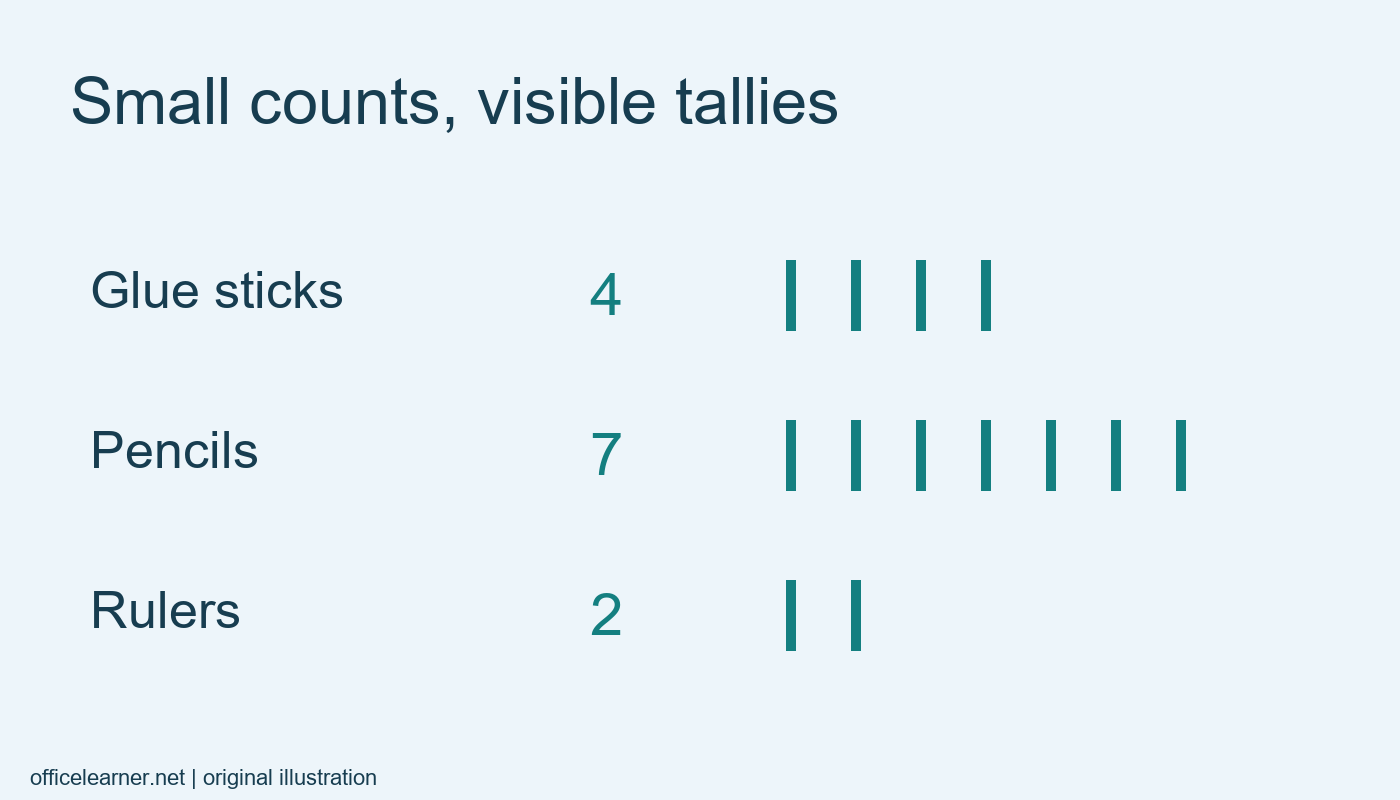
Imagine preparing three activity tables. You have counted four glue sticks, seven pencils, and two rulers. A number tells you the quantity precisely, while a short repeated mark helps a colleague scan the difference. The important design decision is to keep the scale consistent: one stroke always means one object. Changing that meaning halfway down a column would make the display misleading.
Create the source list
Start in a blank worksheet so the exercise does not disturb a working inventory. Enter Item in A1, Count in B1, and Tally in C1. Enter Glue sticks in A2, Pencils in A3, and Rulers in A4. Put 4, 7, and 2 in the corresponding cells in column B. These are invented practice counts, not a claim about anyone's actual supplies.
Use whole nonnegative numbers for this example. A count of individual pencils cannot meaningfully be 3.6 unless you are describing something different from intact pencils. Decide what you are counting before building the visual. If a pencil stub is usable, your own inventory rule might include it; make that rule explicit rather than letting a formula decide it silently.
Enter and copy the formula
Select C2, type =REPT("|",B2), and press Enter. The vertical stroke is inside straight quotation marks because it is the text to repeat. B2 supplies the repetition count. The visible result should contain four strokes. Enter the corresponding formulas in C3 and C4, or copy C2 downward so the relative cell reference changes for each row.
Check the references after copying. C3 should refer to B3 and C4 to B4. If every row shows four strokes, inspect the formulas rather than changing the source counts to make the display look right. An accidentally fixed reference such as $B$2 would keep every copied formula tied to the first count. That behavior can be useful elsewhere, but it defeats this row-by-row exercise.
Make the tally readable
Widen column C enough to show the longest tally. A monospace font can make repeated symbols easier to distinguish, but keep the adjacent numbers as the authoritative values. Seven tightly packed strokes are not as quick to count as the numeral 7. The visual should help a first glance without forcing the reader to perform another counting task.
You can experiment with =REPT("* ",B2), which repeats an asterisk followed by a space. Four repetitions produce four asterisks with spacing between them. Remember that the repeated unit contains two characters. If you choose a longer word or decorative string, the output grows much faster. Use plain characters that survive copying, printing, and the fonts available to your colleagues.
Understand limits before expanding
Microsoft documents that zero repetitions return empty text and that a noninteger repetition count is truncated. For this reason, a result with three symbols does not prove that the original count was exactly three. Always review the numeric column. If you enter 3.8 as a deliberate experiment, treat the resulting tally as a demonstration of truncation, then restore a valid whole count.
REPT also has a maximum result length of 32767 characters. That ceiling is far beyond a useful pencil tally, but it explains why enormous counts or long repeated strings can fail. More practically, a row containing hundreds of marks becomes unreadable long before reaching the technical limit. For a larger inventory, choose an ordinary bar chart or another summary rather than shrinking the font to fit.
Troubleshoot unexpected output
If the formula appears literally in the cell, check whether it was entered as text, including a leading apostrophe, and re-enter it as a formula. If your Excel installation uses semicolons between function arguments, adapt the separator to your locale. Function names may also be localized. This article uses the English function name and comma syntax documented by Microsoft.
A tally that looks empty may be the correct result for zero, a column that is too narrow, or a formula referencing the wrong cell. Inspect the formula and source value together. Do not replace an empty result with a typed symbol unless you intend to abandon the live relationship. Likewise, adding spaces manually to individual results creates inconsistent display rules that are harder to maintain.
Check the exercise and share it
Change B3 from 7 to 5 and confirm that the pencil tally changes to five marks. Set B4 temporarily to zero and observe the empty text result, then restore 2. Ask a colleague to identify the largest count using both columns. If the marks slow them down, keep the numeric list and remove the visual rather than treating decoration as a requirement.
Microsoft lists REPT for current Microsoft 365 and several perpetual desktop Excel releases, including Excel 2024 and 2021. This is an authored worksheet exercise, not a claim of hands-on testing in every release. Before sharing, check the file in the recipient's version and verify that the chosen symbol is legible. What short count in your own work would benefit from a visual comparison beside its exact number?














