Nest a supporting page under a OneNote web workshop page
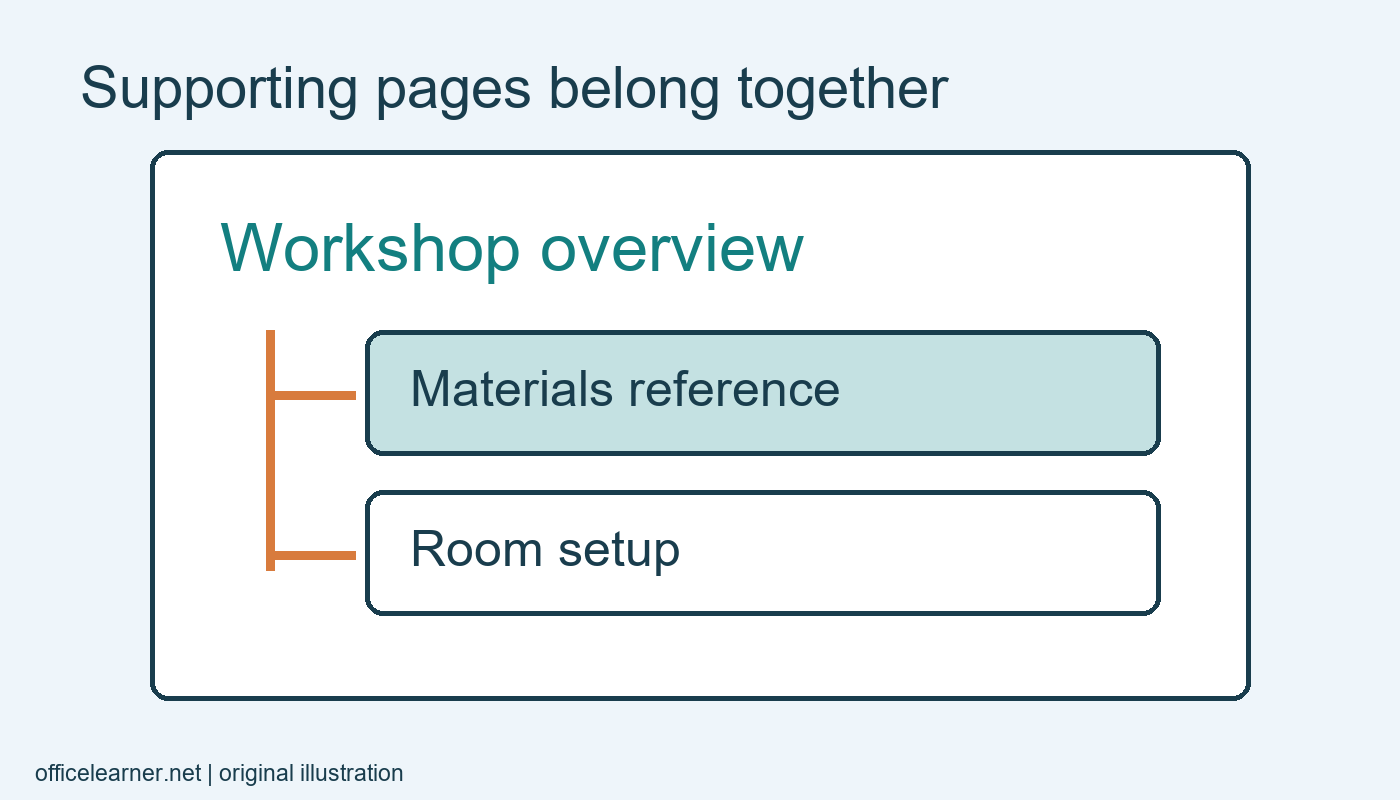
In OneNote for the web, place a supporting page beneath its parent in the page list, open the supporting page's context menu, and choose Make Subpage. The resulting indent helps readers see that the page belongs with the parent topic. It organizes navigation; it does not move the supporting text into the parent page or create a separate permission boundary.
Choose a useful parent and child
For a workshop notebook, use Workshop overview as the parent and Materials reference as its supporting page. The overview should state the session purpose and link the reader's attention to practical preparation. The materials page can hold the longer list and supplier notes. This relationship gives the indent a meaning: the detail supports the overview but remains independently readable when someone opens it directly from search or a shared link.
Open a practice section in OneNote for the web. If necessary, use + Page at the bottom of the page list to create each page and enter its title in the heading area. Put a short sample sentence in both pages so they are distinguishable. Avoid using confidential workshop records for an initial exercise. A small practice section lets you explore the page structure without disrupting an established notebook used by colleagues.
Put the pages in order
Microsoft documents that page names can be dragged up or down in the web page list. Arrange Workshop overview first, with Materials reference immediately below it. Read the titles again before using the context menu. Indenting the wrong page can make an unrelated topic appear to belong to the workshop, especially in a busy section with several similar titles. Work on one pair of pages at a time.
Right-click the Materials reference page name, or use the supported context-menu gesture on your device, and choose Make Subpage. Inspect the page list for the indent beneath Workshop overview. Open each page and confirm that its title and sample sentence remain intact. The visible navigation relationship should change while each page's content stays on its own page. This comparison helps distinguish organization from copying or merging content.
Give the child a standalone title
A child title such as Details is ambiguous outside the page list. Materials reference is better, and Workshop materials reference may be better still when several workshops share a notebook. Search results, links, and recently opened views can separate a page from the visual context of its parent. Write the title so someone arriving directly understands what the page contains before reading the first paragraph.
Add a brief opening sentence naming the workshop and what the list covers. For example, This page records reusable supplies for the paper-model workshop. That sentence remains useful if the page is moved later. Do not repeat the full overview on every subpage, which would create maintenance work. Include only enough context to identify the purpose and explain where a reader should look for the main session plan.
Keep structure shallow and purposeful
Use a subpage when a supporting topic deserves its own page but belongs clearly with another. A two-line note may fit directly into the overview instead. Several unrelated topics may deserve separate top-level pages or a different section. The goal is a page list someone can scan quickly, not the maximum possible number of indents. Start with one parent and two or three supporting topics before considering a larger rearrangement.
For the workshop example, Materials reference and Room setup could be supporting pages, while Next month's workshop remains a separate main topic. Ask a colleague to predict where each page would be found from its title. If their prediction differs from the structure, improve the titles or grouping. An attractive page list is less useful than a structure that matches the questions readers actually bring to the notebook.
Troubleshoot without deleting content
If Make Subpage is missing, confirm that you are in an editable notebook in OneNote for the web and that you opened the page-name context menu. A browser page menu or the text-editing menu will offer different commands. Check the current Microsoft help for your environment if the interface differs. Do not delete and recreate a populated page merely to force an indent; that can disrupt links and introduce unnecessary copying.
If the page appears under the wrong topic, inspect the ordering and the surrounding page titles before making another change. Keep a note of the starting structure when reorganizing a real notebook. Verify that collaborators can still find the material and that links you already shared lead to the intended page. An indent is a navigation signal, so it should be reviewed from the reader's perspective as well as the editor's.
Verify the result with an exercise
Create an overview page and one supporting page about a hobby class. Arrange them, make the supporting page a subpage, and open it directly. Check whether the title and first sentence explain its purpose without relying on the indent. Then return to the page list and describe the relationship aloud. Which information belongs in the overview, and which detail is easier to maintain as a separate supporting page?