Pad short workshop identifiers with zeros in Power Query
Use Text.PadStart in Power Query to add leading zeros to short text identifiers until they reach a chosen minimum length. For example, Text.PadStart("7", 4, "0") produces "0007". Treat the result as text, because the zeros are part of the identifier's written form. This is useful for a deliberately defined label system; it does not establish that a code exists or belongs to the right record.
Set the rule before the formula
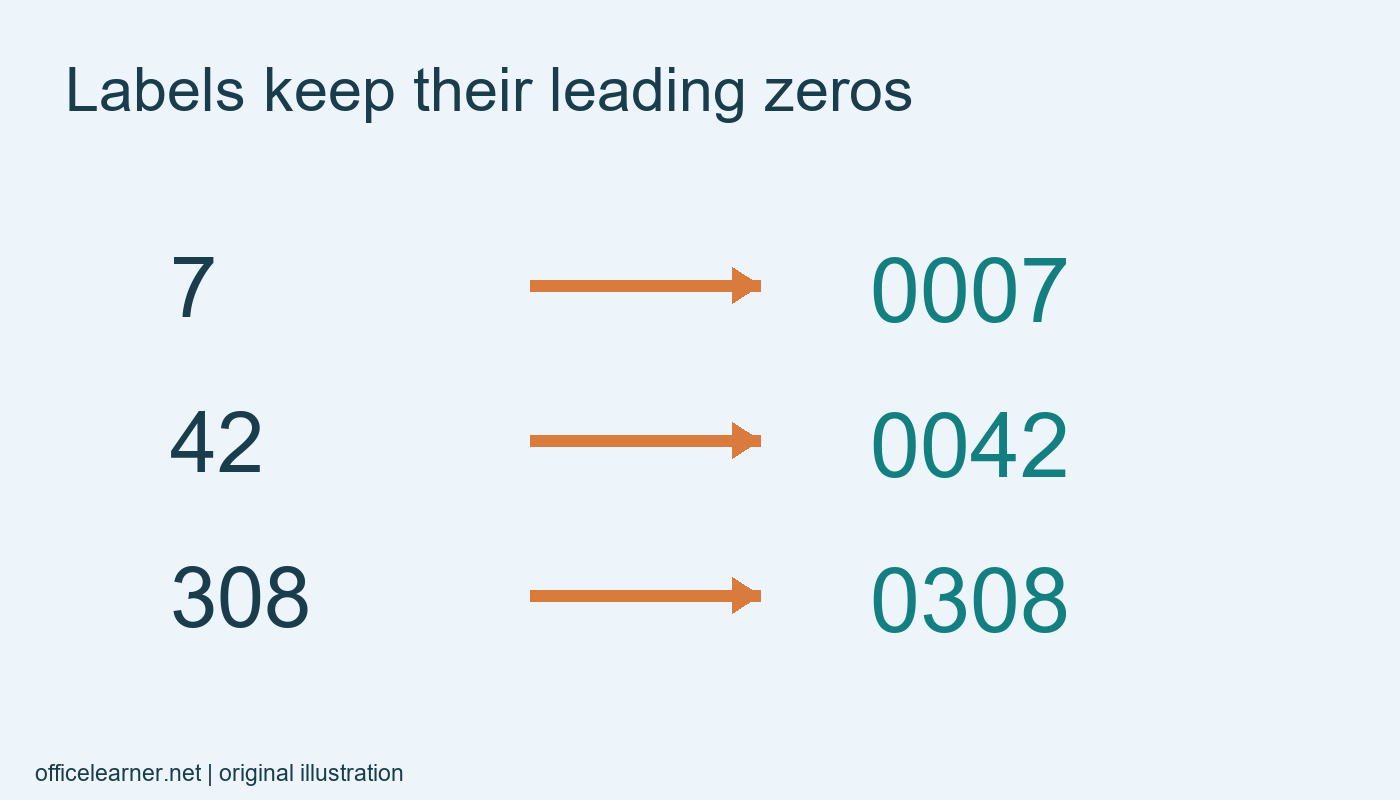
Imagine a workshop assigning four-character drawer labels. Existing text entries are 7, 42, and 308. The agreed display rule is that short entries receive zeros on the left, producing 0007, 0042, and 0308. Write that rule down before transforming anything. If a supplier uses different identifier lengths or letters with meaning, do not apply this workshop convention to their data without confirming their requirements.
In Power BI Desktop, create a small Enter Data table with a column named Code. Enter the three practice values and open the table in Power Query Editor. Set Code to Text explicitly. Retain that column as the original reference. Then choose Add Column and Custom Column. Name the new field PaddedCode and use Text.PadStart([Code], 4, "0") as the custom expression. Accept the expression and inspect every row.
Read each argument
The first argument is the text being padded. The second is the target minimum character count. The third supplies the padding character; here it is the text character zero, enclosed in quotation marks. Microsoft's reference documents spaces as the default when that optional argument is omitted. Explicitly supplying "0" makes the intention visible to the next person reading the query and prevents invisible spaces from being mistaken for leading zeros.
The target length is not a command to truncate long values. Include 12345 as a fourth practice input and confirm that it remains 12345. That result should trigger a separate review if your business rule demands exactly four characters. Padding handles short entries; it does not validate the complete code format. Keeping these two responsibilities separate makes the query easier to explain and prevents an apparently tidy column from hiding exceptions.
Check text types and source meaning
If an input previously contained 0007 but was imported as a number, its original zeros may already be lost. Padding can produce a four-character representation under the agreed rule, but it cannot prove how many zeros were present in the source. Keep the original file and inspect its import settings when exact source fidelity matters. Do not describe the new field as a recovery of information you never verified.
For a controlled second example, add A7 as a text code. Under the stated formula it becomes 00A7. Decide whether that belongs in the workshop system. If only digits are allowed, letter-containing values require separate validation rather than silent acceptance. Likewise, spaces at the beginning or end count as characters. Review those entries explicitly before deciding whether trimming is an appropriate additional step for this particular data source.
Review blanks and exceptions
An empty text value padded to four characters becomes four zeros. That might look like a real label even though no code was supplied. A missing value and an assigned code of 0000 should not be merged casually. In a real query, define how missing inputs should appear before applying padding. You might retain a missing flag or branch the expression, but the chosen rule should come from the dataset's meaning.
Use the preview to locate errors before closing the editor. A type error can indicate that the source column was not text or that a previous step changed its type. Correct the type deliberately and rerun the sample. Avoid using a general replace-errors-with-zero action, which could create plausible-looking identifiers from unrelated failures. The original Code column remains useful evidence while you work through those cases.
Keep the result textual downstream
After confirming the preview, apply the query changes and inspect the resulting column's data type in the model. A later conversion to a numeric type would remove leading zeros again. Use PaddedCode as a label or join key only after checking that the padding convention matches the other table. The values 7 and 0007 are not automatically interchangeable across systems just because your workshop chose to display them similarly.
The example uses Power Query M in current Power BI Desktop. It is a transformation expression, not DAX and not an Excel worksheet formula, so place it in the appropriate editor. Interface labels can vary by release and language. Microsoft Learn's Text.PadStart reference defines the function independently of those ribbon labels. No desktop execution is claimed here; the small table is a reproducible exercise for you to verify.
Test the boundary yourself
Predict results for 3, 56, 7890, and 12345 when the inputs are text and the target length is four. Then add an empty text entry and a code containing a trailing space. Explain which rows satisfy an exactly-four-digit policy and which need another check. Can you describe why padding improves a display convention while leaving identifier validation and missing-data decisions as separate responsibilities?