Insert a degree symbol in an Excel label with UNICHAR
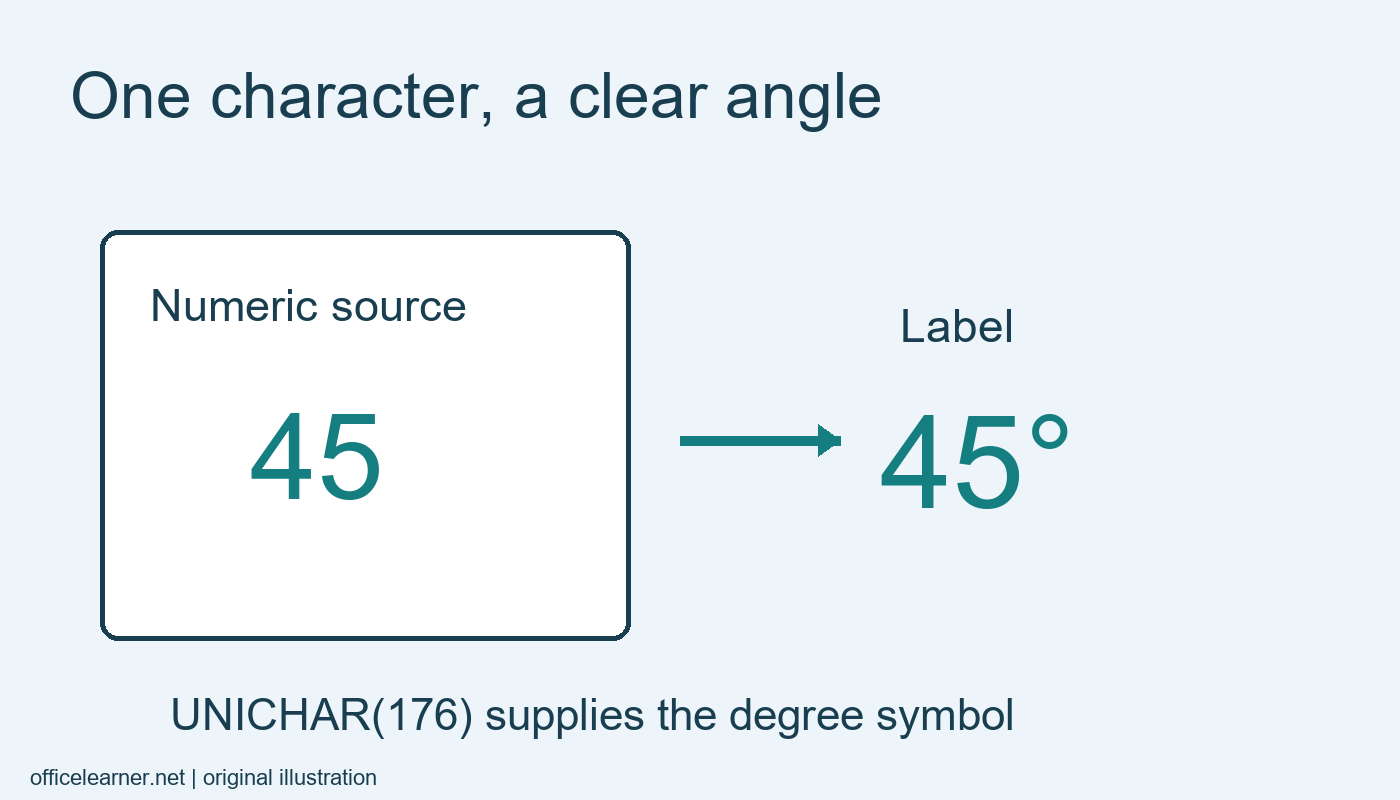
Use =UNICHAR(176) to return a degree symbol in Excel. To add it to a descriptive label, join ordinary text to that result, for example ="Angle: 45"&UNICHAR(176). Keep measurements that you want to calculate in numeric cells and build a separate display label. That separation prevents an attractive label from turning your calculation inputs into text that is difficult to reuse.
This example creates labels for a paper model workshop. It concerns angle notation, not temperature conversion or engineering tolerances. The worksheet will hold a numeric angle in one column and a readable explanation in another. Microsoft documents UNICHAR as returning the Unicode character represented by its numeric argument. The number 176 identifies the degree character used here; it is not an angle measurement itself.
Set up a small reproducible sheet
Open a blank workbook and enter Angle in A1 and Display label in B1. Type 45 in A2, 90 in A3, and 120 in A4. These are deliberately plain numbers without attached symbols. Click A2 and look at the formula bar to confirm that you entered a number rather than a text description such as forty-five degrees. Save the practice workbook under a recognizable name before experimenting.
In B2 enter =A2&UNICHAR(176). Press Enter. The expected label is 45 followed immediately by the degree symbol. Copy the formula down through B4. The reference should change to A3 and A4 in the copied formulas, producing labels for ninety and one hundred twenty degrees. Select each result and inspect the formula bar: the cell contains a formula, while the worksheet displays its calculated text result.
Now try ="Fold angle: "&A2&UNICHAR(176) in C2. The quotation marks define literal text, the ampersands join the components, and A2 supplies the variable value. This provides a readable label for an instruction sheet without replacing the original number. Change A2 to 60 and confirm that both display formulas update. This single change is an easy check that the labels refer to the input rather than a typed constant.
Keep calculation and presentation separate
In D2 enter =A2+15. With A2 set to 60, the result should be 75. This calculation uses the numeric source cell. Avoid making D2 depend on the joined label in B2; that label contains a character and is text. A person can understand sixty degrees, but a spreadsheet needs a consistent numeric input for arithmetic. Retaining the source column also makes it easier to sort, filter, or chart the angles later.
A custom number format is another way to show symbols while preserving numeric cell values, but it is a different technique. Use the helper-label method when you specifically need a sentence or exported text label. Choose the technique from the required output. If a colleague will perform arithmetic directly in the displayed column, a text label is usually the wrong handoff. Explain which column contains the usable numeric data.
Check characters and common errors
If the formula appears as literal text, confirm that the cell is not formatted as Text and that the entry begins with an equals sign. Change the format to General and re-enter the formula when needed. If you see a missing-character box, try a font that includes the degree symbol and inspect the exported result. A character can be present in the underlying text even when a particular display font does not render it clearly.
Do not substitute the letter o or a small zero simply because it resembles a degree symbol at thumbnail size. Those are different characters and can create inconsistent searching or copying. Equally, do not treat UNICHAR as a universal repair tool for damaged text. It returns a character for a valid code point; it does not diagnose file encoding or determine which character the author intended. Microsoft documents errors for unsupported or invalid arguments, including zero.
If a colleague sees a function-name error, check the Excel version and the language of the installation. Microsoft's current documentation lists supported modern Excel editions, including Microsoft 365 and Excel for the web. Function names can be localized. The worked formulas use English names. This example has only one function argument, so common comma-versus-semicolon argument separators do not affect the UNICHAR call itself. Other formulas added later may need local separators.
Verify the handoff and try an exercise
Copy one completed label into the destination where it will actually be used, such as a plain text note or a draft handout. Confirm that the symbol survives copying and that the number still matches the source. If exporting a CSV, inspect the reopened file in the receiving program rather than assuming the workbook view proves that every downstream application will interpret the text identically. Save the source workbook separately from exported files.
For practice, create angles 30, 75, and 150 in a fresh numeric column. Build labels beginning with Panel angle and ending with the degree symbol. Then change only the middle input to 80. Which labels should change, and which numeric cells remain available for arithmetic? A successful exercise preserves the numeric source, updates only the dependent label, and produces a readable character in the final destination.