Set a first line indent for one paragraph in Word
Set a first line indent through Word's Paragraph settings when you want only the opening line of a paragraph to move inward. Do not insert a run of spaces at the beginning. A paragraph setting stays associated with the paragraph when its text wraps, making it easier to edit a short handout without manually realigning every opening line.
Start with a controlled example
Open a practice document in desktop Word and type a heading followed by two ordinary paragraphs. For the first paragraph, use: The workshop opens with a short demonstration of the materials. Each participant then chooses a small practice task and records one question for the discussion. Repeat or extend that wording until it wraps onto at least three lines at your current page width. The exact line breaks depend on font and margins.
Give the second paragraph different wording so it is easy to distinguish. Leave the heading alone. Click inside the first paragraph rather than selecting the entire document. Paragraph formatting applies to the paragraph containing the insertion point, so you do not have to drag across every character. Working on one paragraph makes the effect easier to see and prevents an accidental change to the heading.
Apply the indent through Paragraph settings
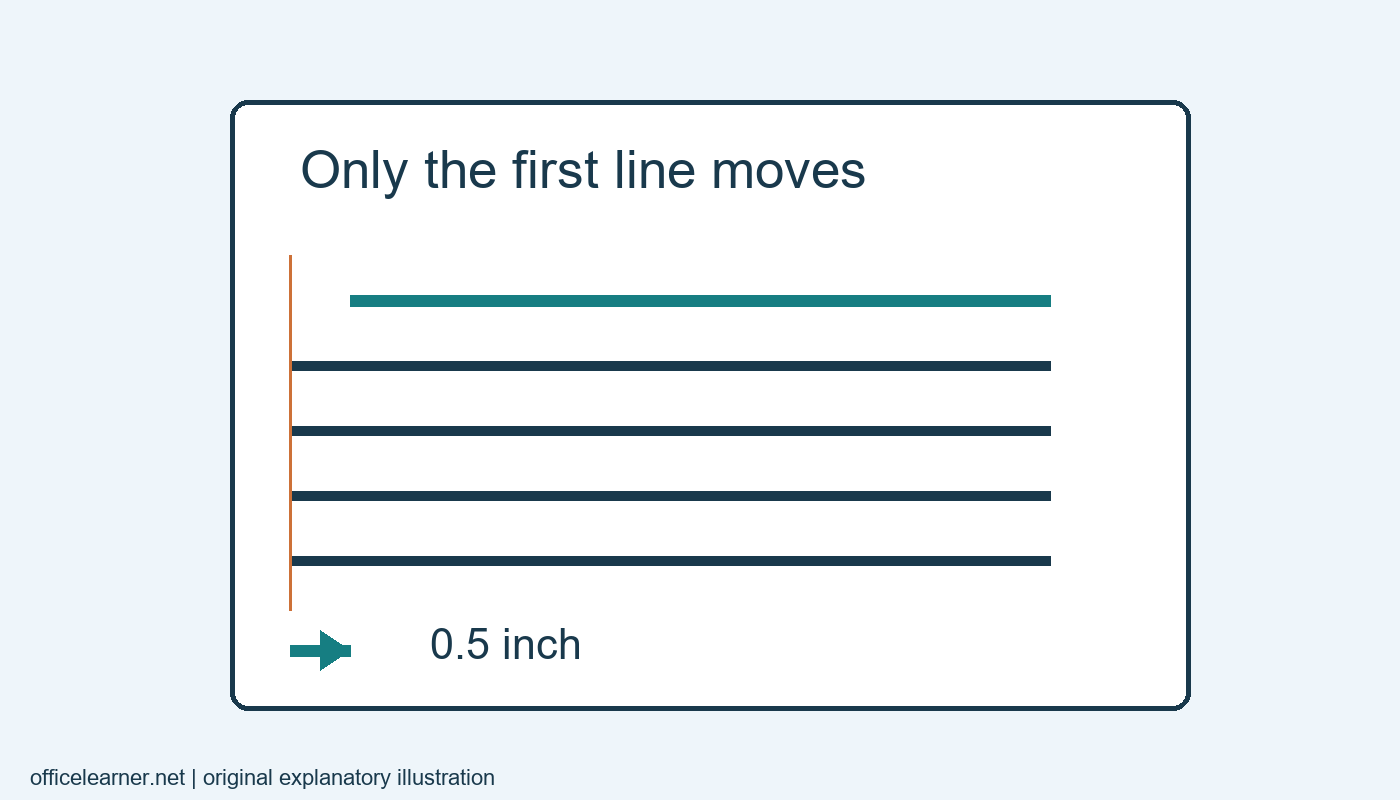
On the Home tab, open the Paragraph dialog using the small dialog launcher in the Paragraph group. On the Indents and Spacing tab, find Special and select First line. Set By to 0.5 inch, or 1.27 centimetres if your installation displays metric units. Keep the left and right paragraph indentation at zero for this exercise. Confirm the dialog and inspect the selected paragraph.
The first line should now begin farther to the right than its remaining lines. The second paragraph and heading should retain their previous positions. If all lines moved, you probably changed the left indentation instead of the Special first-line setting. Undo and reopen the dialog to inspect the actual values. Looking at the settings is more reliable than nudging ruler markers until the page seems roughly correct.
Distinguish three different layouts
A first line indent moves only the opening line. A left indent moves the paragraph's left boundary for its lines. A hanging indent leaves the first line farther left than subsequent lines, which can be useful for some reference lists. These are different settings and should not be used interchangeably. For the workshop narrative, the first-line option is the intended result.
Line spacing is another independent setting: it controls vertical distance between lines rather than their starting positions. Paragraph spacing controls space before or after the paragraph. If your handout looks too airy after adding an indent, inspect those vertical settings separately. Changing the first-line amount will not solve excessive blank space between paragraphs. Keep one variable at a time while learning the controls.
Remove manual spaces and tabs carefully
Turn on Show/Hide formatting marks if you suspect a previous author inserted spaces or a tab at the start. Delete only the unwanted leading characters in the practice paragraph, then apply the paragraph setting again. A manual tab combined with a first line indent can produce an unexpectedly large offset. Do not run an unrestricted replacement across the whole document just to fix one paragraph.
Avoid pressing Enter at the end of each visible line. Word should wrap the text within a paragraph as the page width changes. An Enter key creates a new paragraph, which can make every short line receive its own first-line indent. If each line moves inward independently, inspect paragraph marks. Repair the paragraph structure before judging whether the indent setting behaves correctly.
Check editing and continuation
Add a sentence near the beginning of your sample paragraph and watch the text reflow. The opening line should keep its indent while later lines follow the normal left boundary. Then press Enter at the paragraph's end. The new paragraph may inherit the formatting or follow the style's next-paragraph behavior. Inspect it rather than assuming the document has reverted to an unindented layout.
If several body paragraphs need identical formatting, consider using a paragraph style once you understand the local effect. A style makes later changes easier to manage, but it also affects all paragraphs using that style. For this exercise, a direct change to one paragraph provides a clear comparison. Keep headings visually distinct and avoid using repeated spaces to imitate styles or paragraph structure.
Version scope and practice
The dialog route here is intended for current desktop Word on Windows, including Microsoft 365 and Word 2024. Word for Mac and Word for the web can expose paragraph controls differently, and a browser interface may not match these labels. Consult the applicable Microsoft instructions for your platform. Review the actual document in your installed Word before distributing a layout-sensitive handout.
Try changing the sample first-line amount to 0.25 inch and then back to 0.5 inch. Can you explain why only one line moves even after you add more text? Finally remove the indent by setting Special to None and confirm that the remaining paragraph boundaries have not changed. Save the practice file separately from any shared template so the exercise remains reversible.