

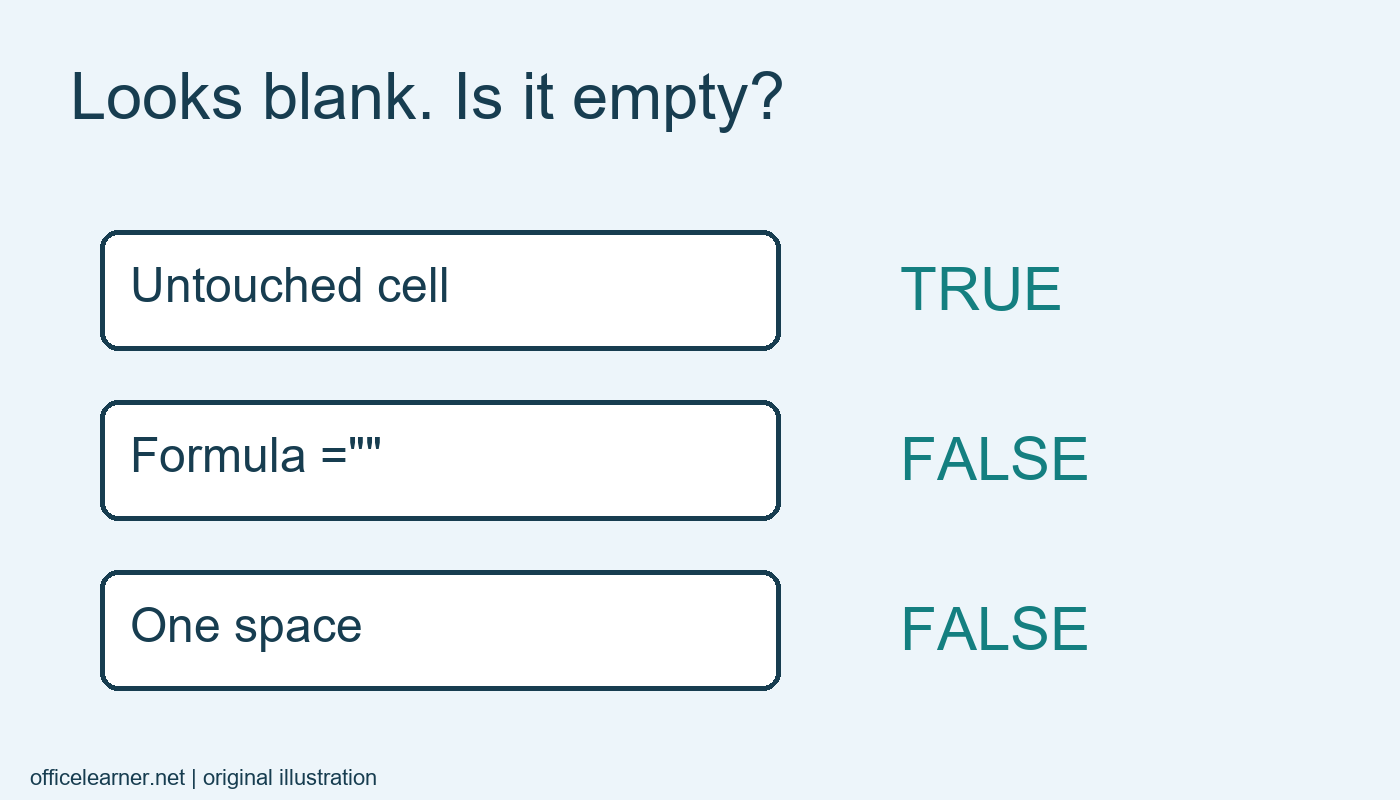
Distinguish an empty Excel cell from a formula that looks blank
Use ISBLANK to ask whether an Excel cell is genuinely empty. A cell containing a formula that returns an empty string can look blank while ISBLANK returns FALSE. This distinction matters when you inspect a sign-up sheet: an untouched response, a calculated display, and a typed space may look similar but mean different things. The exercise below separates those cases without changing the original entries.
This guide uses ordinary worksheet formulas documented by Microsoft, with an original fictional attendance example. It applies to desktop Excel editions that support ISBLANK. Microsoft 365 and perpetual editions can differ in ribbon layout, and localized installations may use translated function names or different argument separators. No macro or special add-in is required. Work in a spare sheet before applying the idea to a shared workbook.
Build four deliberately different cells
In A1 type Response and in B1 type Truly empty. Leave A2 untouched. In A3 enter the formula ="". In A4 type one space using the spacebar, then press Enter. In A5 type Confirmed. These four rows represent different contents rather than four versions of the same missing response. Keep a short note beside each row identifying how you created it, because visual inspection alone will not reliably distinguish them.
Select B2 and enter =ISBLANK(A2). Copy the formula down through B5. The expected results are TRUE, FALSE, FALSE, and FALSE. Only the untouched A2 is empty. The empty-string formula in A3 occupies the cell, and the space in A4 is a text character. A5 contains an ordinary word. These expected results follow the function definition; they are not a claim that we tested your workbook or your particular Excel installation.
Compare a second question
In C1 type Displays empty string and in C2 enter =A2="". Copy it through C5. For these four examples, the expected results are TRUE, TRUE, FALSE, and FALSE. The comparison treats the empty cell and the empty-string result as matching an empty string. It therefore answers a different question from ISBLANK. Neither question is universally better: choose the one that matches what you need to inspect.
Suppose a workbook uses a formula to display an attendance response imported elsewhere. You may reasonably treat its empty-string result as an unanswered response for a visual reminder. But if you are auditing which cells contain formulas, ISBLANK alone cannot identify them: FALSE also includes words, spaces, numbers, and errors. Give each diagnostic column a precise heading so another person does not interpret FALSE as confirmation that someone has answered.
Preserve evidence while investigating
Do not immediately delete the suspicious entries. First record the cell address and inspect the formula bar. Select A3 to see the formula and A4 to inspect its content. A space may be hard to spot even there. For this controlled example, typing =LEN(A4) in a spare cell returns 1, confirming one character. LEN is a useful supporting check, but a count of one does not identify the character or prove that all other records are clean.
If the sign-up sheet has meaningful formulas, replacing every visually blank cell with a new value could destroy calculations. Restrict edits to the intended input area and keep a copy before making broad changes. In a shared workbook, establish who owns the source data. A local cosmetic correction may disappear after the next refresh if the underlying import still contains spaces or empty strings.
Interpret zeros and errors separately
Add a fifth case in A6 by typing 0. ISBLANK(A6) returns FALSE because zero is a value. A number format can conceal a zero without removing it, so display settings do not establish emptiness. The same principle applies when text is white on a white background or a column is too narrow: the appearance of a cell does not define its underlying contents.
If an unexpected error appears in another diagnostic formula, inspect the referenced cell and the formula rather than assuming that an error means a missing response. Keep the original error visible during investigation. Wrapping every check in a formula that silently returns blank can remove the clue you need. A diagnostic sheet should make exceptional cases easier to understand, with a separate note when human review is necessary.
Troubleshoot references and copying
When every result looks identical, select B3 and confirm that it refers to A3 rather than A2. Normal relative references should change as the formula is copied downward. An accidentally fixed reference such as $A$2 tests the same cell on every row. Check the first, a middle, and the final row after filling a longer list, especially when the list contains inserted headings or subtotal lines.
If Excel displays the formula as text, inspect whether the cell was formatted as Text or whether a leading apostrophe was entered. Change the format if appropriate, then re-enter the formula. Do not solve that issue by deleting the original responses. A narrow diagnostic range of six cells is enough to establish the behavior before you use it on a larger sheet.
Try a response audit
Create a copy of the six-row exercise and replace Confirmed with your own response word. Predict both diagnostic columns before revealing the formulas. Explain why the empty-string formula differs from the untouched cell and why zero still counts as content. Then write one sentence defining what an unanswered response means in your real worksheet. Does it mean physically empty, visually empty, or missing a valid response? That definition determines which check belongs in the final workbook.














