

Classify supply count changes with Excel SIGN
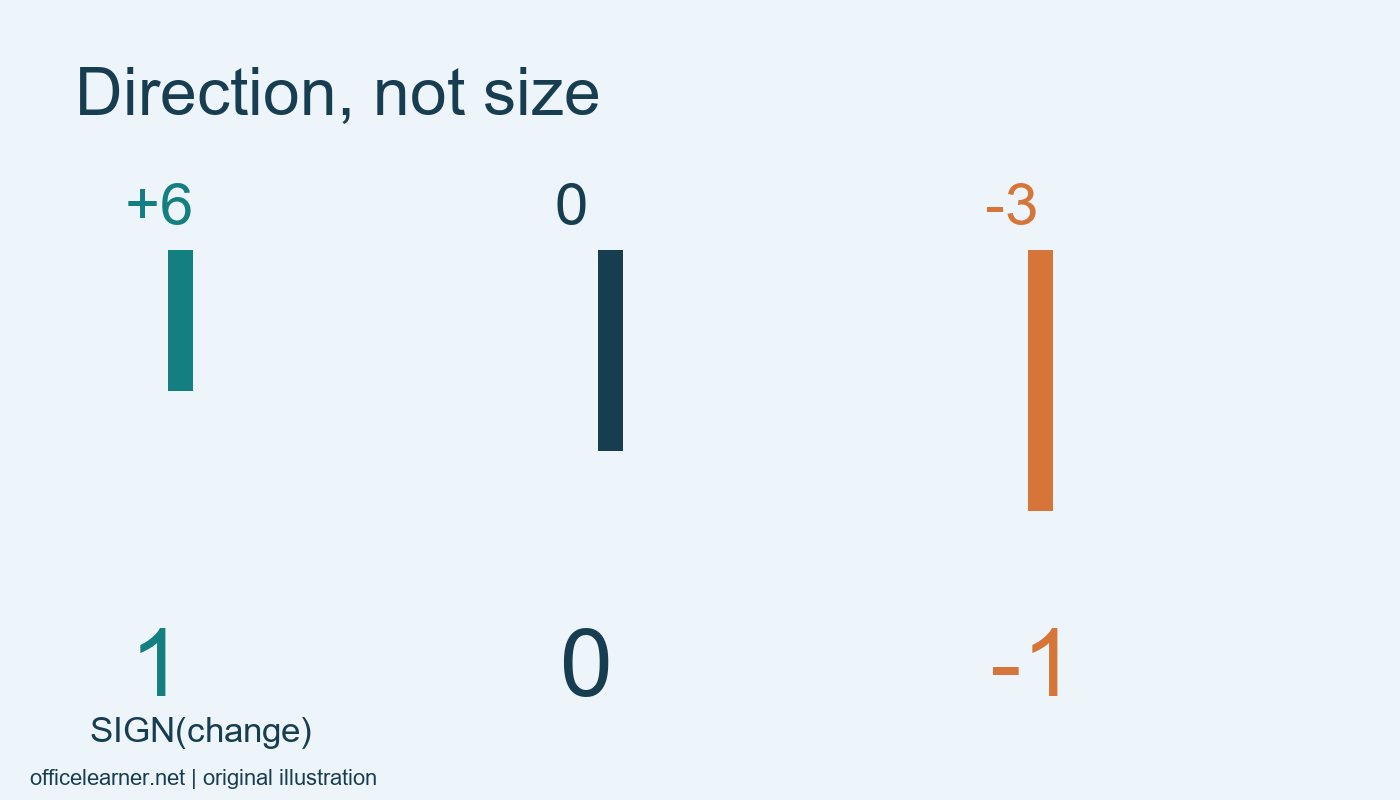
Use SIGN on a numeric difference when you need to distinguish an increase, no change, and a decrease. For a workshop supply count, subtract the previous count from the current count, then apply SIGN to that difference. The result is 1, 0, or -1. Keep the actual difference beside it because the sign describes direction without describing size. A one-pencil increase and a hundred-pencil increase both produce 1.
Build a small comparison sheet
Create a practice workbook with Item in A1, Previous in B1, Current in C1, Change in D1, and Direction in E1. Enter Pencils, 24, and 30 across row two. Enter Erasers, 12, and 12 across row three. Enter Markers, 18, and 15 across row four. These are invented practice counts, not observations from a real stockroom. Use ordinary numeric entries without typing units into the number cells. Put the unit in a heading or a separate column instead.
In D2 enter =C2-B2 and copy it down through D4. The changes should be 6, 0, and -3. Before adding another formula, check these differences mentally. Thirty minus twenty-four is positive six. Equal counts give zero. Fifteen minus eighteen is negative three. This small manual check establishes the meaning of the subtraction. Reversing the columns would reverse every nonzero direction while still producing formulas that look technically valid.
Add the direction calculation
In E2 enter =SIGN(D2), then fill down to E4. Expect 1, 0, and -1. Microsoft documents SIGN as returning the sign of a number; the supply-count interpretation is an original application of that behavior. Label the column clearly so a colleague does not mistake 1 for one added item. The six added pencils are recorded in D2, while E2 only indicates that their count increased.
You can also calculate =SIGN(C2-B2) in a single cell. For a beginner or a sheet that another person must audit, keeping Change visible is often easier to explain. It gives the reader an intermediate result to inspect. If you later replace the formula with a more elaborate rule, the difference column remains useful. Avoid hiding it merely to make the sheet look simpler if that removes the most understandable explanation of the result.
Separate direction from judgment
An increase is not automatically good. More spare pencils may be welcome, while more damaged markers may call for attention. SIGN does not understand those meanings. Write a short legend beside the table: positive means current count exceeds previous count, zero means equal, and negative means current count is lower. If the column tracks damaged supplies instead, change the heading and explain that interpretation separately.
Suppose a fourth practice item has Previous 100 and Current 101. Its direction is the same as the pencils despite a smaller change. To prioritize a restocking conversation, read Item, Current, and Change together. A direction code alone cannot identify a shortage, a minimum stock level, a percentage change, or the reason for a discrepancy. Those require additional information. Keeping this boundary explicit prevents a convenient helper column from becoming an unsupported decision rule.
Diagnose unexpected results
If a formula displays as text, check whether you entered a leading apostrophe or formatted the cell as Text before typing. Change it to General and re-enter the formula. If an error appears, inspect both input cells for words, misplaced punctuation, or existing error values. Correct the source entry rather than replacing an error with zero, because zero has a genuine meaning in this example: no numerical difference.
Do not use an empty current-count cell to mean that a count was completed and found to be zero. Enter an explicit zero for that case. An uncompleted count needs a separate note or a clearly defined missing-data rule. Otherwise the arithmetic may look finished before anyone has counted the shelf. Also check the stored values if displayed rounded numbers look equal but the direction is nonzero. Display formatting can conceal a small difference without changing the underlying calculation.
Check the workbook in your version
The Microsoft reference lists SIGN for Microsoft 365 and supported desktop Excel versions including Excel 2024 and Excel 2021, with Mac editions also listed. The formula uses a single argument, so there is no multi-argument list separator to change here. Localized Excel installations may display translated function names. This guide describes English formula names and an ordinary worksheet; it does not claim that the example was executed in every edition or on a mobile device.
Save the practice sheet with its legend and reopen it before using the pattern in a shared workbook. Review one positive, one zero, and one negative case with another reader. Ask that reader to explain why the pencils show a direction of 1 while the change is 6. If the distinction is unclear, improve the headings before adding more rows. A useful exercise is to change the marker count from 15 to 20, predict both results, and then verify that Change becomes 2 and Direction becomes 1.














