ADVERTISEMENT
  • About
  • Advertise
  • Privacy & Policy
  • Contact
Office Learner
ADVERTISEMENT
  • Home
  • Browse by Category
    • Word
      • Word Basics
      • Word Data Entry
      • Word Formatting
      • Word Templates
      • Word Tips
    • Excel
      • Excel Basics
      • Excel Shortcuts
      • Excel Charts
      • Data Validation
      • Conditional Formatting
      • Data Analysis with Excel
      • Dynamic Arrays
      • Advanced Excel Topics
      • Developing Excel Related Tools
      • Essential Excel Books
      • Excel for Accountants
      • Excel for Finance
      • Excel Functions and Formulas
      • Excel Pivot Tables
      • Excel Power BI
      • Excel Power Query
      • Excel Templates
      • Excel Training & Courses
      • Macros and Excel VBA
    • PowerPoint
      • Animation
      • PowerPoint Basics
      • PowerPoint Templates
  • About
  • Office Books
  • Courses
No Result
View All Result
  • Home
  • Browse by Category
    • Word
      • Word Basics
      • Word Data Entry
      • Word Formatting
      • Word Templates
      • Word Tips
    • Excel
      • Excel Basics
      • Excel Shortcuts
      • Excel Charts
      • Data Validation
      • Conditional Formatting
      • Data Analysis with Excel
      • Dynamic Arrays
      • Advanced Excel Topics
      • Developing Excel Related Tools
      • Essential Excel Books
      • Excel for Accountants
      • Excel for Finance
      • Excel Functions and Formulas
      • Excel Pivot Tables
      • Excel Power BI
      • Excel Power Query
      • Excel Templates
      • Excel Training & Courses
      • Macros and Excel VBA
    • PowerPoint
      • Animation
      • PowerPoint Basics
      • PowerPoint Templates
  • About
  • Office Books
  • Courses
No Result
View All Result
Office Learner
No Result
View All Result
Home Microsoft 365

Recover One Deleted File From the OneDrive Web Recycle Bin

Tanjila Rashid by Tanjila Rashid
November 13, 2026
in Microsoft 365
0
Recover One Deleted File From the OneDrive Web Recycle Bin
0
SHARES
0
VIEWS
Share on FacebookShare on Twitter

Recover One Deleted File From the OneDrive Web Recycle Bin

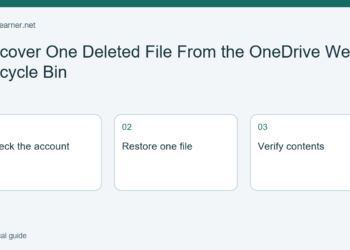
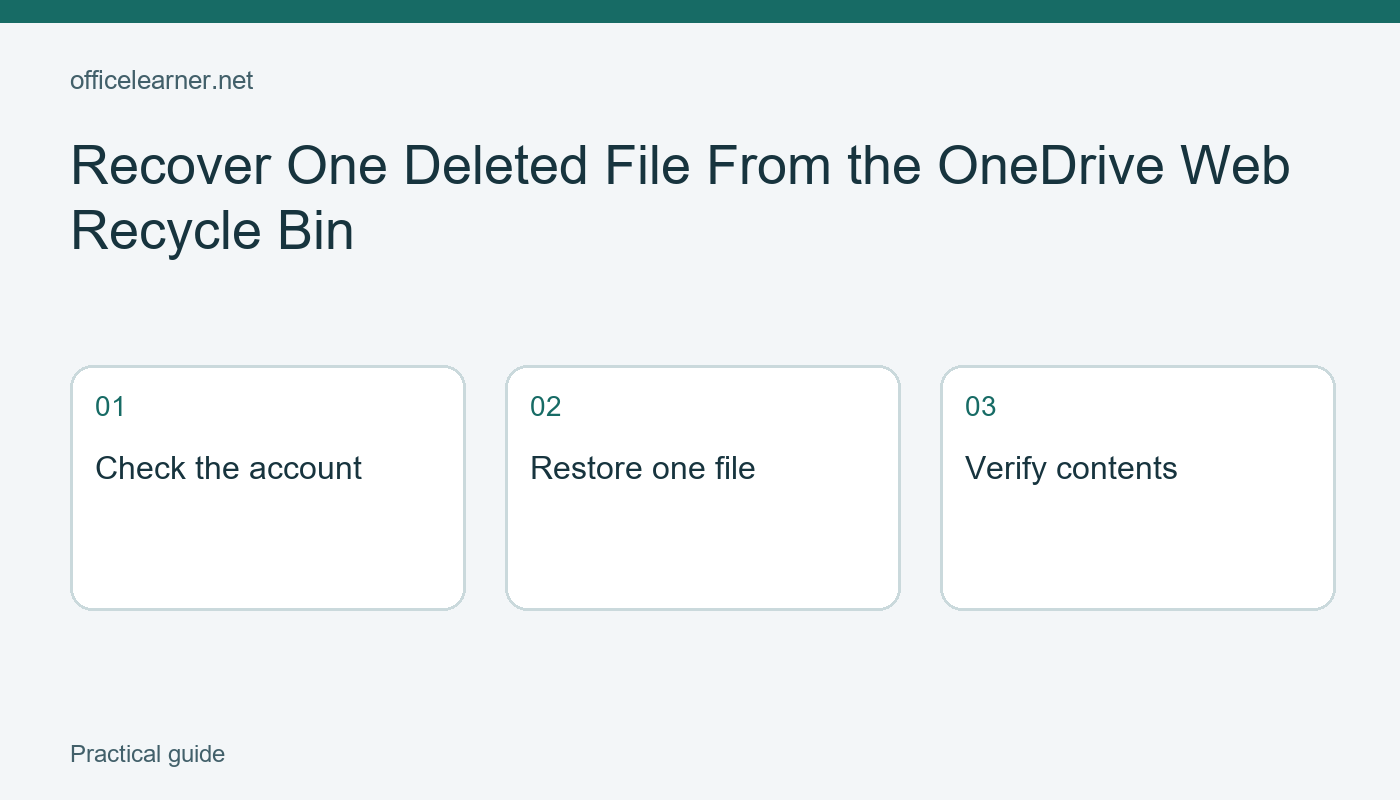
To recover a file that is still in your OneDrive recycle bin, open OneDrive on the web with the correct account, choose Recycle bin, select the item, and choose Restore. Then verify the restored file in its original location. Start with one missing item so you can confirm the result before restoring a larger selection. Recovery depends on the file still being available under the account's retention rules.

ADVERTISEMENT

This guide covers a single-file recovery rather than rolling an entire OneDrive back to an earlier state. The distinction matters when only one document is missing and the rest of your work is current. Do not empty any recycle bin while investigating. A clean-looking bin is not a useful outcome when the task is to retrieve something from it.

Confirm which account owns the file

Write down the filename, the approximate folder, and when you last saw it. If you use both a personal Microsoft account and a work or school account, check the account shown in the browser before searching. Similar folder names across accounts can make an intact document appear missing. Changing accounts is a different action from restoring a deleted item.

Search your current OneDrive files first. A document may have been moved or renamed rather than deleted. Use distinctive parts of the name instead of a broad term such as report. If you find a plausible match, open it and inspect its contents. Do not assume that an old download with a similar name is the latest working copy.

Next consider whether the document belonged to you or was shared by someone else. Microsoft's recovery guidance explains the scope of the OneDrive recycle bin and its retention limits. A file owned by another person may require that owner or an administrator to investigate. Avoid repeatedly searching your own bin when the original document was stored in a different person's location.

Restore the item that matches your evidence

Open Recycle bin in OneDrive on the web. Inspect the available identifying details, including the name and original location where shown. Select only the item that matches your notes, then choose Restore. If several similar files exist, compare them rather than restoring everything and deciding later which copy was intended. A small selection is easier to review and explain.

Return to the original folder and look for the restored document. Open it in the appropriate app and inspect a recognizable section, sheet, or slide. Check that it is the content you expected, not merely a file with the same name. For a fictional workshop agenda, a useful check might be the latest session title and the final page of instructions.

If a name conflict or another recovery message appears, read it before making a choice. Do not overwrite an existing current document simply to remove a warning. Preserve both versions when appropriate and compare their contents. The exact options can depend on the account, the file's location, and the service's current behavior, so the message on your account is relevant evidence.

Understand the limits before trying unrelated fixes

Microsoft currently describes a 30-day recovery window for personal OneDrive recycle-bin items and generally 93 days for work or school items, unless an administrator has changed the retention setting. Permanently deleted items cannot be restored through this recycle-bin procedure. Check the linked Microsoft guidance and your organization's policy rather than treating a remembered deadline as a guarantee.

An older version of an existing file, a deleted file, and an entire-account rollback are different recovery problems. Version history is relevant when a document exists but its contents changed. A recycle bin is relevant when an item was deleted. An account-wide restore affects a broader set of changes. Choose the narrowest documented recovery operation that matches what happened.

If the item is absent, record the account, filename, approximate deletion time, and locations already checked before contacting the owner or administrator. This gives them something concrete to investigate. Do not include passwords or application secrets in a support message. Installing a recovery utility is not a substitute for understanding whether the document was ever saved in the cloud location you are searching.

Use a harmless practice file

If you want to learn the workflow before an urgent recovery, create a disposable document with a unique name, such as recovery-practice-library-agenda. Put a short invented sentence inside it and note the folder. Only use a file you own and are comfortable deleting. The point is to learn the route and verification steps, not to experiment with a valuable production document.

After deliberately deleting that practice file, follow the web recycle-bin process and inspect the restored sentence. If you are working under organizational retention or sharing rules, obtain the appropriate local guidance before conducting the exercise. This article describes a reproducible learning scenario and does not claim that a restoration has been tested on your tenant or that deleted files are always recoverable.

Make the result easy to confirm

Once the intended document is back, tell collaborators which location is current so nobody continues editing an unnecessary recovery copy. Our guide to making a OneDrive folder available offline explains a separate availability setting; offline availability is not a substitute for a recovery plan. For your next practice exercise, what evidence would prove that the restored file is the correct document and version rather than simply a familiar filename?

Sources and related reading

Microsoft OneDrive deleted-file recovery

Make a OneDrive Folder Available Offline on Windows

Tags: Microsoft 365restore deleted OneDrive file
ADVERTISEMENT
Previous Post

Replace Exact Text Codes in Power BI Power Query

Tanjila Rashid

Tanjila Rashid

ADVERTISEMENT
  • Trending
  • Comments
  • Latest
10 Microsoft 365 Copilot Features That Transform Word and Outlook in 2025

8 Hidden Excel Features That Power Users Swear By (2026 Edition)

October 8, 2026
PowerPoint Morph Transition Masterclass: Create Cinematic Animations in 2026

PowerPoint Morph Transition Masterclass: Create Cinematic Animations in 2026

October 8, 2026
Excel PIVOTBY Function in 2026: The Ultimate Guide to Dynamic Pivot Analysis Without Pivot Tables

Excel PIVOTBY Function in 2026: The Ultimate Guide to Dynamic Pivot Analysis Without Pivot Tables

October 8, 2026
Excel GROUPBY & PIVOTBY: The New Array Functions That Replace PivotTables

Excel GROUPBY & PIVOTBY: The New Array Functions That Replace PivotTables

October 8, 2026
Spreadsheet Layout

What is spreadsheet? and how it works!

0
Spreadsheet Layout

Spreadsheet Layout

0
Spreadsheet Layout

IF function of Google Sheets – usage and formula examples

0

5 Google Sheets tricks that you always need!

0
Recover One Deleted File From the OneDrive Web Recycle Bin

Recover One Deleted File From the OneDrive Web Recycle Bin

November 13, 2026
Replace Exact Text Codes in Power BI Power Query

Replace Exact Text Codes in Power BI Power Query

November 13, 2026
Write PowerPoint Speaker Notes a Colleague Can Use

Write PowerPoint Speaker Notes a Colleague Can Use

November 13, 2026
Show a Second Time Zone in the Outlook Calendar

Show a Second Time Zone in the Outlook Calendar

November 12, 2026

Recent News

Recover One Deleted File From the OneDrive Web Recycle Bin

Recover One Deleted File From the OneDrive Web Recycle Bin

November 13, 2026
Replace Exact Text Codes in Power BI Power Query

Replace Exact Text Codes in Power BI Power Query

November 13, 2026
Write PowerPoint Speaker Notes a Colleague Can Use

Write PowerPoint Speaker Notes a Colleague Can Use

November 13, 2026
Show a Second Time Zone in the Outlook Calendar

Show a Second Time Zone in the Outlook Calendar

November 12, 2026
Office Learner

OfficeLearner is a place where you can learn PowerPoint, Excel, Word Data Analysis, and other Office related programs. We provide tips, how to guide and also provide Excel solutions to your business problems

Follow Us

DMCA.com Protection Status

Browse by Category

  • Clipchamp
  • Excel
  • Google Sheets
  • Loop
  • Microsoft 365
  • Microsoft Copilot
  • Microsoft Designer
  • Microsoft Forms
  • Microsoft Loop
  • Microsoft Sway
  • Microsoft Teams
  • Microsoft Viva
  • Microsoft Whiteboard
  • OneDrive
  • OneNote
  • Outlook
  • Planner
  • Power Apps
  • Power Automate
  • Power BI
  • PowerPoint
  • SharePoint
  • Teams
  • Visio
  • Word

Recent News

Recover One Deleted File From the OneDrive Web Recycle Bin

Recover One Deleted File From the OneDrive Web Recycle Bin

November 13, 2026
Replace Exact Text Codes in Power BI Power Query

Replace Exact Text Codes in Power BI Power Query

November 13, 2026
  • About
  • Advertise
  • Privacy & Policy
  • Contact

© 2022 OfficeLearner - Free Excel, PowerPoint & Word Tutorial & Online Courses

No Result
View All Result

© 2022 OfficeLearner - Free Excel, PowerPoint & Word Tutorial & Online Courses

This website uses cookies. By continuing to use this website you are giving consent to cookies being used. Visit our Privacy and Cookie Policy.