ADVERTISEMENT
  • About
  • Advertise
  • Privacy & Policy
  • Contact
Office Learner
ADVERTISEMENT
  • Home
  • Browse by Category
    • Word
      • Word Basics
      • Word Data Entry
      • Word Formatting
      • Word Templates
      • Word Tips
    • Excel
      • Excel Basics
      • Excel Shortcuts
      • Excel Charts
      • Data Validation
      • Conditional Formatting
      • Data Analysis with Excel
      • Dynamic Arrays
      • Advanced Excel Topics
      • Developing Excel Related Tools
      • Essential Excel Books
      • Excel for Accountants
      • Excel for Finance
      • Excel Functions and Formulas
      • Excel Pivot Tables
      • Excel Power BI
      • Excel Power Query
      • Excel Templates
      • Excel Training & Courses
      • Macros and Excel VBA
    • PowerPoint
      • Animation
      • PowerPoint Basics
      • PowerPoint Templates
  • About
  • Office Books
  • Courses
No Result
View All Result
  • Home
  • Browse by Category
    • Word
      • Word Basics
      • Word Data Entry
      • Word Formatting
      • Word Templates
      • Word Tips
    • Excel
      • Excel Basics
      • Excel Shortcuts
      • Excel Charts
      • Data Validation
      • Conditional Formatting
      • Data Analysis with Excel
      • Dynamic Arrays
      • Advanced Excel Topics
      • Developing Excel Related Tools
      • Essential Excel Books
      • Excel for Accountants
      • Excel for Finance
      • Excel Functions and Formulas
      • Excel Pivot Tables
      • Excel Power BI
      • Excel Power Query
      • Excel Templates
      • Excel Training & Courses
      • Macros and Excel VBA
    • PowerPoint
      • Animation
      • PowerPoint Basics
      • PowerPoint Templates
  • About
  • Office Books
  • Courses
No Result
View All Result
Office Learner
No Result
View All Result
Home Power BI

Replace Exact Text Codes in Power BI Power Query

Tanjila Rashid by Tanjila Rashid
November 13, 2026
in Power BI
0
Replace Exact Text Codes in Power BI Power Query
0
SHARES
1
VIEWS
Share on FacebookShare on Twitter

Replace Exact Text Codes in Power BI Power Query

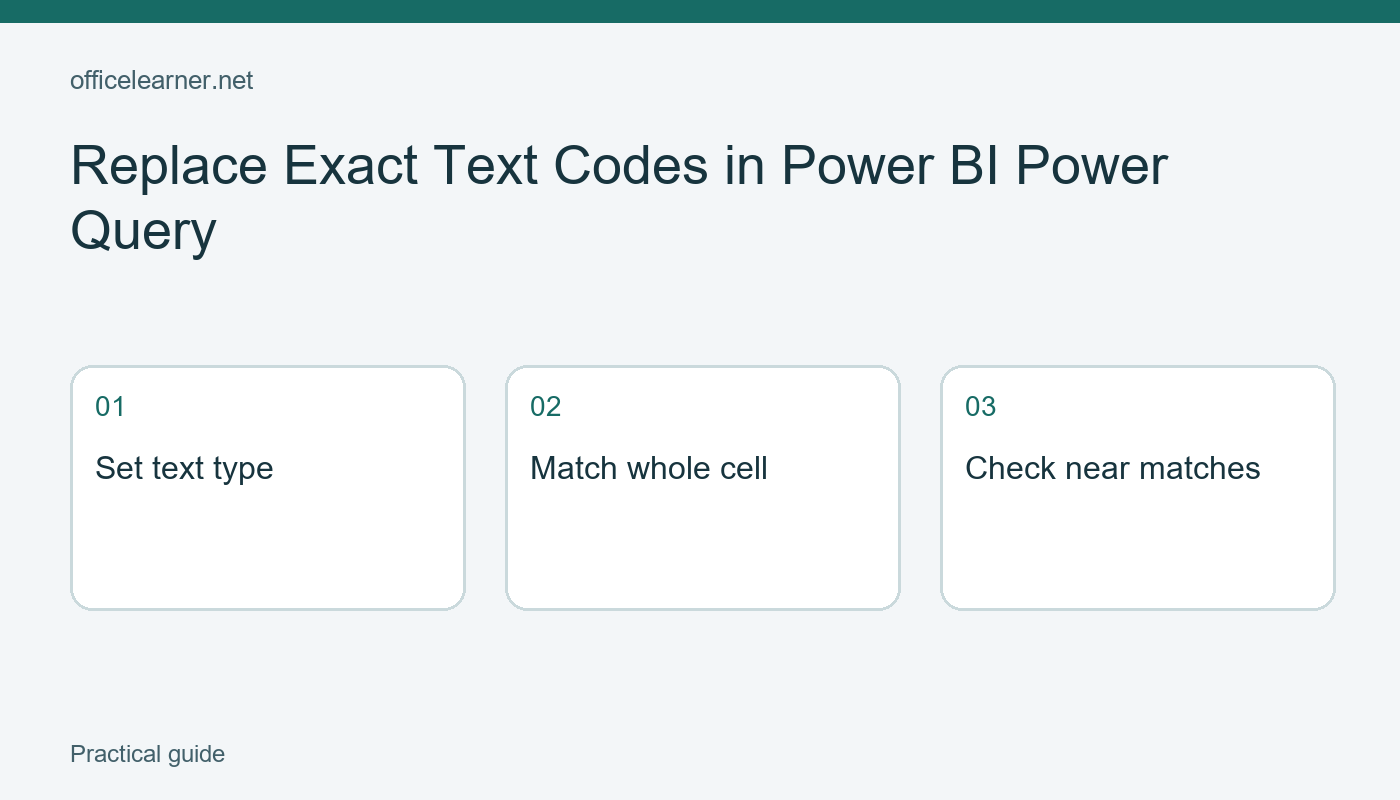
When a text code must match an entire cell, use Replace Values in Power Query and enable Match entire cell contents under the advanced options. Ordinary text replacement can change a matching fragment inside a longer label. Whole-cell replacement lets you map a code such as N to North while preserving a different code such as NE. Check the preview before loading the result into your model.

This walkthrough uses a small fictional region list so you can see the difference between substring replacement and a precise code mapping. It applies to the Power Query editor used by Power BI Desktop. It is a cleaning step within a query, so you should inspect both the source values and the recorded transformation rather than editing the final report and expecting the source to change.

Enter a sample with an intentional near match

In Power BI Desktop, use Enter Data to create a table with columns Order and RegionCode. Enter five rows: A101 and N, A102 and NE, A103 and S, A104 and N, and A105 and blank. Call the table RegionPractice. These identifiers are invented. The sample contains a repeated target, a similar longer value, another code, and a missing value, which makes it more informative than a column containing only N.

Open Transform Data to inspect the table in Power Query. Confirm that RegionCode has a text data type. Read the five values before adding a transformation. Your intended result is North, NE, S, North, and blank. Write that expected sequence in a separate note. A defined expected result helps you identify whether a command behaved correctly instead of deciding after the fact that any clean-looking output is acceptable.

Keep the Order column unchanged. It gives you a stable identifier for comparing rows before and after the step. In a real import, use a record identifier or another reliable way to track a few representative rows. A sorted preview can otherwise make it difficult to tell whether a value was transformed or whether you are simply looking at another record.

Replace the full code

Select RegionCode and open Replace Values from an appropriate ribbon or column context menu. Enter N as the value to find and North as the replacement. Expand Advanced options and select Match entire cell contents. Confirm the operation. Microsoft's Power Query documentation distinguishes text-fragment replacement from replacement of an entire cell's contents, which is the behavior needed for this example.

Inspect A101 and A104. Each should now have North. Inspect A102 and confirm that NE remains NE. A103 should still have S. The missing value should remain missing. If any longer code has changed, remove or correct the replacement step before continuing. Do not add a second corrective replacement to hide an unexplained first transformation.

The Applied Steps area should show the replacement operation. Select the previous step to compare the original preview, then return to the new step. This comparison does not alter the source file. It helps you understand the recorded transformation and provides a practical way to review what changed. Close and apply only after the sample result matches your written expectation.

Decide what counts as the same code

A code with an extra space is not necessarily the same text as the clean code you intended to map. Before cleaning a production column, inspect unusual values and decide whether trimming spaces is appropriate. Avoid automatically stripping characters from identifiers if those characters carry meaning. A system code and a human-entered label can have different normalization requirements.

Make an explicit policy for missing and unrecognized codes. In this example the blank stays blank and NE stays NE because the mapping only defines N. It would be misleading to replace every unmatched value with North. If a downstream report needs a complete region label, develop a separate reviewed mapping for all supported codes and expose unexpected ones for investigation.

For many codes, repeated manual replacements can become hard to maintain. A dedicated mapping table may be a better design, but it requires its own join and missing-match checks. This small exercise intentionally uses one replacement so you can learn the matching rule first. A longer list is not a reason to abandon validation of representative records.

Review what happens on the next refresh

Imagine the next source file adds A106 with NW. Your existing exact replacement of N should not turn NW into a longer phrase. Add that row to your practice source, refresh, and inspect the result if you are testing the workflow yourself. Keep a note of the expected new value before running the refresh. This makes the exercise reproducible without claiming that every source connector behaves identically.

ADVERTISEMENT

Power BI Desktop interfaces change over time, and Power Query is also present in other Microsoft products. Follow the editor and data-type options in the linked documentation for your installation. This article does not rely on Copilot or claim an enterprise-specific feature is available on every account. It also does not change the original source records, which remain governed by their own system.

Check the result with a second mapping

Try replacing S with South while preserving a newly added SE value. List the expected outputs for all rows, apply the whole-cell option, and compare each code. For a combined field that first needs to be separated, see our guide to splitting a combined code in Power BI Power Query. Which of your current cleaning steps depend on exact identifiers, and have you tested a near match as well as an obvious match?


Sources and related reading

Microsoft Power Query replacement modes

Split a Combined Code in Power BI Power Query

Tags: Power BIPower Query match entire cell
ADVERTISEMENT
Previous Post

Write PowerPoint Speaker Notes a Colleague Can Use

Next Post

Recover One Deleted File From the OneDrive Web Recycle Bin

Tanjila Rashid

Tanjila Rashid

Next Post
Recover One Deleted File From the OneDrive Web Recycle Bin

Recover One Deleted File From the OneDrive Web Recycle Bin

ADVERTISEMENT
  • Trending
  • Comments
  • Latest
10 Microsoft 365 Copilot Features That Transform Word and Outlook in 2025

8 Hidden Excel Features That Power Users Swear By (2026 Edition)

October 8, 2026
PowerPoint Morph Transition Masterclass: Create Cinematic Animations in 2026

PowerPoint Morph Transition Masterclass: Create Cinematic Animations in 2026

October 8, 2026
Excel PIVOTBY Function in 2026: The Ultimate Guide to Dynamic Pivot Analysis Without Pivot Tables

Excel PIVOTBY Function in 2026: The Ultimate Guide to Dynamic Pivot Analysis Without Pivot Tables

October 8, 2026
Excel GROUPBY & PIVOTBY: The New Array Functions That Replace PivotTables

Excel GROUPBY & PIVOTBY: The New Array Functions That Replace PivotTables

October 8, 2026
Spreadsheet Layout

What is spreadsheet? and how it works!

0
Spreadsheet Layout

Spreadsheet Layout

0
Spreadsheet Layout

IF function of Google Sheets – usage and formula examples

0

5 Google Sheets tricks that you always need!

0
Recover One Deleted File From the OneDrive Web Recycle Bin

Recover One Deleted File From the OneDrive Web Recycle Bin

November 13, 2026
Replace Exact Text Codes in Power BI Power Query

Replace Exact Text Codes in Power BI Power Query

November 13, 2026
Write PowerPoint Speaker Notes a Colleague Can Use

Write PowerPoint Speaker Notes a Colleague Can Use

November 13, 2026
Show a Second Time Zone in the Outlook Calendar

Show a Second Time Zone in the Outlook Calendar

November 12, 2026

Recent News

Recover One Deleted File From the OneDrive Web Recycle Bin

Recover One Deleted File From the OneDrive Web Recycle Bin

November 13, 2026
Replace Exact Text Codes in Power BI Power Query

Replace Exact Text Codes in Power BI Power Query

November 13, 2026
Write PowerPoint Speaker Notes a Colleague Can Use

Write PowerPoint Speaker Notes a Colleague Can Use

November 13, 2026
Show a Second Time Zone in the Outlook Calendar

Show a Second Time Zone in the Outlook Calendar

November 12, 2026
Office Learner

OfficeLearner is a place where you can learn PowerPoint, Excel, Word Data Analysis, and other Office related programs. We provide tips, how to guide and also provide Excel solutions to your business problems

Follow Us

DMCA.com Protection Status

Browse by Category

  • Clipchamp
  • Excel
  • Google Sheets
  • Loop
  • Microsoft 365
  • Microsoft Copilot
  • Microsoft Designer
  • Microsoft Forms
  • Microsoft Loop
  • Microsoft Sway
  • Microsoft Teams
  • Microsoft Viva
  • Microsoft Whiteboard
  • OneDrive
  • OneNote
  • Outlook
  • Planner
  • Power Apps
  • Power Automate
  • Power BI
  • PowerPoint
  • SharePoint
  • Teams
  • Visio
  • Word

Recent News

Recover One Deleted File From the OneDrive Web Recycle Bin

Recover One Deleted File From the OneDrive Web Recycle Bin

November 13, 2026
Replace Exact Text Codes in Power BI Power Query

Replace Exact Text Codes in Power BI Power Query

November 13, 2026
  • About
  • Advertise
  • Privacy & Policy
  • Contact

© 2022 OfficeLearner - Free Excel, PowerPoint & Word Tutorial & Online Courses

No Result
View All Result

© 2022 OfficeLearner - Free Excel, PowerPoint & Word Tutorial & Online Courses

This website uses cookies. By continuing to use this website you are giving consent to cookies being used. Visit our Privacy and Cookie Policy.