
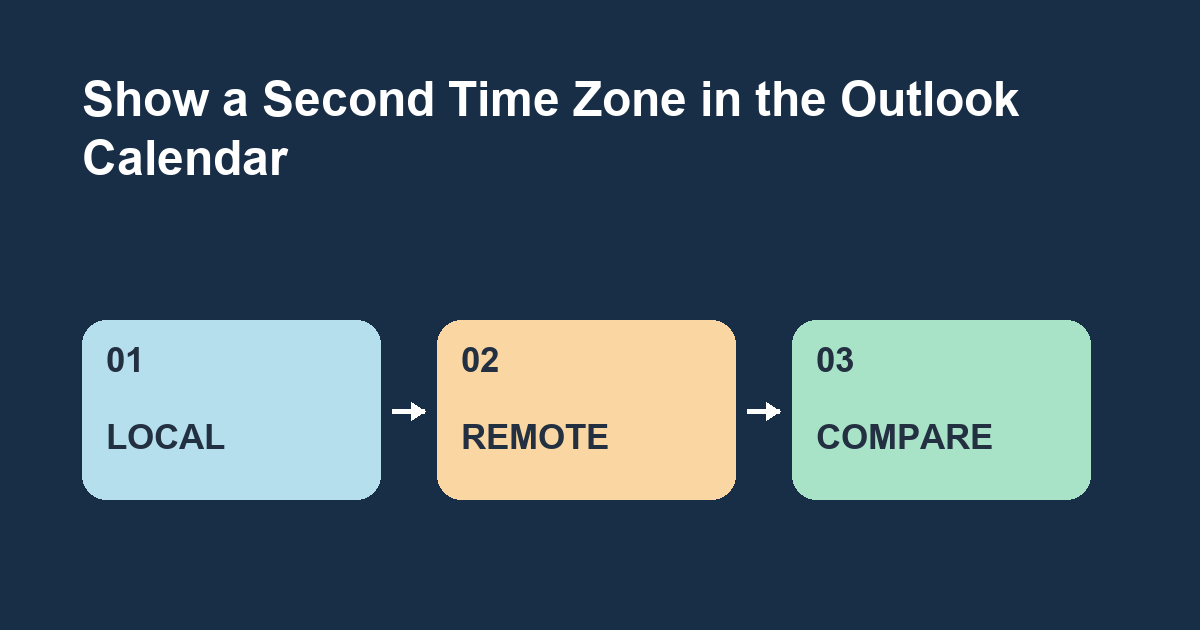
Add a second time zone to the calendar view so you can read the same meeting time in two places. Keep your main calendar zone in place and add the remote office as a second label.
Add a comparison zone
In new Outlook for Windows, open Settings, Calendar, View and select Add time zone. Pick the city or zone you need, add a short label and enable Show in calendar. Save and switch to Day or Week view. For example, if your primary zone is Dhaka and your second zone is Singapore, a 10 a.m. Dhaka slot lines up with noon in Singapore.
Read the two scales
Look across a single grid row to compare the times. If you have a temporary project with a different office, replace the extra zone after the project so the label remains meaningful. Pick the named zone for the actual city when possible. Seasonal time changes can shift offsets for some locations, so compare times on the date of the intended meeting.
Classic Outlook and practice
In classic Outlook for Microsoft 365 on Windows, use File, Options, Calendar and the Time zones settings. Enable Show a second time zone and label the new column. The additional scale is a view setting. Try choosing a Singapore slot at 3 p.m. and check that it lines up with 1 p.m. in Dhaka. Where would a 30-minute meeting end on both scales?