


Microsoft 365 Copilot has completely changed how professionals work inside Word and Outlook. If you haven’t explored these AI-powered features yet, you’re leaving serious productivity gains on the table. In this guide, we’ll walk through the 10 most powerful Copilot features that are transforming everyday work in 2025.
What Is Microsoft 365 Copilot?
Microsoft 365 Copilot is an AI assistant built directly into your Microsoft Office apps. Powered by large language models and connected to your Microsoft Graph data (emails, documents, meetings, chats), it understands context across your entire work life. Unlike simple chatbots, Copilot can draft complete documents, summarize long email threads, and even suggest next steps — all within the apps you already use.
1. Draft Entire Documents from a Prompt
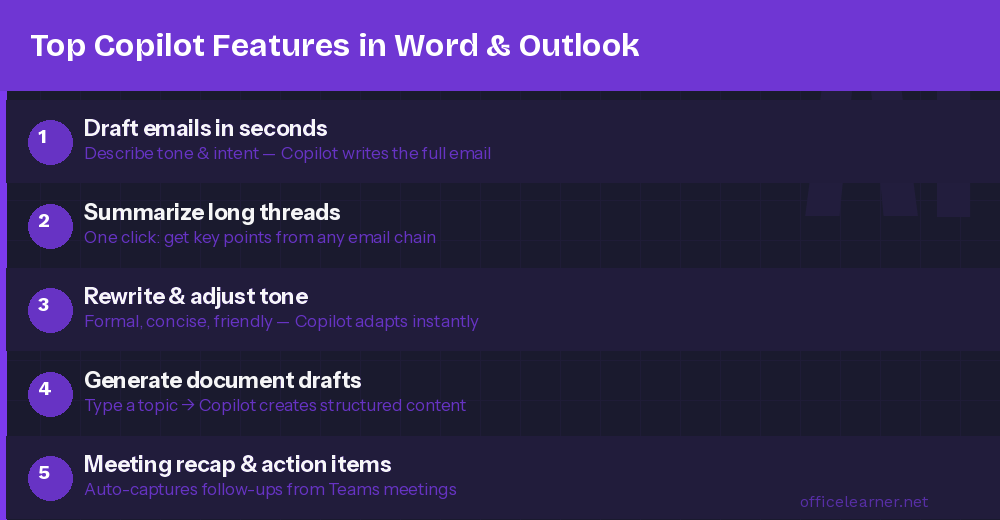
In Word, open Copilot from the Home ribbon and type a description of what you need. For example: “Write a 500-word proposal for a new employee onboarding program with sections for goals, timeline, and budget.” Copilot will generate a complete, well-structured draft in seconds. You can then refine it with follow-up prompts or edit manually.
Pro tip: Be specific in your prompt. Include the tone (formal/casual), length, and audience for best results.
2. Rewrite and Improve Existing Text
Select any block of text in Word and click the Copilot icon that appears. Choose Rewrite to get alternative versions, or use Make it shorter, Make it longer, or Change tone. This is especially useful when you’ve written something that doesn’t quite land right — Copilot gives you instant alternatives.
3. Summarize Long Documents
When you open a long report or document in Word, Copilot shows a summary panel on the right side. Click Summarize this document and get a concise overview with key points. You can also ask specific questions: “What are the main risks mentioned in this document?” or “List all action items.”
4. Auto-Generate Meeting Agendas
In Word, ask Copilot to create a meeting agenda based on a brief description. For example: “Create a 30-minute team standup agenda for a software project with progress updates, blockers, and next steps.” It produces a structured, ready-to-use agenda that you can paste into Outlook or Teams.
5. Summarize Email Threads in Outlook
One of the most popular Copilot features is email thread summarization. Open any long email thread in Outlook and click Summary by Copilot at the top. It reads every message in the thread and gives you a one-paragraph summary covering what was discussed and what decisions were made. No more reading 40-message threads.
6. Draft Email Replies with Context
Click Reply on any email, then select Draft with Copilot. Copilot reads the original email and suggests a contextually appropriate reply. You can give it direction: “Reply confirming the meeting and asking for the agenda to be sent in advance.” The draft appears inside your reply window — just review, edit, and send.
7. Generate Emails from Bullet Points
Composing a new email? Click the Copilot icon in the new message window and describe what you want to say in bullet points. Copilot turns your rough notes into a polished, professional email. Great for people who know what they want to say but struggle with how to say it.
8. Coaching for Email Tone and Clarity
After drafting an email, click Coaching by Copilot. It analyzes your message and gives feedback on tone, sentiment, and clarity. It might flag that your email sounds too blunt or suggest a friendlier opening. This is invaluable for important client communications or sensitive internal messages.
9. Analyze and Visualize Content in Word
Ask Copilot to analyze data or lists within a Word document. For example, if you have a table of sales figures, you can ask: “What trends do you see in this data?” or “Which product has the highest growth rate?” Copilot reads the table and gives you analytical insights without needing to export to Excel.
10. Cross-Reference Your Own Files and Emails
One of Copilot’s most powerful tricks: reference other files directly in your prompt. In Word, type / followed by a filename and Copilot will pull information from that file. You can say: “Based on the Q1 report I sent last week, write an executive summary for this document.” This cross-referencing feature saves enormous amounts of time on related documents.
How to Get Microsoft 365 Copilot
Copilot is available as an add-on to Microsoft 365 Business Standard, Business Premium, E3, and E5 plans. Your IT administrator needs to enable it for your organization. Once active, you’ll see the Copilot button in the ribbon of Word, Outlook, Excel, PowerPoint, and Teams.
Tips for Getting the Best Results
- Be specific: Vague prompts produce vague results. Always include context, length, tone, and audience.
- Iterate: Use follow-up prompts to refine. Copilot remembers the context of your conversation.
- Review everything: Copilot is a powerful assistant but not infallible. Always review generated content before sending or publishing.
- Use the reference feature: Pull in data from other files to make responses more relevant to your actual work.
Final Thoughts
Microsoft 365 Copilot in Word and Outlook is not just a novelty — it’s a genuine productivity multiplier. From drafting full documents to summarizing complex email threads, these features eliminate hours of repetitive work every week. Start with email summarization and reply drafting since those give you instant, visible wins. Then explore the document drafting and rewriting features as you get more comfortable.
Bookmark this page and check back for more Microsoft 365 Copilot tutorials as new features roll out!














