

Microsoft Outlook is the email client for hundreds of millions of professionals worldwide — yet most people use less than 20% of its capabilities. From intelligent scheduling to powerful search techniques and automation rules, Outlook is packed with time-saving features that most users never discover. Here are the top productivity tricks that will transform how you manage your inbox and calendar in 2026.
1. Rules — Automate Your Inbox Completely
Outlook Rules automatically process incoming emails so you never have to sort manually. Go to Home → Rules → Manage Rules & Alerts → New Rule. Useful rules to create:
- Move all emails from your boss directly to a “Priority” folder
- Flag any email with the word “urgent” in the subject
- Auto-delete newsletter unsubscribe confirmations
- Forward billing emails automatically to your accounts team
Rules run server-side, meaning they work even when Outlook is closed.
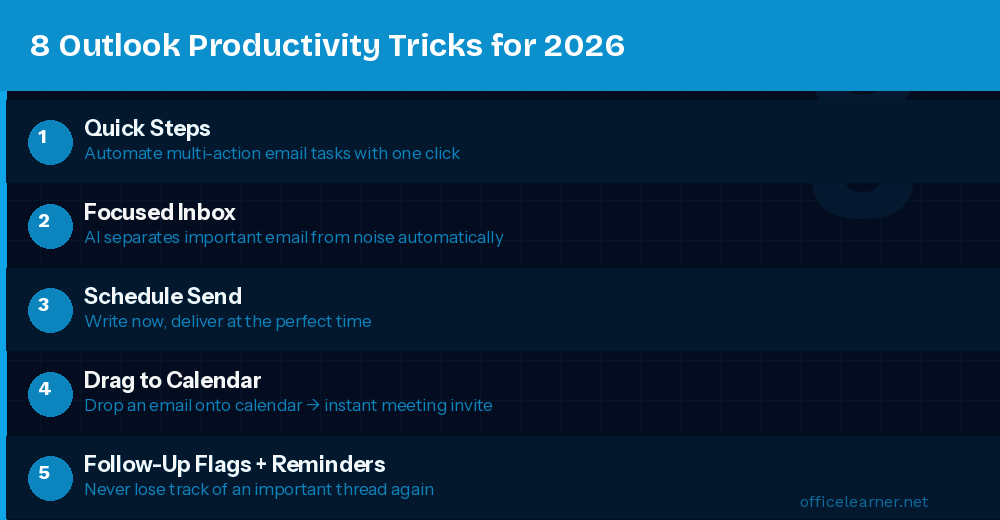
2. Quick Steps — One-Click Multi-Action Automation
Quick Steps let you apply multiple actions to an email with a single click. Go to Home → Quick Steps → New Quick Step. For example, create a “Done” Quick Step that marks an email as read, moves it to an Archive folder, and flags it as complete — all with one click. Or a “Delegate” Quick Step that forwards to a colleague and marks it as forwarded. Quick Steps with keyboard shortcuts (Ctrl+Shift+1 through 9) make email processing lightning fast.
3. Focused Inbox — Let AI Prioritize for You
Focused Inbox uses machine learning to automatically separate your most important emails (Focused tab) from everything else (Other tab). Enable it under View → Show Focused Inbox. The more you move emails between tabs, the smarter it gets. Within a week or two, it will accurately predict which emails need your attention and which can wait.
4. Search Folders — Dynamic Saved Searches
Search Folders are virtual folders that always show emails matching specific criteria — and they update in real time. Right-click Search Folders → New Search Folder. Useful examples:
- All unread emails across every folder
- All emails flagged for follow-up
- All emails from your top 5 clients (in one view)
- All emails with attachments larger than 5 MB
Search Folders don’t move emails — they’re just dynamic views. Perfect for monitoring without disrupting your folder structure.
5. Delay Delivery — Schedule Emails to Send Later
Write an email now but send it at the optimal time. When composing, go to Options → Delay Delivery → Do not deliver before and set a date and time. This is great for sending emails at 9 AM in another time zone, delivering reports exactly when they’re needed, or avoiding late-night emails that imply you expect immediate replies.
6. Recall a Sent Email
Made a mistake? Go to Sent Items → open the email → Message tab → Actions → Recall This Message. You can choose to delete unread copies or replace them with a corrected version. This only works when both sender and recipient use Exchange/Microsoft 365 within the same organization and the recipient hasn’t opened the email yet.
7. Advanced Search Operators
Outlook’s search bar supports powerful operators most users don’t know about:
from:john— Emails from anyone named Johnsubject:invoice— Emails with “invoice” in the subject linehasattachment:yes— Emails with attachmentsreceived:this week— Emails received this weekto:me— Emails sent directly to you (not CC)
Combine them: from:sarah hasattachment:yes received:last month finds all attachments Sarah sent last month in seconds.
8. Calendar Scheduling Features
Scheduling Assistant: When creating a meeting invitation, click Scheduling Assistant to see everyone’s free/busy calendar overlaid. No more back-and-forth emails trying to find a meeting time.
Suggested Meeting Times: Outlook analyzes attendees’ calendars and suggests optimal meeting slots automatically. Accept a suggestion and the invitation is pre-filled.
Rooms Finder: Automatically finds available meeting rooms that fit your attendee count and equipment needs at the times you’re considering.
9. @Mentions for Action Items
In email body or meeting invitations, type @Name to tag a specific person. Their name is highlighted in the email, they receive a special notification, and Outlook automatically adds them to the To field if they weren’t already included. Makes action items unmistakably clear in long email threads.
10. Outlook Add-ins for Supercharged Productivity
Extend Outlook with add-ins from Home → Get Add-ins. The most useful free add-ins include:
- Boomerang: Advanced email scheduling and follow-up reminders
- Translator: Translate emails instantly without leaving Outlook
- FindTime: Quickly poll meeting times with external contacts
- OneDrive: Share files as links instead of attachments automatically
Setting Up Your Optimal Outlook Workflow
The most effective Outlook power users combine these features into a system: Focused Inbox handles the initial sort. Rules auto-file routine emails. Quick Steps process remaining emails in bulk. Search Folders track follow-ups and unread items. Calendar features eliminate scheduling friction. Together, these cut daily email processing time from 1-2 hours to 20-30 minutes for most professionals.
Start with Rules and Quick Steps this week — they deliver the biggest immediate time savings with minimal setup.














