

Insert a personal reference photo in OneNote for the web
In OneNote for the web, place the cursor on a page, choose Insert and the picture option from a file, then select a picture saved on your computer. A personal reference photo can sit beside written notes about a workshop layout. Add the essential facts as text too, so the page remains useful when the picture is small, unclear, or unavailable to a reader.
This exercise uses your own photograph of a simple paper arrangement, with no people or private information. Microsoft documents inserting pictures in OneNote for the web; menu wording can vary as the web application changes. The Windows and Mac desktop applications have different interfaces. Use a notebook you can edit, and remember that inserting an image in a shared notebook makes it part of that shared material.
Prepare one useful picture
Arrange three colored paper rectangles on a desk and take a photo that clearly shows their order. Save it as workshop-layout.jpg or another descriptive filename in a folder you can find. Check the photo before inserting it: the rectangles should be visible, the orientation correct, and the background free of addresses, account information, or unrelated documents. A simple photo is enough for this demonstration.
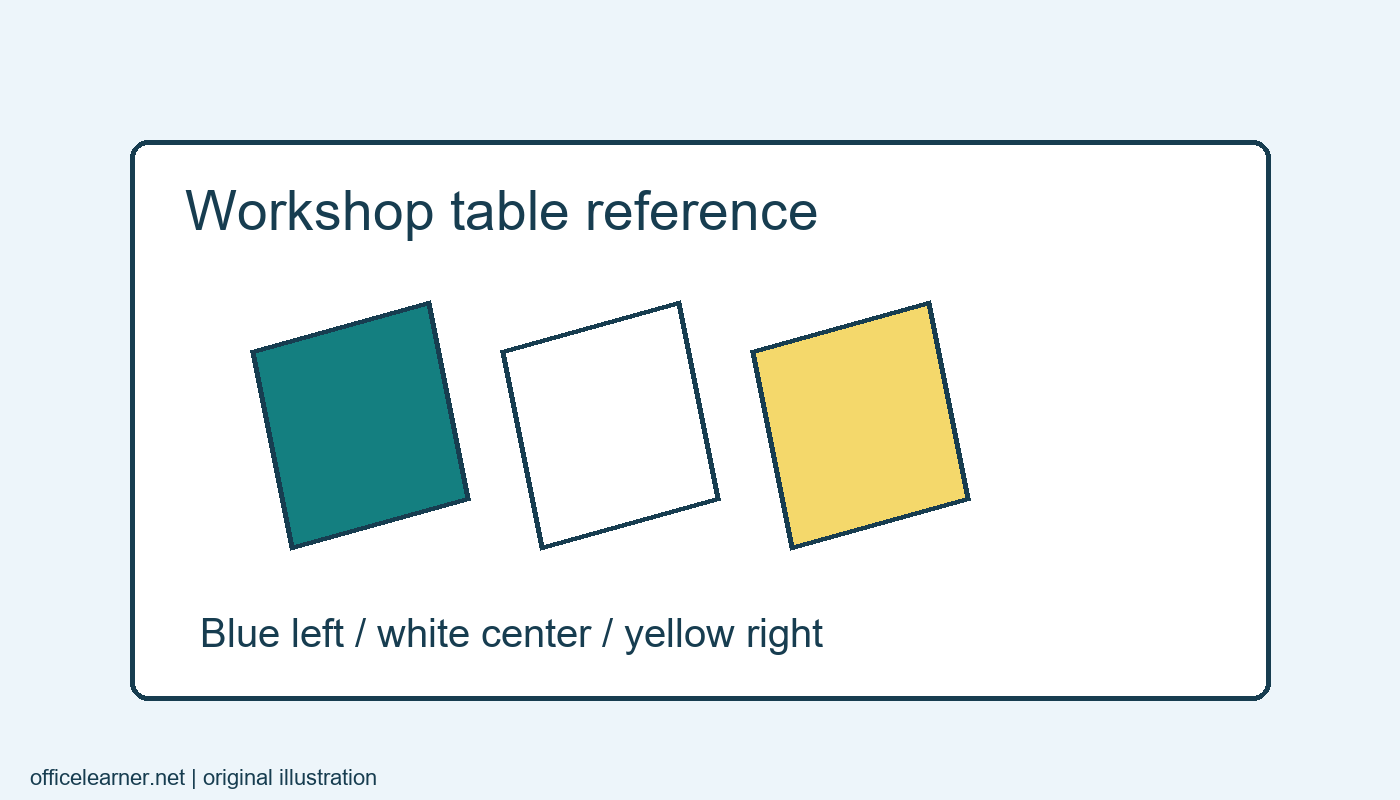
Write down the facts that matter independently of the picture. For example: blue paper left, white paper center, yellow paper right. The text gives the image a purpose and lets you verify that you selected the right file later. Avoid photographing an entire room when the only relevant detail is a small part of a table.
Choose the destination before inserting
Open OneNote for the web in your browser and navigate to the intended notebook and section. Create a practice page named Workshop table reference. Type a short explanation such as Arrangement for the paper sorting exercise. Click in the page body below that text to position the insertion point. Check the notebook and page titles again before choosing the file.
In a shared notebook, use a clearly identified practice area or obtain agreement about where reference material belongs. A personal test photo placed on a live instruction page can confuse collaborators. You do not need to delete or reorganize existing pages to try this feature. Keep the demonstration contained so that it is easy to review and remove later if desired.
Insert from your computer
Choose Insert, then the picture option for a file on your computer. Select the saved workshop image in the file picker and confirm the insertion. Microsoft also describes online and camera options, but a local file keeps this exercise reproducible without relying on external image search. Wait for the picture to appear rather than repeatedly choosing the command while an upload is still in progress.
Inspect the inserted image. Confirm that it shows the same three paper rectangles and their correct order. If you inserted the wrong file, remove that mistaken insertion and choose the intended image. Changing the page title will not correct a wrong picture. Do not assume a familiar filename guarantees the right content when several photos were taken in a sequence.
Make the page understandable in words
Below the image, type a caption identifying what it shows and why it matters. For the exercise, write Blue left, white center, yellow right; leave space in front for sorting. This is more useful than a caption saying Photo one. If your interface provides alternative-text controls, supply a concise description there as well, but retain the key operational facts in ordinary page text.
A photo should not carry instructions that people must infer from color alone. Name the objects and positions. If there are small handwritten labels in the image, transcribe the relevant ones beside it. This also makes the note easier to search and update when the arrangement changes. Avoid claiming that automatic image text recognition has captured every important word correctly.
Check scale and context
If the image occupies too much of the page, select it and use the available resizing handles to make it fit comfortably beside the notes. Preserve its proportions so rectangles do not become misleadingly stretched. If resizing controls differ in your browser, focus on a readable result rather than matching a particular screenshot or handle position from another version.
View the page at a normal browser zoom and check whether the objects remain identifiable. A huge original photo can look fine on a wide monitor while crowding a smaller display. For a detail that cannot be read comfortably, use a closer photo or add a textual explanation. Enlarging a blurry image does not create missing detail.
Troubleshoot access and upload issues
If insertion is unavailable, confirm that the notebook is open for editing and that your account has permission to change it. If the file picker cannot find the photo, locate the saved file first and check its actual folder. A picture visible inside another application may need to be saved as an image file before it can be selected.
When connectivity is poor, wait for the page to finish updating and confirm the image remains visible after navigating away and returning. Do not interpret a momentary local display as proof that everyone can access the finished note. For the exercise, reopen the page and explain the arrangement using the written caption alone. What additional sentence would make the photo useful to someone who has never seen your workshop table?














