

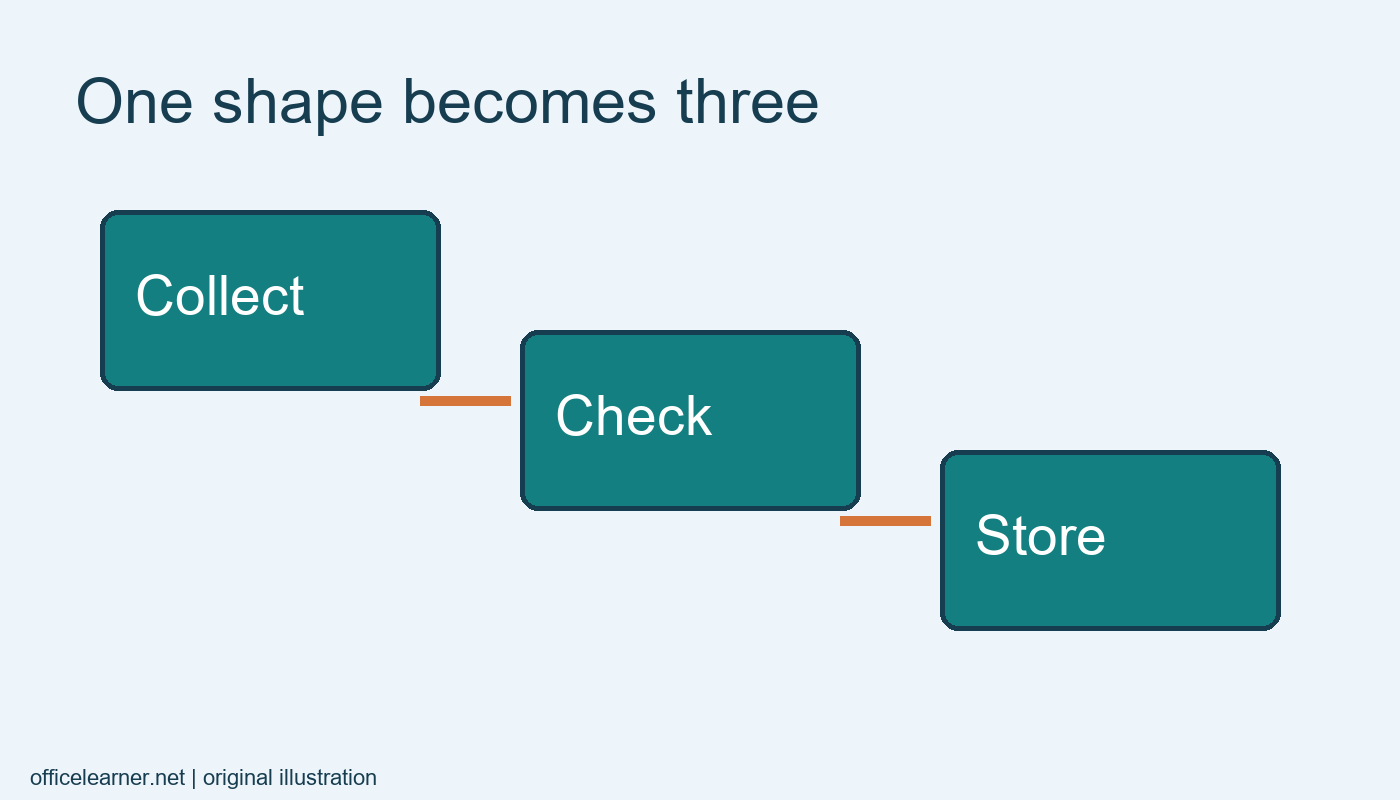
Duplicate one labeled shape in a PowerPoint diagram
To reuse a labeled shape in a PowerPoint diagram, select the shape itself and duplicate it, then move the copy and change its label. In PowerPoint for Windows, Ctrl+D duplicates a selected object. This is useful when several diagram elements should share a size, outline, and text style. It does not create an ongoing connection between them: later edits to one shape do not automatically update its copies.
Choose one object to repeat
Build a practice slide with a rounded rectangle labeled Collect. Give it a readable text size and enough internal space for a slightly longer word. The diagram will eventually contain Collect, Check, and Store. These are three stages in an invented workshop-material return process. The example is about constructing consistent shapes, not proving that this is the correct process for every workshop. Start with a blank practice slide so that theme decorations do not make selection confusing.
Click the rectangle's border until selection handles appear around the whole object. If you see a text insertion point inside Collect, you are editing text rather than selecting the object. Press Escape or click the border to return to object selection. This distinction determines what the shortcut acts on. A common source of confusion is pressing a command while the cursor is still in the label and expecting the complete box to be duplicated.
Make and identify the copy
With the rectangle selected, press Ctrl+D on Windows. Microsoft lists this as the shortcut for duplicating selected objects. A new object should appear close to the original. Drag it aside so the two can be distinguished. Change the copy's label to Check. Keep the original visible while doing so; that makes it easier to confirm that you changed the intended object rather than renaming the first stage accidentally.
Select the Check rectangle as an object and duplicate it again. Move the new copy to an open part of the slide and label it Store. You now have three separate objects based on the same initial formatting. They may overlap until you position them. Do not infer from the number of visible labels that the slide contains exactly three shapes: an extra duplicate can remain hidden behind another. Click and move each intended box once if you suspect an accidental additional copy.
Finish the diagram deliberately
Place Collect on the left, Check in the middle, and Store on the right. Leave enough space for short connecting arrows if the slide needs them. Align and distribute the objects with PowerPoint's arrangement tools when consistent spacing matters; duplication alone does not guarantee alignment. Keep label lengths in mind. If Store later becomes Return to storage, the text may wrap or require a wider box, and the other boxes may need resizing to keep the diagram coherent.
Read the complete sequence before styling it further. The copied objects inherit the original look, which is useful for consistency but can also spread a mistake. If the first rectangle had cramped text or a low-contrast fill, each duplicate carries that problem. Correct the prototype before repeating it when possible. For a diagram already built, inspect all copies after changing the original because they are independent. The term duplicate describes a creation action, not a shared master relationship.
Check text and object boundaries
If the shortcut seems to do nothing, first look for a copy directly behind or slightly offset from the selected shape. Undo once if you are unsure, then repeat with clear space available. If text is selected, leave text editing before trying again. If several objects are selected, duplication may copy the entire selection. Reduce the selection to one shape for this exercise so the outcome is easy to count and verify.
Avoid using repeated keyboard presses as a way to diagnose uncertainty. That can produce many near-identical shapes layered on one another. Use Undo and a single deliberate attempt instead. When a diagram includes connectors, confirm their endpoints after moving a copied object; a line that looks connected at one zoom level may actually stop short. Also review the slide in Slide Show view because editing handles and guides can conceal spacing problems that become noticeable during presentation.
Match the command to your platform
This walkthrough uses desktop PowerPoint for Windows with English command names. Microsoft documents shortcuts by platform, and a browser can intercept some keyboard combinations in PowerPoint for the web. Mac users should check the Mac shortcut table rather than assuming Ctrl+D has the same meaning. A managed workplace may also customize the environment. If a shortcut is unavailable, consult the current PowerPoint duplication or copy-and-paste commands for your edition and keep the same object-selection checks.
For a reader exercise, create a fourth shape labeled Review and place it between Check and Store. Predict which formatting it will inherit when you duplicate Check. Change only Review to a different fill, then verify that Check keeps its original fill. This confirms that the copies are independent. Finally, ask someone to read the process in order without explanation. If their reading order differs from yours, adjust placement or arrows before adding animation. A diagram succeeds when its sequence is apparent, not merely when its rectangles match.














